Publish multiple profiles at once
After you create a publishing profile, you can publish all the components listed in the profile. You can also publish multiple profiles at once. This action creates a separate job for each profile. You will receive a notification for each component associated with each publishing profile you select.
 You may not have permissions to publish under the following conditions:
- A content owner or administrator can set permissions to deny access to components or folders. If your permissions to content has been blocked, and you are not an administrator, you can use the Publish option in a project's Content pane, but it will fail with a warning.
- An Inspire administrator can define at the user and role level whether the Publish action is available.
 By default, only administrators can publish content in Inspire.
- You can see the Publish option only if you're an administrator or have the can_publish module property.

 Tips and tricks
- When you use the
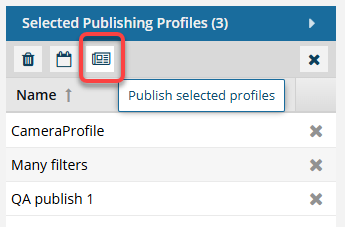
 Publish selected profiles option on the Selected Publishing Profiles panel, associated components are immediately published, and you do not see the Publish Component screen. Only the settings in the profile are used to publish associated components. You cannot change the following settings before publishing because you do not see the Publish Component screen:
- Name
- Export configuration
- Filters
- Validate XML
- Create an attachment
- Create a snapshot
- You will receive a notification for each component associated with each publishing profile you select.
- Schedule publishing. If you want to publish content on a regular basis, you can schedule the time and frequency for publishing multiple profiles at once. For more details, read Schedule publishing.
- Set notifications. If you have changed the defaults, make sure you have configured your notifications. Follow the steps in Set notification preferences for publishing.
To publish multiple profiles at once:
-
From the top menu, select
 Publishing.
-
Go to the Selected Publishing Profiles panel.
If this panel is not open, select
 the Open slider button.
-
On the Selected Publishing Profiles panel, click the Publish selected profiles option.
 Result:
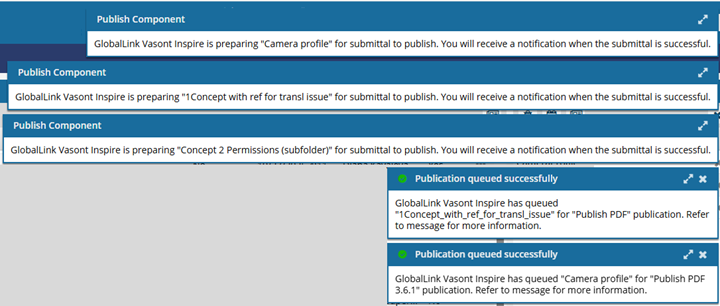
In the top-right corner, you see a message that Inspire is preparing your publishing job.

After Inspire successfully submits the job, you receive a notification that you can review on the Notifications tab, in Slack if it's configured for notifications, and in email.
You will receive a notification for each component associated with the publishing profile.
 When you complete a task that triggers a notification, such as publishing content, the Slack and email body contain:
- The notification with ten or fewer Issues, Errors, and Warnings.
- A link at the bottom of the message [See Full Version].
- You can click the [See Full Version] link to expand a section under the link with the full details.
 If there are any components you don't have permissions to, they are listed in a publishing notification. The components named in the Issues section are not published.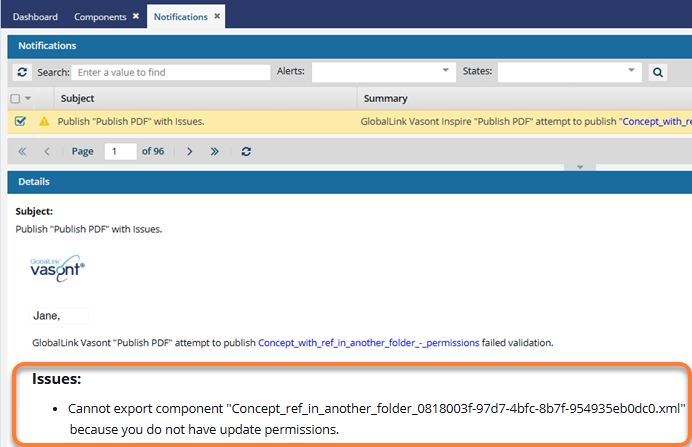
- Finding your publishing request. By default, Inspire uses the Publish Name as it appears in the publishing profile.
- The Publish Name is shown on the Publish portal in the Profile column.
- If you use a token in the job's Publish Name, and Inspire can resolve it, the token appears in the following places with the token replaced by actual data:
- On the Publish portal in the Profile column.
- In the deliverable name using the following default format: Publish-{ComponentName}{token}-YYYY-MM-DD-HHHHMM. However, an administrator can configure Inspire to omit the timestamp from the published file name.
- If you use a token in the job's Publish Name, and Inspire can resolve it, the token appears in the following notifications, if you have them turned on:
- In-app publishing notifications for queued, submitted, and completed.
- Slack publishing notifications for queued, submitted, and completed.
- Email publishing notifications for queued, submitted, and completed.
If you add a variable to the job's Publish Name that XPath can't find, Inspire adds the unknown variable as text to all names and notifications except for the deliverable name.
For example, if you use a non-system variable:
MyMap_{$blueskies}- In your notifications you see Publish Name of MyMap_{$blueskies}.
- The name of the published deliverable will not include the unknown variable as text. Deliverables are named using the following default format: Publish-{ComponentName}-YYYY-MM-DD-HHHHMM. However, an administrator can configure Inspire to omit the timestamp from the published file name.
- Keep the following naming issues in mind:
- The job Name is not the same as the deliverable (published content) name.
- You can create whatever Publish Name you want.
- Deliverables are named by Inspire using the following default format: Publish-{ComponentName}-YYYY-MM-DD-HHHHMM. However, an administrator can configure Inspire to omit the timestamp from the published file name.
- The job Name is not the same as the deliverable (published content) name.
- Finding your deliverables.
- You can download your deliverable from publishing notifications or on the Publish portal.
You can use the Publish portal to see job status and histories, download files related to a job, and re-publish content from an existing job. To learn about job management, read Welcome to Publish Server.Tips and tricks- Open Publish Server from a link in the following places:
- In your
 notification after you submit a publishing job or Open and manage messages on the Notifications tab
 - On the Publishing tab by clicking Go to Publish Server
- In your
- For the following Inspire publishing formats, you download a ZIP file that includes multiple files:
- HTML
- For the following publishing formats, you download a single standalone file:
- DocBook PDF
- DocBook HTML
- DOCX
- When you use the Zoomin publishing option, you must open the notification and use the link to go to the Zoomin site.
- For custom publishing options, you can configure the publishing deliverables.
See the profile name in Publish server
- When you publish from a profile, you see the name of the profile you used in Publish server.
- If you publish from a component's
 Action menu, the Profile column is blank.
 - For more details, Track jobs in Publish Server.
- See the Job ID. After you publish from a profile, you can go to the Publishing Profiles tab to show the publishing job Id column.
- The Id column is hidden by default.
- When you save the Publishing Profile list to a CSV
 , it contains new Id column and its data.