Update the building blocks for a topic workflow template
Inspire provides you with a template for the process of developing content. If you want a workflow that contains more options when configuring activities and their transitions, you can update the workflow template. The template is used to create a workflow and tell Inspire how to automate the workflow you need.
 You must have permission to work with workflow templates.
- By default, only users with the following permissions can create project workflows and assignments:
- Administrator permissions
- Access to the Project Module with the Create permission
- Even if you don't have these permissions, you can be granted a special permission to create workflows and project assignments after a project is created.
- If you are an administrator, refer to Allow users to create project assignments and workflows.

 Tips and tricks
- If you aren't sure what specific options you might need before creating a workflow, you can add new ones at any time.
- For Activity configurations, you should build the options you need for Status, Project Activity, and Workgroup.
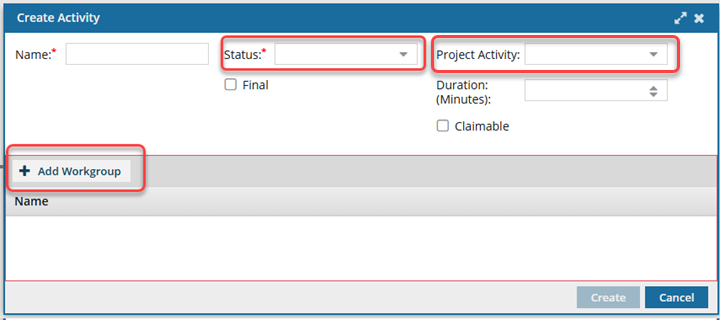
- Status. You track the progress of a content development Activity by assigning it a Status. By default, Inspire includes the following statuses: Writing, Reviewing, and Publishing. You can customize this list.
- After you use the workflow editor to create a new Status or update an existing one, that status is unique to the template you're working in.
- If you want to use the new or updated Status in another template, you have to re-create it in that specific template.
- To create or update a Status in a template or for an Activity, follow the steps in:
- Project Activities. Every project assignment and workflow activity must be associated with a category that defines the work. By default, Inspire includes the following categories for Project Activity: Approve Content, Edit Content, Publish Content, Review Content, Review Image, and Write Content.Project Activity is a required field and cannot be left blank. Although this field is not marked with a red asterisks, and you can create a new Activity without selecting a Project Activity, if you leave it blank, you will see an error when trying to Save or Submit the workflow template.
- If there is an error in the configuration of the Activity, you see the Activity name in red.
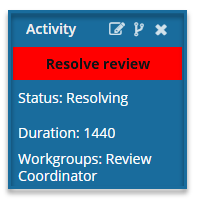
- Project Activities are configured by Administrators outside of the workflow editor.
- After a project activity is created or updated, it can be used across all templates.
- If you are an administrator, follow the steps in: Manage project activity configurations.
- If there is an error in the configuration of the Activity, you see the Activity name in red.
- Workgroups. You must have a list of users who can complete the work for a project Activity. For example, if the activity is a legal review, you would create a workgroup that includes your company lawyers.
- After you use the workflow editor to create a new Workgroup or update an existing one, that group is unique to the template you're working in.
- If you want to use the new or updated Workgroup in another template, you have to re-create it in that specific template.
- To add or remove users in the Workgroups or create new groups, follow the steps in:
- Status. You track the progress of a content development Activity by assigning it a Status. By default, Inspire includes the following statuses: Writing, Reviewing, and Publishing. You can customize this list.
- For Transition configurations, you should build the options you need for an Action.
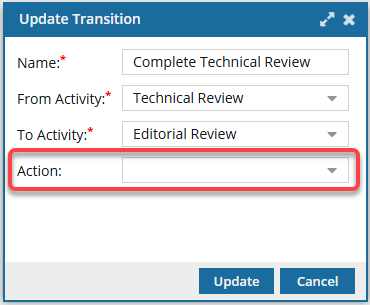
- You use Transitions to identify what should happen when a workflow Activity is completed. For example, after the a technical review, you can create a transition that specifies the files should go to an editor for review.
- If there is also an Action that needs to be done, such as Take a snapshot, you can create the Action and then add it to the appropriate Transition.
- The only way to create a Transition is to copy and paste an existing one and then edit it.
- Actions you identify are normally completed by the user who is advancing the workflow by marking a task as Complete.
- After you use the workflow editor to create a new Action or update an existing one, that Action is unique to the template you're working in.
- If you want to use the new or updated Action in another template, you have to re-create it in that specific template.
- Currently there is only one Action that is performed by Inspire. When a user advances a project workflow task and the Transition has an Action of InspireCreateReview, Inspire opens the Create Review screen for the current user. To use this action, follow the steps in: Add a Create Review Action to a topic workflow template.
- You can manage actions in the following ways: