Delete a template action
All transitions can include an Action if an additional step needs to be done before the next Activity. For example, you can add an action for a process completed outside Inspire, such as "Hire a copy editor". You can also use an action to specify what a user should do after the activity is completed, such as Take a snapshot. Inspire does not provide any default Actions that are manually completed by a user, but after you create one, you can remove it at any time.

 Tips and tricks
- An Action is unique to the template it's included in.
- If you delete an Action in one template, it doesn't impact the Actions in other templates.
- You also can manage actions in the following ways:
 You can't delete an Action from a template if it's used in a Transition.
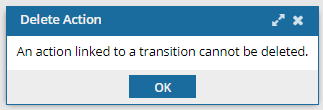
To remove an action from all transitions, follow the steps in Remove an action from a transition for each transition in your workflow.
To delete an existing action from a template:
-
Click
 Components.
-
In the Folders pane, select Workflows.
 If you have moved the template to another folder, go to that location instead.
 -
In the Components pane, select a workflow.
To open the template, do one of the following:
- Double-click the file
- Right-click the file, and then select Edit...
- Click
 the Options menu, and then select Edit...
 Results: You see the workflow activities and transitions in the editor.
 -
In the toolbar at the top of the editor, click
 Actions.
Results: The Action Management screen opens.
Actions.
Results: The Action Management screen opens.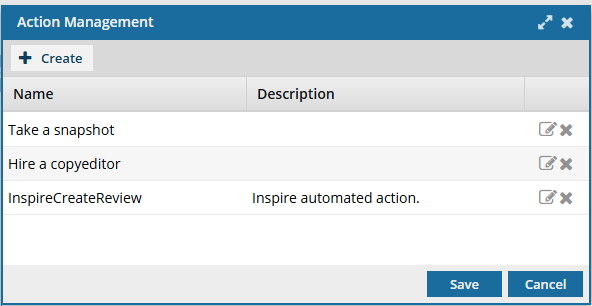
-
In the Action's row, click
 Remove.
-
On the confirmation screen, click Yes.
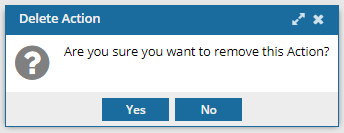 Results:
- You no longer see the action listed on the Action Management screen.
- You can no longer select your updated action when creating or updating a Transition.
-
To save your changes to the template, do one of the following:
- If you are done updating the workflow, to close the workflow editor, click
 Save and Submit.
 - If you want to keep working but save your changes locally, click
 Save Progress.
- If you are done updating the workflow, to close the workflow editor, click