Edit a template status
If you don't want to create a new status, you can edit the ones that Inspire provides. A Status identifies what's happening to the components during an Activity in the workflow. After you edit a Status, Inspire applies those changes to all Activities where it is currently in use.
 Before you begin
- A Status is unique to the template where it's included.
- If you want to use a new or updated Status in a different template, you have to re-create it in that specific template.

To edit a template status:
-
Click
 Components.
-
In the Folders pane, select Workflows.
 If you have moved the template to another folder, go that location instead.
 -
In the Components pane, select a workflow.
To open the template, do one of the following:
- Double-click the file
- Right-click the file, and then select Edit...
- Click
 the Options menu, and then select Edit...
 Results: You see the workflow activities and transitions in the editor.
 -
In the workflow editor, go to the toolbar and select
 Statuses.

-
On the Status Management screen, click
 Update.
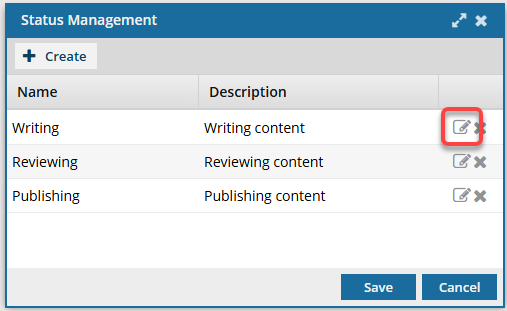 Results: You see a the row become editable.
 -
To edit information about the status:
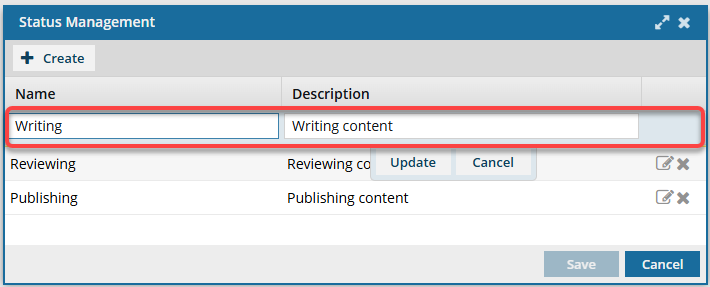
-
To save your changes, in the row you're updating, click Update.
Results:
- You can see your updated status on the Status Management screen.
-
To save your changes, in the row you're updating, click Update.
-
On the Status Management screen, click Save.
Results:
- You can select your updated action when creating or updating an Activity.
You can now:- If you are done updating the workflow, to close the workflow editor, click
 Save and Submit.
 - If you want to keep working but save your changes locally, click
 Save Progress.
 - If you want to make other changes to a review workflow, continue to Update the review workflow template.
- If you want to make other changes to a topic workflow, continue to Update the topic workflow template