Use advanced search on the Projects tab
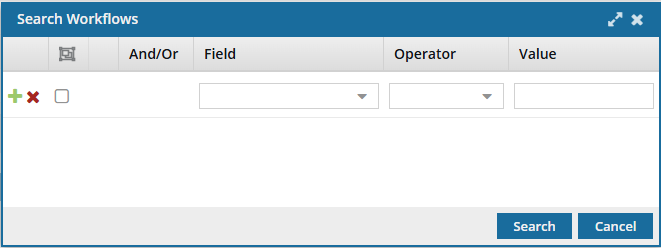
In the Workflows module, all project workflows created across every project in Inspire are listed on the Projects tab. There is a basic search field on this tab if you want to look for a keyword or phrase. If you need to search for a specific project, workflow, or assignment property, you can use advanced search tools to create logic that asks a question about the data in your workflows.

 Tips and tricks
- To perform
 a basic search, follow the steps in: Find a workflow on the Projects tab.
- The advanced search option is not available on the Reviews tab.
- You can search for the following project, workflow, and assignment properties in Field:
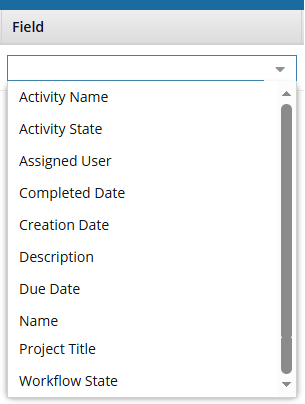
- Activity Name. This is a property of a project assignment in a workflow. In the grid, these values are listed in the Activity column.
- Activity State. This is a property of a project assignment in a workflow. In the grid, these values are listed in the Assignment State column.
- Assigned User. This is a property of a project assignment in a workflow. In the grid, these values are listed in the Assigned To column.
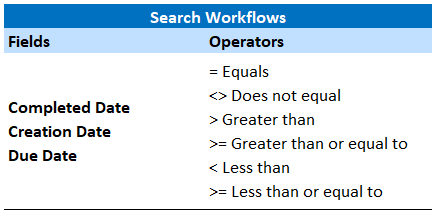
- Completed Date. This is a property of a project workflow.
- Creation Date. This is a property of a project workflow. In the grid, these values are listed in the Created Date column.
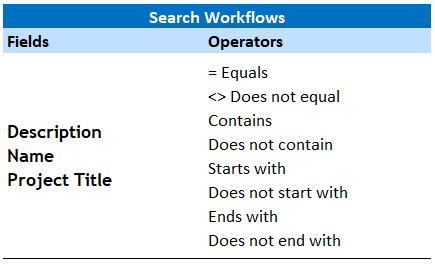
- Description. This is a property of a project workflow.
- Due Date. Although both the workflow and each task have a Due By date, this is a property of a workflow.
- Name. This is a property of a project workflow. In the grid, these values are listed in the Workflow Name column.
- Project Title. This is a property of a project. In the grid, these values are listed in the Project column.
- Workflow State. This is a property of a project workflow. In the grid, these values are listed in the State column.
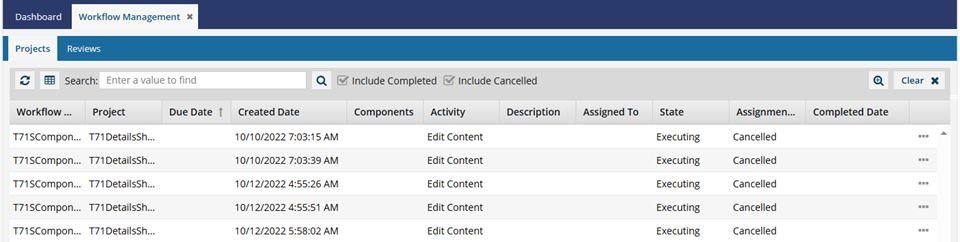
To perform an advanced search:
- Set basic filters.
- Build queries.
- Sort results.
- Get more details in the Assignments panel.
- Clear filters.
Set basic filters
By default, workflows with a task that have an Assignment State of Completed and Cancelled are not included in search results.
- Regardless of whether you are creating an advanced query or doing a basic search, you can choose to include these two types of assignment states in your search results.
- The following filters are not included on the advanced Search Workflows screen, so make sure to select them if you need to use them before you open
 Advanced Search:
- Include Completed (assignments)
- Include Cancelled (assignments)

Build queries
You can use the advanced search feature to build queries.
 Select a field
Fields correspond to the columns in the grid. Select a Field based on which column you want to search in.
| Fields | Follow these steps |
|---|---|
|
 Use operators
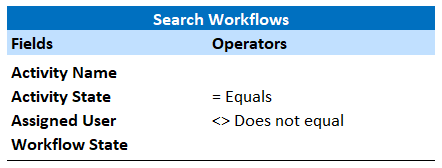
After you select a Field, you must describe the relationship it has with the Value.
The options in the Operator list change depending on what you select in Field.
 Enter or select a Value
Enter or select the word or phrase you want to search for or omit from search results.
The options in the Value list change depending on what you selected in Field.
For example, if you select:
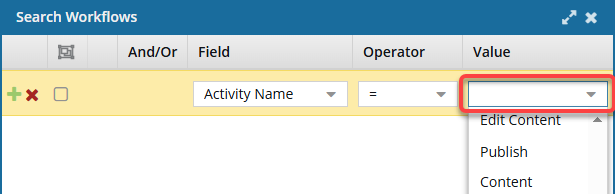
- Field as Activity Name, Operator as Equal, in Value you see a list of activities configured for workflows. You can also type in a word or phrase in Value.
- Field as Completed Date, Operator as Greater than, in Value you can click
 the calendar icon to select a month, day, and year. You can also type in your own Date in Value.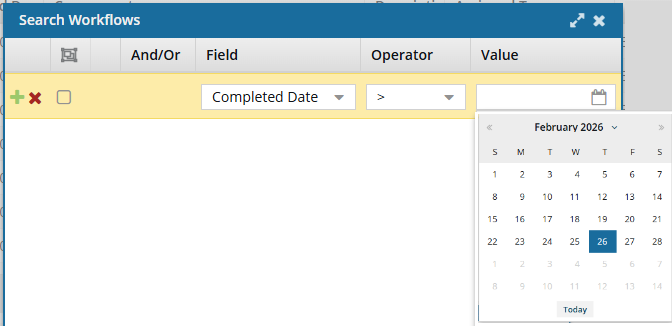
- Field as Description, Operator as Contains, in Value you type in your own key word or phrase.

 Use grouping features
To find more exact matches, you can search for multiple Fields to include (And, Or).
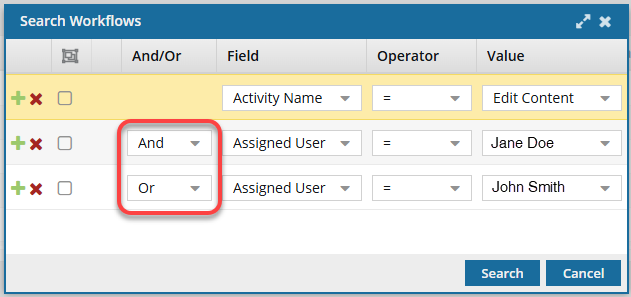
Use the buttons before a query statement to:
 Add a new statement
 Remove the statement
Sort results
After you get search results, you can sort them by any column except Components. This is the same behavior available on the Projects tab without search criteria applied.
To sort the list of workflows, you can use a menu or the column heading.
- Menu. In the title of a column you can sort by, click
 the down arrow and select either Sort Ascending or Sort Descending.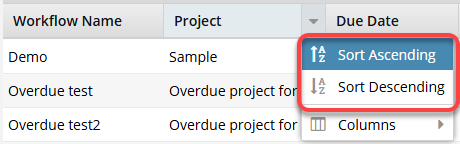
- Column heading. In the title of a column you can sort by, use the arrow graphic next to the column name to sort in the following ways:
- To sort in descending order, click the gray up arrow
 (it will change to a gray down arrow
  )
) - To sort in ascending order, click the gray down arrow (it will change to a gray up arrow )
- To sort in descending order, click the gray up arrow
 You can hide a column if it helps you find the project workflow you need.
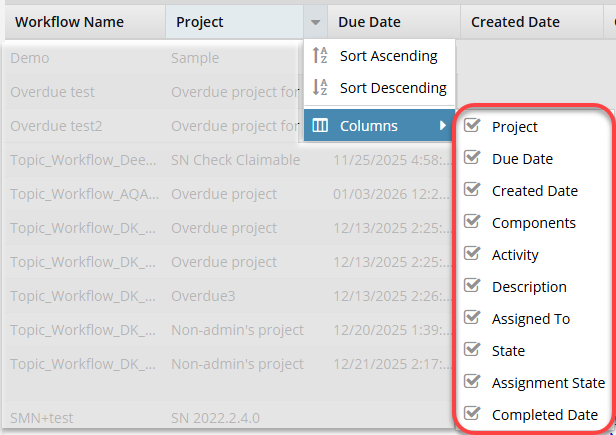
- Place your cursor next to the name of any column.
- Click the down arrow to see the column menu.
- To show a column that's hidden, select Columns and then select the checkbox for the columns you want to see.
- To hide a column, clear the checkbox.
- Click anywhere outside of the Columns menu to close it.
Get more details in the Assignments panel
The projects tab includes an Assignments pane where you can see all tasks for a selected workflow.
- After you select a workflow in the top pane, you can see each assignment listed on their own line and sorted by default according to the assignment's Due Date.
- If the list of assignments is long, you use the Advanced Query Builder to find the assignment you need.
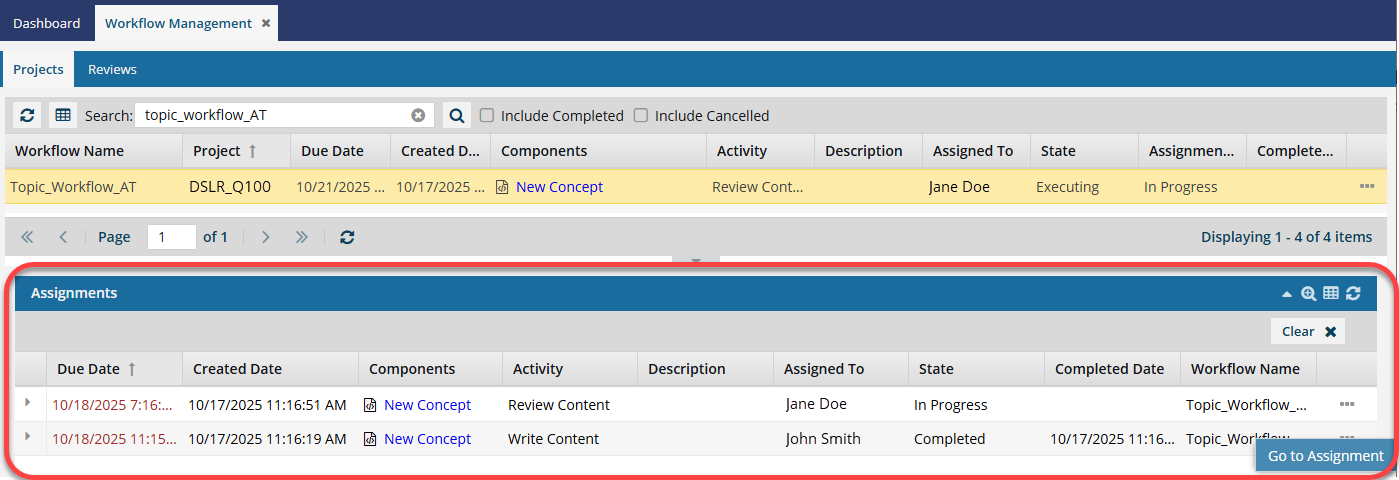
Follow the steps in:  Use the Assignments panel in the Workflows module
Clear filters
If you want to go back to the complete list of project workflows sorted by Project Created Date, use  the Clear button to clear your search criteria.
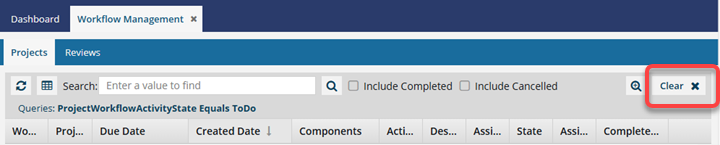
This does not clear the following filters:
To clear these filters, you must unselect the checkboxes.