Use advanced search to find workflow descriptions
In the Workflows module, all project workflows created across every project in Inspire are listed on the Projects tab. To search for a workflow that has a description, you can use advanced search tools to create logic that asks a question about the data in your workflows.
 Tips and tricks
- To perform
 a basic search, follow the steps in: Find a workflow on the Projects tab.
- The advanced search option is not available on the Reviews tab.
- XPath statements are not allowed in Value.
- Description is a property of a project workflow. You enter text in this field when you create a workflow.
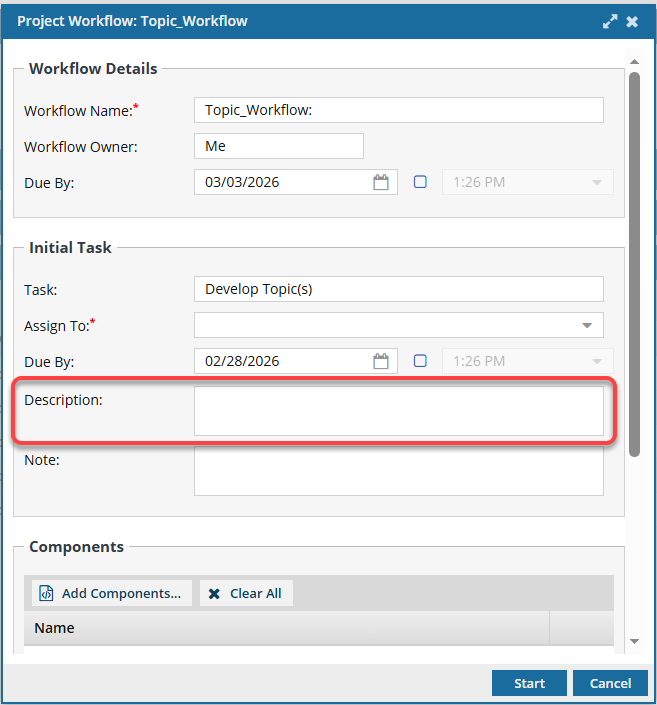
- You can search for words or phrases used in a workflow's Description in Field:
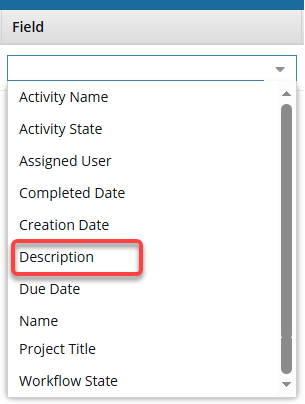
- To use advanced search to find other properties, follow the steps in:

To use advanced search to find workflows by a description:
-
From the top menu, click
 the Workflows module.
-
On the Projects tab, select any filters you want to include:

- Include Completed (assignments)
- Include Cancelled (assignments)
-
Click the advanced search icon
 .
.

 Results: The Search Workflows screen opens.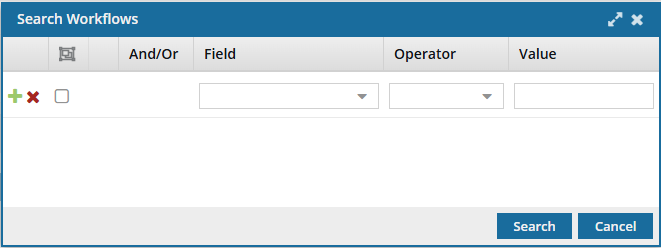
-
Optionally, to find more exact matches, you can search in multiple Fields.
-
To include another line, use
 the Add button before a query statement.
- Select an option for Field, Operator, and Value.
-
Optionally, to remove a line in your query, use
 the Remove button before a query statement.
-
To include another line, use
-
Click Search.
Results:
- The Search Workflows screen closes.
- You see your results on the Projects tab.