Manage workflows
You can use workflows to automate the transition between defined activities for components that exist in a project and for participants that are assigned to the workflow. Users with permissions can start a workflow from a project and participants with an assigned task in the workflow can complete their workflow assignment from a project.

 Required permissions
To create, view, update, and delete workflows you must either be an Administrator, the project Owner, or have the following permissions:
- Create, read, update, and delete permissions to the
 Projects module.
 - For the Projects module, your user account must be listed under the following Property: can_initiate_assignment.
- If you are an administrator, refer to Allow users to create project assignments and workflows.
To work with Review workflows, you also need:
- Create, read, update, and delete permissions to the
 Reviews module.
 To remove or update a workflow, the project must be active. If you cannot access an option in the steps, make sure the project is active. Follow the steps in: Make a completed project active.
 Before you begin
- A component should only be used in one workflow at a time. This is a best practice to ensure changes being made during one workflow are not overridden by changes in another.
- If you try to add a component that is being used in a second workflow, you see a warning that the component is in an active assignment or workflow.
- You can choose to create the workflow anyway or cancel.
- Components can now be given a system tag of ApprovalNotRequired to prevent them from appearing in the Approve and Unapprove screens in Project workflows. If a user selects "Yes" to Include Referenced components, Inspire only adds the components that are not tagged with ApprovalNotRequired to the project assignment.
- If a review in a workflow is still active, the user of the next task cannot advance the workflow until the review is marked as Completed or Cancelled. Users will see an error if they try to advance a workflow while a review is still active.
- Only canceled or completed workflows can be removed from a project.
- All review workflows must be removed before you can delete the associated project.
 After you create a workflow, you see more tracking details in the following ways:
Notes
When you create a workflow you can enter a Description of the work that needs to be done over the course of the entire workflow and a Note to the user who is completing the first task.
Each time a task in the workflow is completed, the user has the option to add a new Note to help guide the next user in completing their task.
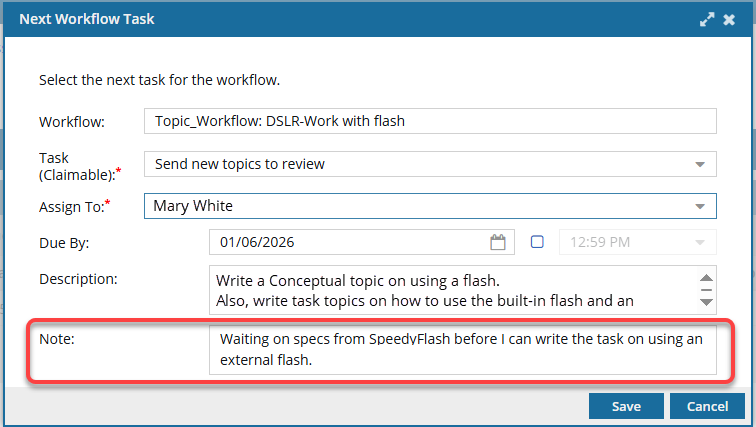
The user also has the ability to edit the Description. Unlike a Note, any changes to the Description overwrite the previous version.
For any active, cancelled, or completed workflow, you use  the Options menu to see all Notes added during the workflow's progress.
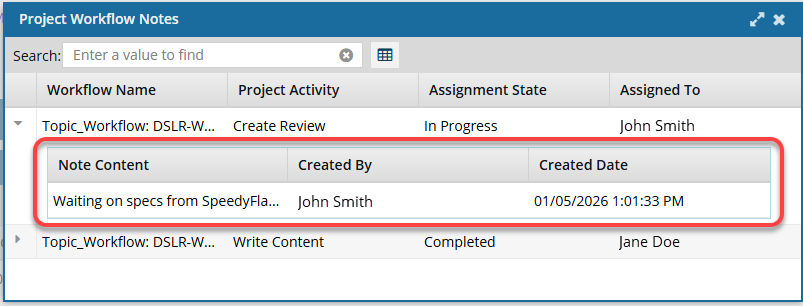
Status options
For any active workflow, you use the Options menu to see a visual representation of the workflow and its progress.
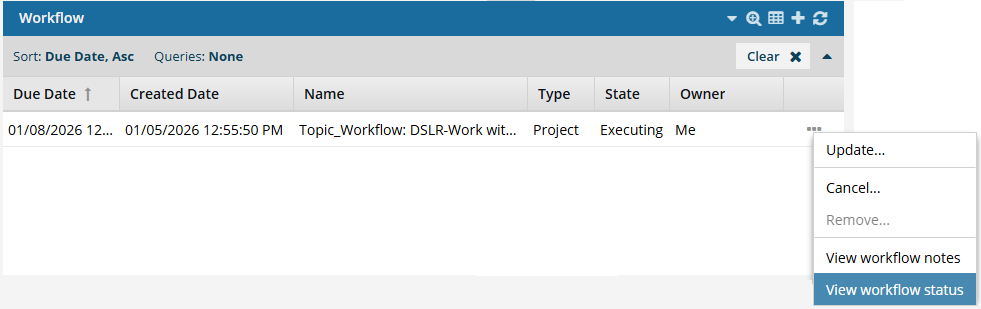
You select View workflow status to open a read-only version of the template used to create the workflow.
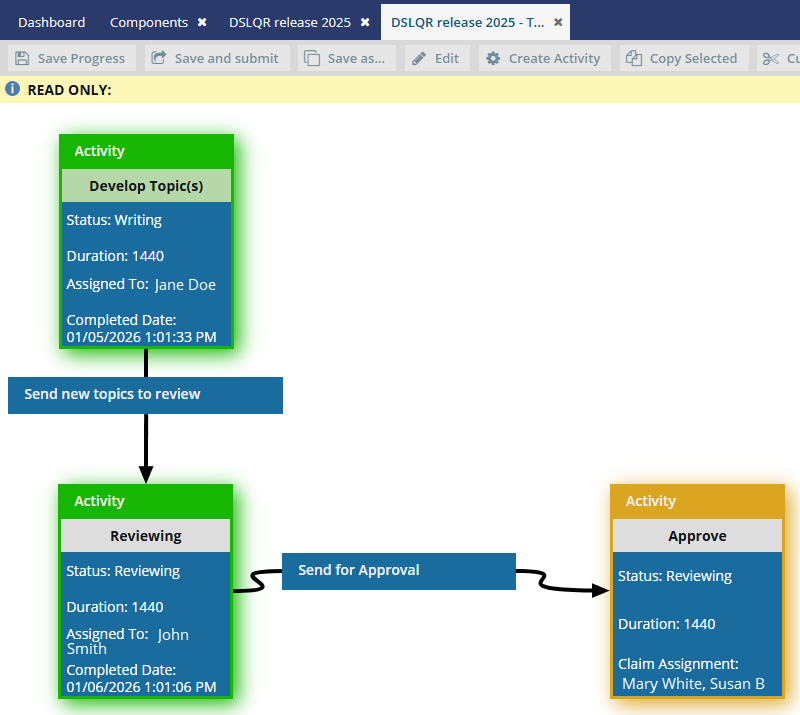
A new tab opens and displays the Activities and Transitions used in the workflow template.
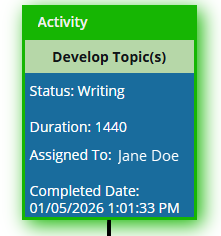 Completed activities are shown with a green highlight.
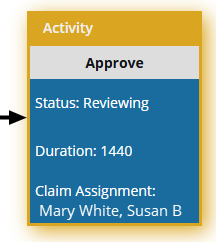 The current activity is shown with a yellow highlight.
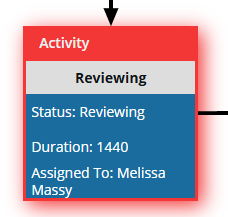 An overdue activity is shown with a red highlight.
Snapshots
After you start the workflow, Inspire captures a snapshot of all components included in an assignment each time a workflow activity is completed.
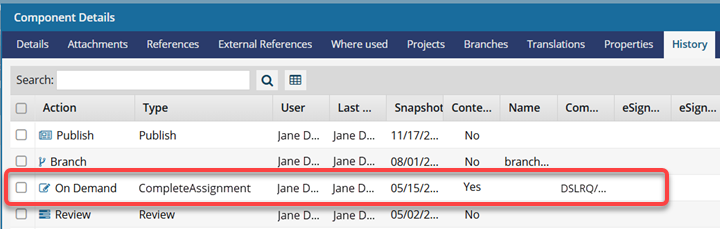
This snapshot is labeled with the following information:
Action = On Demand
(Process) Type = CompleteAssignment
Comment = Project Name/Workflow Name/Assignment Name