Manage validation configurations
If you have multiple active schemas, you can create Validation Configurations to let the user choose which set of standards to use. Also, Validation Configurations are the only way to give a user the option to validate their content using Schematron.

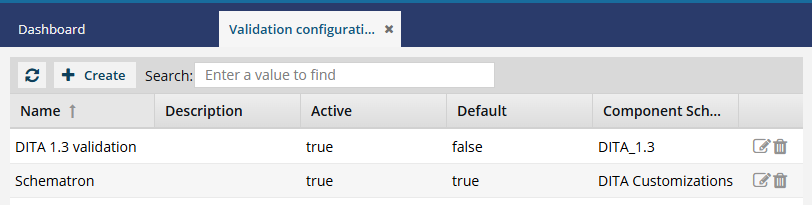
 Topics in this article:
Where are validation configurations used?
Authors can check content structure and review validation errors in the Components browser without opening the component in Oxygen. Using the right-click or context menu  option, you can select Validate XML.
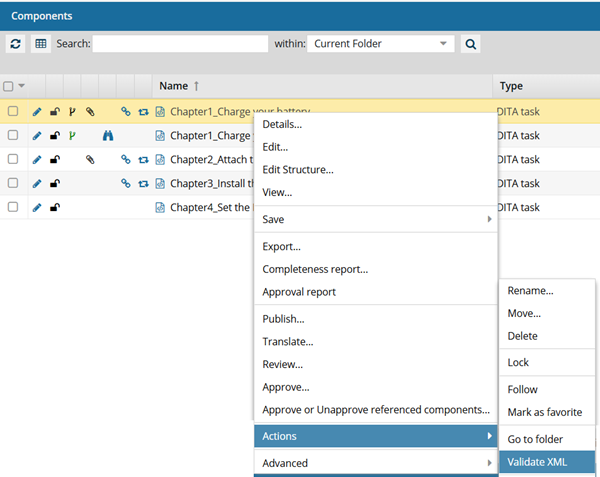
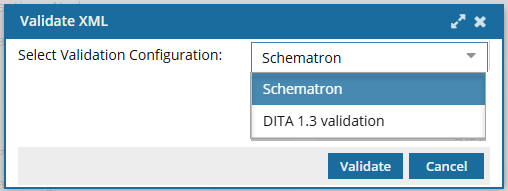
 If at least one Validation Configuration exists, selecting the Validate XML option prompts the user to choose a configuration.
 If there are no Validation Configurations, Inspire should use the Active schemas that are listed on the Component schema management screen. Refer to: Manage XML validation schemas in Inspire. (You may encounter an issue where the page never completely loads if there are no Validation Configurations.)
The Validate XML prompt has the following benefits:
- This is the only way you can let users validate components with Schematron files you have loaded into Inspire. Users can follow the steps in: Validate XML from the Components tab.
- Users can also select from other validation configurations you have created. Admins can follow the steps in: Manage validation configurations.
 Tips and tricks
- Users cannot select a Validation Configuration when they validate XML from the Export and Publish screens.
- If a Validation Configuration was previously selected, it is used by default.
- If are no Validation Configurations, Inspire uses the Active schemas that are listed on the Component schema management screen.
- To configure which schema, or set of rules, Inspire uses when a component is validated in the Components browser options, refer to:
What's in a validation configuration?
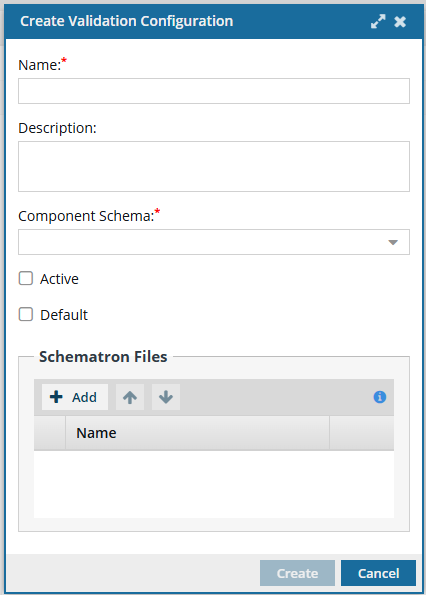
- Name. This is a user-friendly title that appears to an author when they select the Validate XML option in the Components browser or a project. For example, "Schematron" or "DITA 1.3 validation."
- Description. This is a place to add more details for administrators. Users won't see these details when they are prompted to choose a validation configuration in the Components browser or a project.
- Component schema. You can select a schema that exists in Inspire. Tips:
- By default, you will see DITA 1.2, DITA 1.3, DocBook 5.0
- If you added a custom schema, it is also listed. If you want to add one, refer to: Use custom schemas
- Active. This option lets you show or hide the validation configuration on the Validate XML screen.
- Default. If selected, this option should automatically be selected when the Validate XML screen opens, however, the previously applied validation configuration is set by default.
- Schematron Files. Optionally, you can click Add to select the Schematron files you have already uploaded. For more information, refer to: Add a Schematron validation configuration
 Tips and tricks
- If you aren't using Schematron and don't want to prompt the user to choose a schema, you don't need to create a Validation Configuration.
- You can hide a validation configuration from the Validate XML screen by leaving the Active option unselected. Follow the steps in: Update a validation configuration.
- If there are no Validation Configurations, Inspire should use the Active schemas that are listed on the Component schema management screen. Refer to: Manage XML validation schemas in Inspire. (You may encounter an issue where the page never completely loads if there are no Validation Configurations.)