Download a notification as a CSV file
You can use the Notifications tab to read about the status of a task you've submitted in Inspire. If you want to save a copy of the notification so that you can sort and search in the text, you can save it as a Comma-Separated Values (CSV) file.
 Tips and tricks
- Inspire only keeps notifications for 30 days after it's sent.
- If you aren't receiving a notification, you may not have them enabled.
 Change your notification preferences.
 - All new users added on or after March 6, 2024, have all notifications turned on by default.
- You cannot create more than one CSV file at a time. The option to Download as CSV is not available in the Selected Components panel.
- You can also download the body of the Notification as a PDF. Follow the steps in: Download a PDF of the notification body.
- If you want to download the published document instead of the notification, select the notification to open the reading pane and click the document's link. For more information, follow the steps in Download content.
For more information, refer to Things you can do on the Notifications tab.

To download a notification as a CSV file:
-
In the top menu, click Notifications
 .
.
-
In the notification's row, select the
 Options menu.
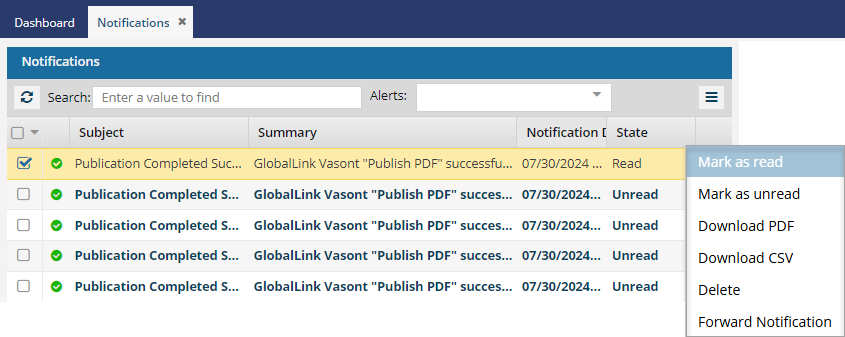
-
In the top right corner of the Inspire screen, you see a notification with the CSV file name.
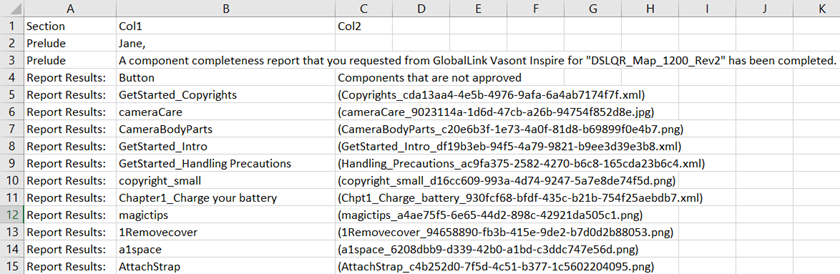
 Results: You can go to your local computer, open the Downloads folder, and open the CSV file.
The name of the PDF with the notification body uses the following format:
{Subject}{DateTime}.pdf.
For example: My Report{current date/time}.pdf
A sample of the CSV file looks similar to the following: