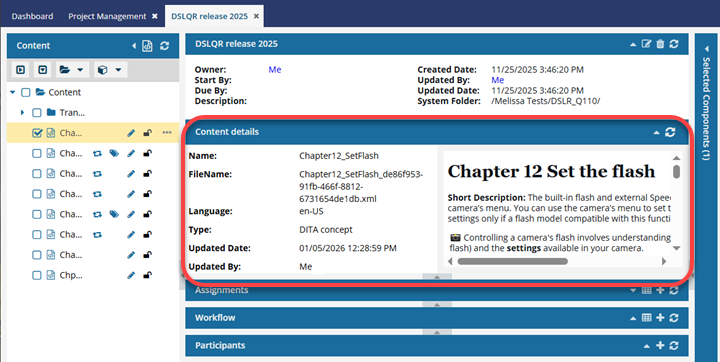
View component details from a project
Easily access project component details to view more information about the component.
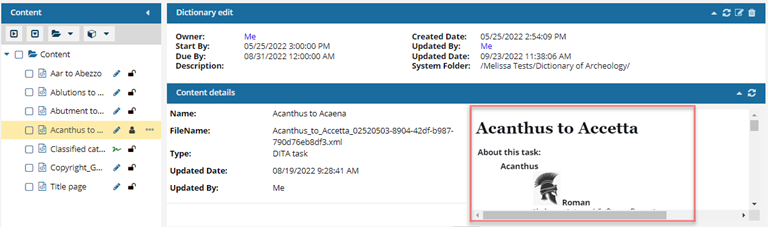
 The preview image you see in the top right corner of the screen can vary depending on whether your administrator configures Inspire to use thumbnails or not.
 If the thumbnail feature is enabled:
- In the preview, you see all images as thumbnails.
- When you double-click the thumbnail, you see the image in its high-resolution version.
 If the thumbnail feature is not enabled:
- In the preview, you see all images under 2 MB in high resolution.
- Images 2 MB and larger are seen as a thumbnail.
- When you double-click the thumbnail, you see the image in its high-resolution version.

To view component details:
-
Click
 Projects.
-
On the Project Management tab, double-click the row of the project you want to open.
 You can also open the project by:
- Selecting the row, right-clicking, and selecting Open.
- Selecting the row, clicking
 the Options menu, and selecting Open
-
In the Content pane, to see all components in all folders, click the expand all arrow
 .
.
-
To select a component, click the name.
You can verify that you have the correct component by checking the preview in the Content details pane.
- If the pane isn't open, click the down arrow in the pane's title bar.
- If you think the preview isn't showing the latest version, click
 Refresh.
To see the complete name of the components and use advanced search to search through all folders within a project, click  the Select Project Components option.
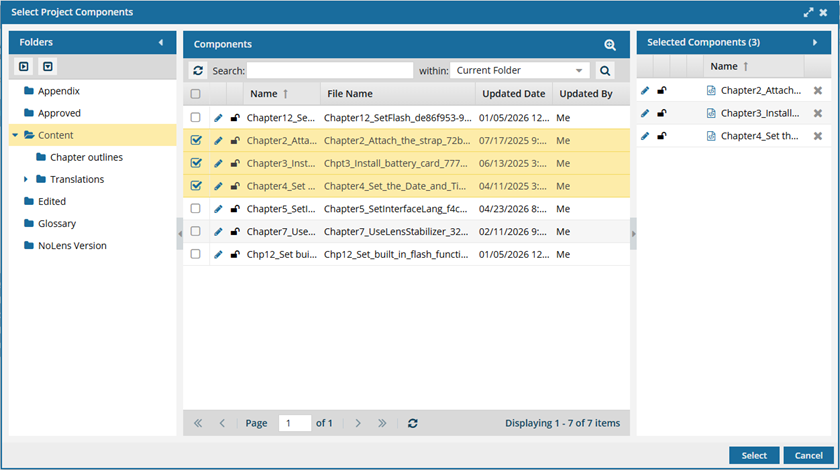
- To see more text in the Components pane, collapse the Folders panel by clicking
 the arrow that's pointing left.
- To quickly expand or collapse the folders, use the expand all and
 collapse all buttons.
- To find a component by keyword, in Search, enter words or phrases used in the component's name. In Within, select where in the project you want to search (Current Folder, Current and Subfolders, All Folders). Click Search
 .
. - To find a component by creating a query, click
 Advanced Search.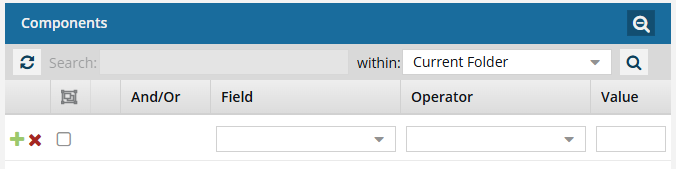
- Fields correspond to the columns in the grid. In the Field list, select the column you want to search in, such as Component State.
- After you select a Field, you must describe the relationship it has with the Value. In the Operator list, to include or exclude some or all of the values that you want to use, select an operator, such as
<>(not equal to). - The options in the Value list change depending on what you selected in Field. In the Value, select or enter the word, phrase, or number you are searching for in relation to the Field. For example, Component State (Field)
<>(Operator) Invalid (Value). - In Within, select where in the project you want to search (Current Folder, Current and Subfolders, All Folders).
- Optionally, to enter another clause to your query, click
 Add. Select whether you want to narrow your search by requiring that all statements must be true (And), or expand your search by requiring that any of the statements can be true (Or).
 - Click Search .
- To select multiple components to manage, select the checkbox for each component.Result: The components are listed on the Selected Components panel.
- To close the Select Project Components screen, click Select.
-
On the right side of the screen, below the first pane showing project details, if not already showing, click
 the down arrow to expand the Content details pane.
Result: You can see the component details.
the down arrow to expand the Content details pane.
Result: You can see the component details.