Troubleshoot import issues
To manage your content securely in Inspire, you need the ability to add content by importing files into the system. If you run into issues when importing content, you can find ideas to work around or fix them.
Topics in this article:
- Issues with importing folders
- Issues with generating IDs
- Issues importing a ZIP file where the contents use a shorthand syntax
- Issues with the incorrect State being assigned
- Issues with relationships
- Issues importing files with long names
- Issues importing translated content
- Understanding import error messages

Issues with importing folders
When you need to import content, you can import an entire folder structure and all its content by importing a ZIP file. During this process, Inspire creates subfolders within the parent folder you select, using the paths in the ZIP file. All references in the ZIP file are created even if there are duplicate file names.
- You can import a folder structure from the Components browser. Follow the steps in Import a folder structure from the Components browser.
- You can also import a folder structure when you're working in a project. Follow the steps in Import a folder structure from a project.
 Permission requirements
Application administrators and users must have special permissions to create subfolders.
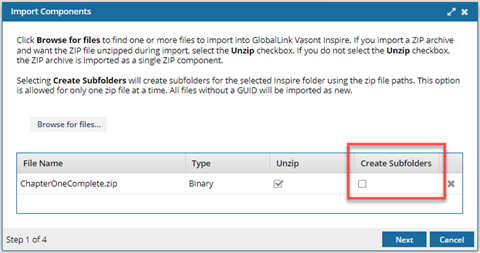
 For administrators, the required permissions vary by admin role type.
- Application Administrators. By default, when importing a ZIP file, your organizational admins do not see the Create Subfolders option.
- If you want users who belong to this role to create a new folder structure when importing a ZIP file, you must give them permission.
- To grant these permissions, add the Application Administrators role to the Content Browser module property called can_create_import_subfolders.
- Follow the steps in Allow application administrators to import subfolders.
- System administrators. By default, when importing a ZIP file, Vasont Inspire administrators can see and select the Create Subfolders option. You can't change or remove this default permission
 Before you begin
- Application administrators and users must have special permissions to create subfolders.
- By default, when importing a ZIP file, your organizational admins and users do not see the option to Create Subfolders.
- To grant these permissions, follow the steps in Allow application administrators to import subfolders.
- You cannot import a folder structure using drag and drop.
- When creating a folder structure, you can only import one ZIP file at a time.
- Before starting the import process, you must have a parent folder to select as the place where the imported sub-folders will be created. For help on creating a folder, follow the steps in either of the following:
- You only see a checkbox for the Create Subfolders option when you select a ZIP file to import.
- If you don't select the Unzip option, the ZIP file is imported but as Binary and without subfolders.
- You can import structured ZIP files that contain GUIDs in the filenames without losing the GUID or the file being automatically considered new content.
- A Globally Unique Identifier (GUID) is a unique ID that is computed by Windows to be a 128-bit number to uniquely identify objects such as files.
- On import, Inspire does not remove a GUID from a filename. For example, a file in a zip named MyFile_a1098r8yr.xml is imported as MyFile_a1098r8yr.xml.
- If the file exists in Inspire, the existing file is updated.
- If the file doesn't exist in Inspire, the file is added to the correct folder structure.
- Inspire also maintains GUIDs within href, conref, and conrefend references.
- By default, Inspire uses absolute paths in the ZIP file.
- Examples of an absolute path:
<topicref href="E:/Mycompany/Project1/Content/tasks/topic1.dita/>"href="E:\MyCompany\Project1\Content\Topics\overview.xml"
- Examples of an absolute path:
- If you import a ZIP file that contains folders and references that use a shorthand syntax (#./), the imported components show a valid relationship regardless of whether an administrator configures Inspire to Allow internal links to use a short format.
- ZIPs that are invalid will fail import.
- The ZIP must have fewer than 50 folders.
- The filenames must be less than 200 characters.
- The folder path must be less than 255 characters.

Issues with generating IDs
After importing content, you may or may not have generated element IDs. An administrator can configure an element to never be assigned an ID. You can verify whether elements in the imported content have IDs by opening them in the Oxygen editor.
For example, if a Ditabase component is created or imported into Inspire, an ID is normally automatically added to the root-level <Dita>. For Ditabase, this ID renders the component invalid when opened in the XML editor because IDs are not allowed on DITA components.
If an element is configured not to have IDs:
- When content is imported, no ID is generated
- In the Oxygen editor, no ID is generated when the Generate IDs or Save and Submit options are used
- This behavior is enforced even if the AutomaticIds option is turned on
Issues importing a ZIP file where the contents use a shorthand syntax
Previously, if you imported a ZIP file containing folders and references using a shorthand syntax (#./), the imported components displayed an invalid relationship icon. Now those components are imported with valid relationships.
 In DITA, the shorthand reference syntax
 #./{elementId} is used to link to specific elements within a topic.
- The
#symbol indicates a fragment identifier, which is a reference to an anchor within the same document or another document. - The
./part is a relative path notation, meaning the link is pointing to an element within the same topic or document rather than pointing to an external file. - The
Idattribute in DITA serves as an anchor point for references, allowing elements to be linked reliably.
This format ensures that links remain valid even when content is reused or published in different formats. For more information, administrators can read: Allow internal links to use a short format.
Issues with the incorrect State being assigned
Previously, after components were imported, their State (valid, invalid) did not accurately reflect the relationships' state.
 ,
, 
 ,
,  ,
,  ). The first column lets you quickly identify the condition of the contents in the file.
- Draft. The component can be edited and isn't ready for publishing or translation yet.
- Invalid. The component has one or more links that need to be resolved. Use the advanced Relationships tool as described in: Repair component relationships.
- Approved (No signature required). The component is ready for publishing or translation and shouldn't be edited. An Inspire user has approved the component for publishing or translation, and it shouldn't be changed. Approved components can be locked with a green system lock.
- Approved and signed. (Signature required). The component is ready for publishing or translation and shouldn't be edited. When approving, you must enter your full name to sign electronically. Approved components can be locked with a green system lock.
- In translation. The component can be monitored while it's included in a translation job. An administrator can decide whether the component is unlocked for editing while it is in translation
- For example, a valid component displayed an Invalid State icon, or an invalid component displayed a Valid State icon.
- Now, after you import components, their State (valid, invalid) correctly reflects the relationships' state.
Issues with relationships
Previously, when you imported components, their relationships were not analyzed until after the component was completely imported.
- This resulted in references changing after the "import complete" message.
- Now, when you import components, their relationships are analyzed during import so that references won't change immediately after import completes.
 In a component, when you link or reference content to another component in Inspire, you create a relationship between the components. You can see the state of those relationships on the Manage Relationships screen.
Inspire saves the following information about relationships between components:
- Components that include a reference to another component
- Properties assigned to a component
- Snapshots of historical changes to a component
If you are an administrator, you can manage component relationship configurations. For more details, refer to: Define relationship links.
Non-administrators can read more in: Manage relationships.
Issues importing files with long names
XML files cross-reference each other by file name. If a file name changes after export, you can still import it back into Inspire, but the references will be invalid.
 If you import changed file names:
- You can import the changed file names into Inspire without any related issues.
- However, all the relationships inside the XML files point to the old file names. This renders the relationships invalid.
- To learn more about repairing relationships, read:
 To turn off the Windows feature that renames long paths:
- Follow the steps in Enabling Windows Long Path.
- After import, you can see if there are still any issues by Checking component completeness.
Issues importing translated content
Files that are part of an active translation job must be imported from the Translation Management tab
When you import files by opening a folder's Options menu and selecting import, Inspire checks to make sure none of the files are in an active translation job.
If the files you are importing are part of an active translation job:
- The entire import will fail, even if some files are not part of an active translation job.
- You see an error message: You are trying to import files that are part of an active translation job. Use the "Import translation" action in the translation management tab instead.
- You see one error for each file you are trying to import that is part of an active translation job. File ({fileName}) was found in translation job ({translation job id}).
To import translation files:
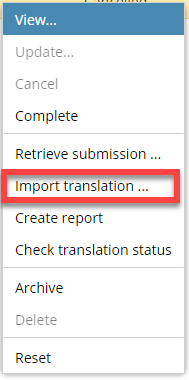
- Go to the
 Translation Management tab.
 - Select the job that the files belong to.
- Right-click the job or click the
 Options menu.
 - Select Import translation...
For more information, read Import translated components.
Understanding import error messages
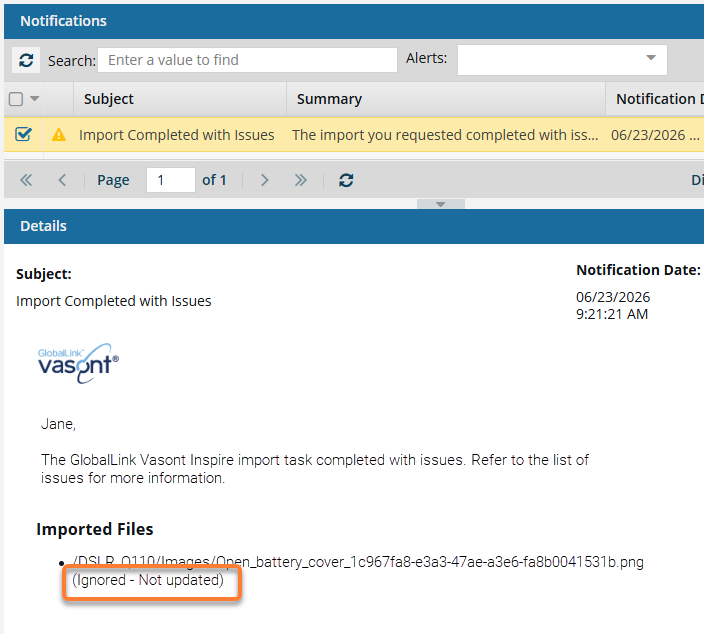
Previously, if the content you're importing had issues, you saw a generic error message in the notification that the file was ignored.
You are now given more information about why the component was ignored.
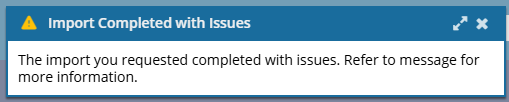
In the Import notification, there are new messages:
- Invalid XML. This message alerts you to XML content that does not follow the structural and syntactic rules defined by the XML specification, making it impossible for an XML parser to read or process it correctly.
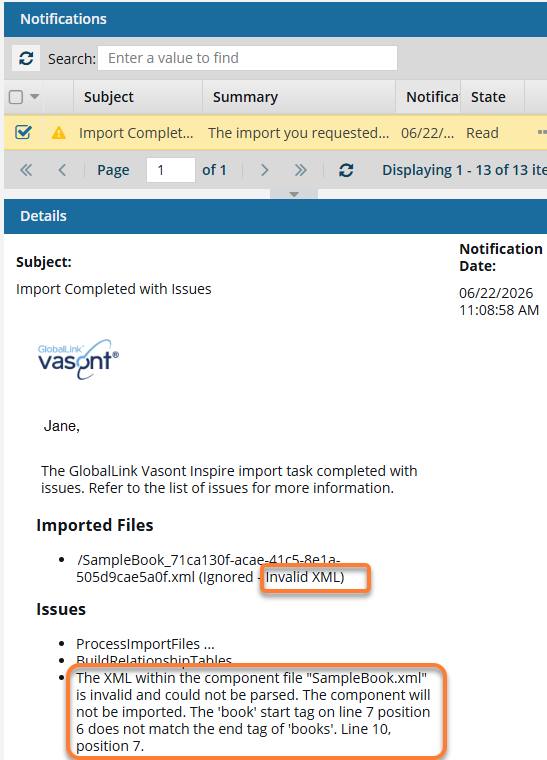
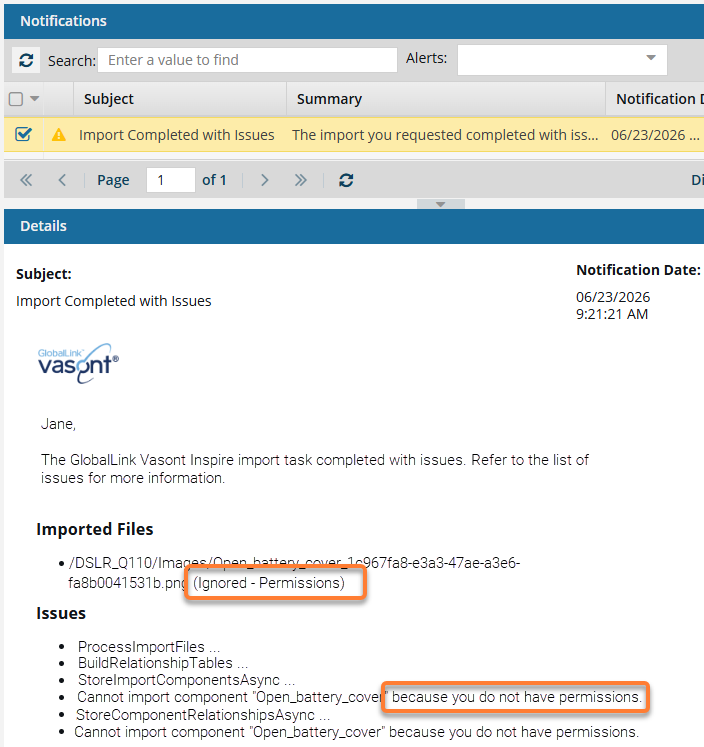
- Permissions. If you restrict the rights to edit a component to only a few users, any other users who export the component and then try to reimport it will see this message. For example, Jane right-clicks a component, selects Advanced, and then Permissions. On the Permissions screen, she clears the Inherit Permissions from Parent Folder checkbox and sets only Read permission for a non-Admin user, John Smith. John can export the restricted component, but cannot re-import it. If the user without explicit rights is an administrator, they will not see this error.
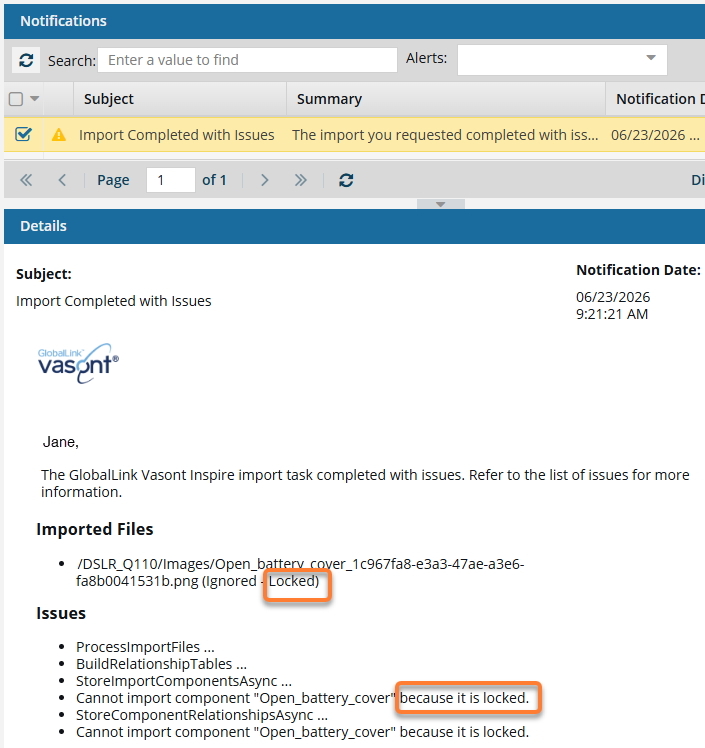
- Locked. This message explains that the file cannot be imported because it already exists in Inspire and is locked. For example, you lock an image used in a component, but later discover you need to edit it. So you export it, edit it on your local computer, and then try to re-import it.
- Not Updated. This message explains that the file cannot be imported because it already exists in Inspire and has the same content. For example, you import a new image, and later, forgetting that you already imported it into Inspire, you try to re-import it again. Inspire recognizes that the content already exists.