Work with Component asset reports
You can select a component and create a report to see all of the component's references, including links to other topics, content references to elements in other topics, file and web links, and inserted images. If the component is a map, you can also see references to other maps.

 You cannot create a Component asset report for the following types:
- Binary component, such as a PDF file or image
- Workflows listed in the Components browser in the Workflows folder
- SKOS (Simple Knowledge Organization System) files
 Tips and tricks
- You can see the Report Date before the table of data. Knowing the date and time that the report was requested is important if you are forwarding the report notification or the report itself.
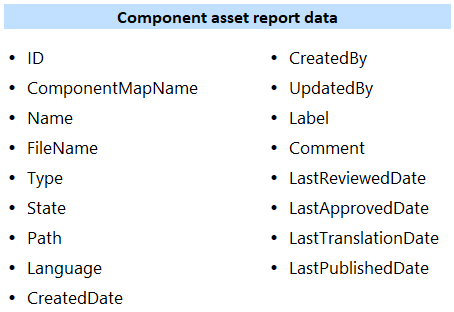
- The report contains the following information:
 If you create a report for a Target component (in a language folder), you see:
- In Language, the target language that the source was translated into
- In Update Date, the last date when it was sent to translation
- In Last Translation Date, the last date when it was sent to translation
You can run a report on just one component.
You can use the right-click menu on the map.
You can use
 the Options menu in the map's row
- You can add one map to the Selected Components panel and select
 the Reports menu.
When you run a report on a single component, Inspire adds the component name to the report's CSV file name.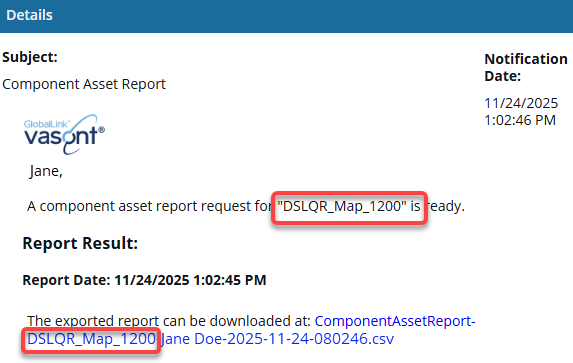
- You can run a report on multiple maps.
- Use the components browser to select the checkbox for each map component you want a report on.
- In the Selected Components panel, use the the Reports menu.
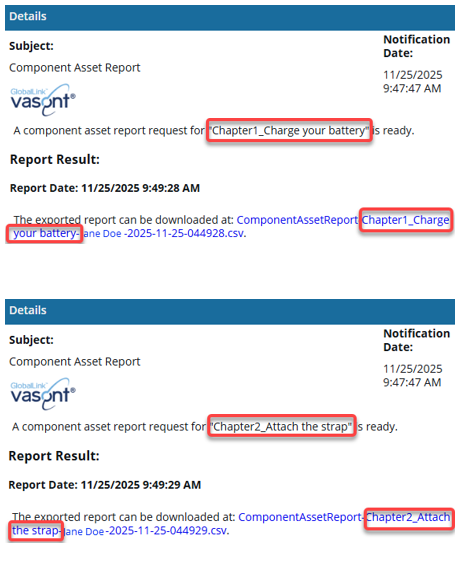
You see a separate notification for each map component you select.
You see a notification when you send the request and when the reports are complete.
You get a separate report for each map component you select.
When you run a report on a multiple components, Inspire always creates a separate report for each component. 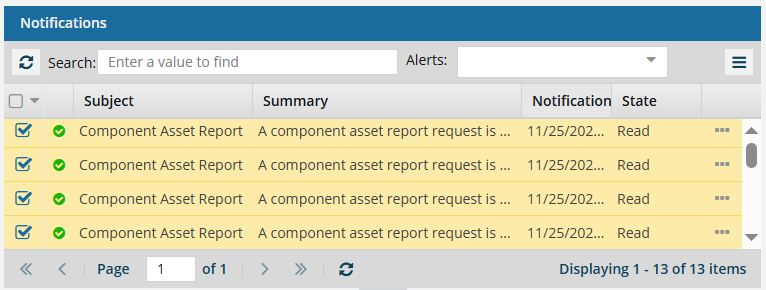
In this case, Inspire also adds the component name to the report's CSV file name.