View a component asset report for one component
You can select a component and create a report to see all the component's references, including links to other topics, content references to elements in other topics, file and web links, and inserted images. If the component is a map, you can also see references to other maps.

 You cannot create a Component asset report for the following types:
- Binary component, such as a PDF file or image
- Workflows listed in the Components browser in the Workflows folder
- SKOS (Simple Knowledge Organization System) files
 Tips and tricks
- The Component asset report option is also available when working on a project.
 View a component asset report for a project component.
 - You can see the Report Date before the table of data. Knowing the date and time that the report was requested is important if you are forwarding the report notification or the report itself
- The report contains the following information:
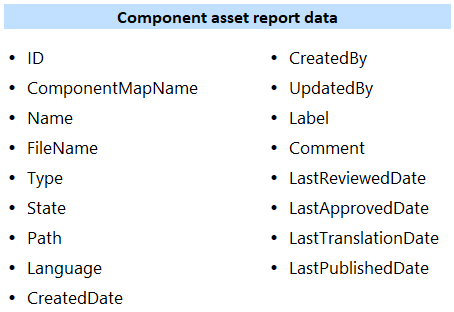
 If you create a report for a Target component (in a language folder), you see:
- In Language, the target language into which the source was translated
- In Update Date, the last date when it was sent for translation
- In Last Translation Date, the last date when it was sent for translation
To view a component asset report for one component:
-
Click
 Components.
-
In the Components pane, do one of the following:
- Use the Selected Components panel.
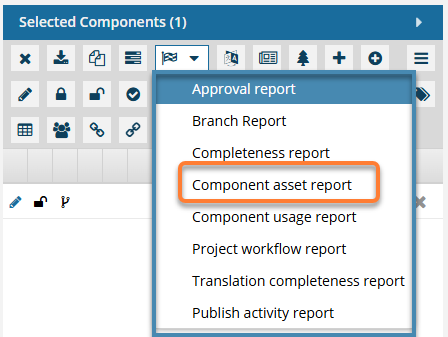
- Select the checkbox for the component you want to run a report on.
- On the Selected Components panel, select
 Reports, and then Component asset report.
- Use a menu.
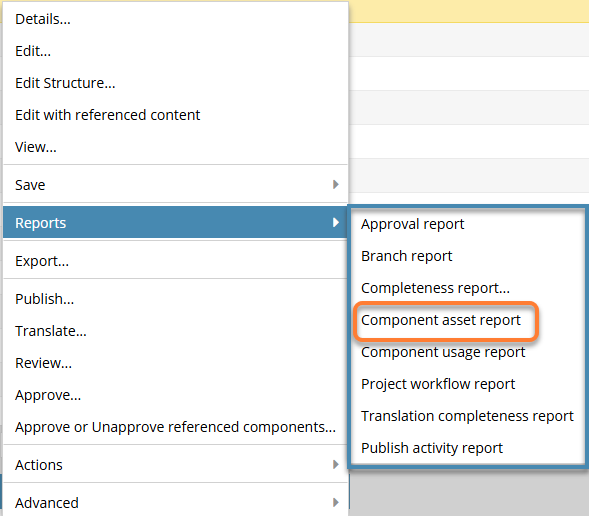
- In the component's row, right-click OR select
 the Options menu.
 - Select Reports, and then Component asset report.
- In the component's row, right-click OR select
- Use the Selected Components panel.
-
On the Convert Time screen, select one of the following options:
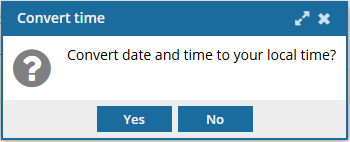
- Yes. Changes all dates and times in the report to reflect the Time Zone specified in your Profile. (To change your Time Zone, follow the steps in: Select your time zone.)
- No. Displays all dates based on the Time Zone where your Inspire server instance is located.
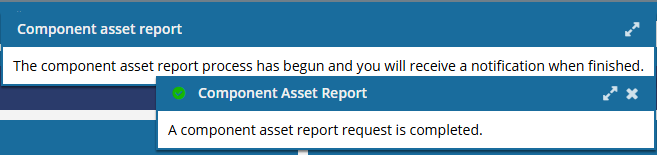
 Results: You see a notification that the report is being generated and another notification when the report has been created.
 -
In the top menu, click
 Notifications.
 You do not receive a copy of the report in email or Slack, and it cannot be configured.
 -
From the list of notifications, select the one with a Subject of Component Asset Report.
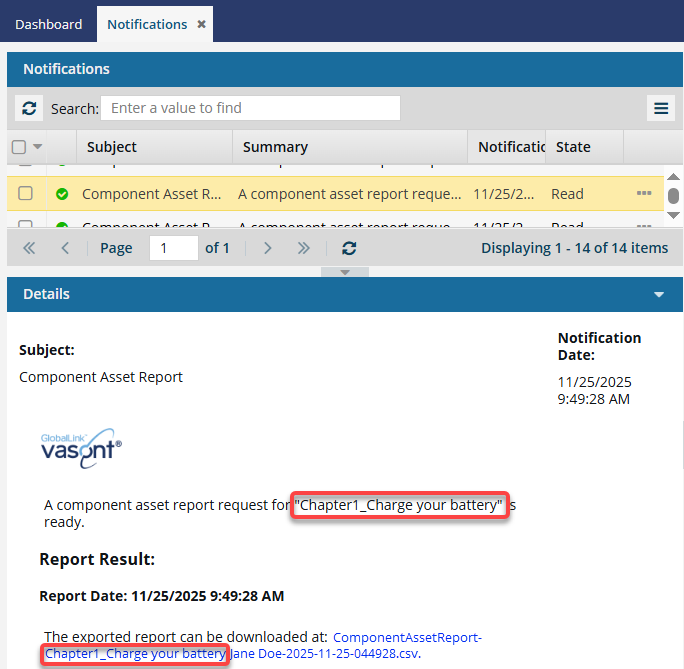 When you run a report on a single component, Inspire adds the component name to the report's CSV file name.
 -
On your local computer, open the report to see the details.
Results: The first eight columns of the spreadsheet provide details that identify the asset used in the component.
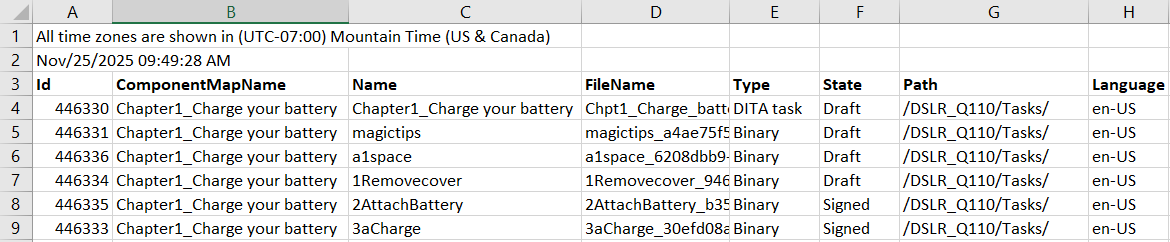 The first row always contains the details of the component or map selected as the report's source.
- ID. A sequence of numbers generated by Inspire to uniquely identify a component.
- ComponentMapName. The name of the component or map that was selected as the source of the report.
- Name. The name of the component or map that is referenced.
- FileName. The display name of the component and its GUID.
- Type. The classification of the file that identifies its content (DITA, DocBook, Concept, Task, Binary, etc.) and if it can be edited (For example: DITA=yes, Binary=No, etc.).
- State. An optional identifier that can be used to signify if the component is ready to be published by approving or signing it.
- Path. The location of where the asset is stored in Inspire.
- Language. A pair of codes that identifies the region and country where the content can be read natively. (If the map has not been translated, you see en_US.)
The last eight columns of the report provide information about when and why the asset was last updated :

- CreatedDate. The date when the file was first added to Inspire.
- CreatedBy. The name of the user account that saved the first version of the file.
- UpdatedBy. The name of the user account that most recently saved an updated version of the file.
- Label. An optional word or phrase that can be added on the Create snapshot and Save as Branch screens.
- Comment. An optional word or phrase that can be added when a file is included in a review and the user resolving the review enters a comment on the Review Approval screen.
- LastReviewedDate. The most recent date that the content in the file was included in a review and the review was completed.
- LastApprovedDate. The most recent date that the file was approved by an Inspire user.
- LastTranslatedDate. The most recent date that the content in the file was included in a translation job and the translated file was returned to Inspire.
- LastPublishedDate. The most recent date that the file was transformed by Inspire into another file format.