Complete assignments for a review workflow
Participants with assignments in a review workflow can complete their workflow assignment and advance the workflow to the next participant with an assigned task in the workflow.
You can also manage your assignment from the Dashboard tab.
- All the options you have when opening an assignment are available on the Dashboard.
- For more details, read View recent activity on the Dashboard.

 The Topic Workflow process that Inspire provides includes an assignment for Reviewing content.
- By default, when the Developing topics assignment is completed, the user must manually open the
 Reviews module, click Create on the Reviews Management tab, and add all review details.
 - Users who have permission to work with workflow templates can revise the default workflow to automate the process of creating a review.
- If a workflow includes this automated action, after you mark the Developing topics assignment as completed, Inspire automatically opens a new Create Review screen and adds any known details so you can quickly create the review and advance the workflow to the next stage (Reviewing).
 Before you begin
Inspire now prevents a user from advancing the workflow while the review is still active.
- If you try to advance the workflow, you see the following message: The task cannot be completed because it is associated with an active review {review number}.
- If you see this error, make sure the review is completed before trying again.
To complete assignments for a review workflow:
-
From the email notification or from the user dashboard, click the link to open your assigned review components in the review editor.
 If you created the assignment and you are the participant for the assignment, you will not receive an email notification.
 -
After you finish editing a component, to save your changes, go to the editor's toolbar and click Save
 .
.
-
On the confirmation screen, click Yes.
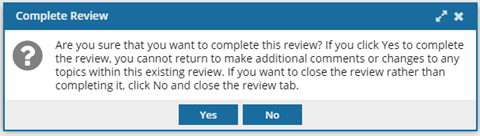 After you complete your review:
- Your review is locked and you cannot make any other changes.
- The Review Coordinator receives a message that you've completed your review.
- On your Dashboard, in My Reviews, the completed review is no longer listed.
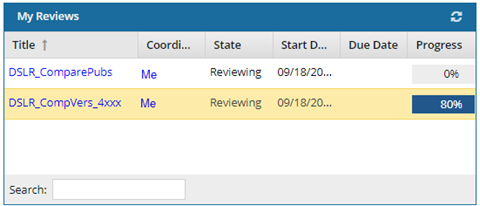
- After the first user completes their review, the review is passed to the second reviewer, and then to the Coordinator.