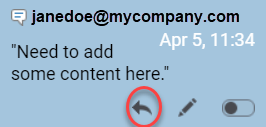
Reply to a review change
As you work in the review editor, you can reply to another reviewer's comment or change. You can also see the email address of the reviewer who left that comment and use that to contact them if you don't want to record your conversation in the Review pane.
 Tips and Tricks
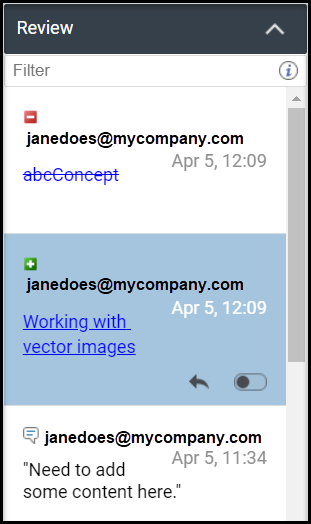
- Use the review panel. When you edit text and add comments, the changes are tracked in the Review panel on the right side of the editor. For each comment or change, you can see the name of the reviewer who made the change, their email address, and a reply button.
 If you are working with comments in the Collaboration panel instead of the Review panel, follow the steps in the following topics:
 - Use icons for quick identification. When working with the Review panel, use the icons to find comments and changes:
- Comments are marked with
 a small comment bubble .
 - Deleted text changes can also appear in this list and are marked with
 a red minus sign.
 - New text changes can also appear in this list and are marked with
 a green plus sign.
- Comments are marked with
- Work with review discussions. If you have a comment to add about the review as a whole and not just a specific component, you can add a comment to the Discussions pane.
- Save incomplete reviews. If you start on a review but need to stop before it's done and finish it later, you can
 Save your changes and select
  Save for Later.

To reply to a reviewer in the Review panel:
-
In the comment or change box, click the reply arrow.