Use the Assignments panel in the Workflows module
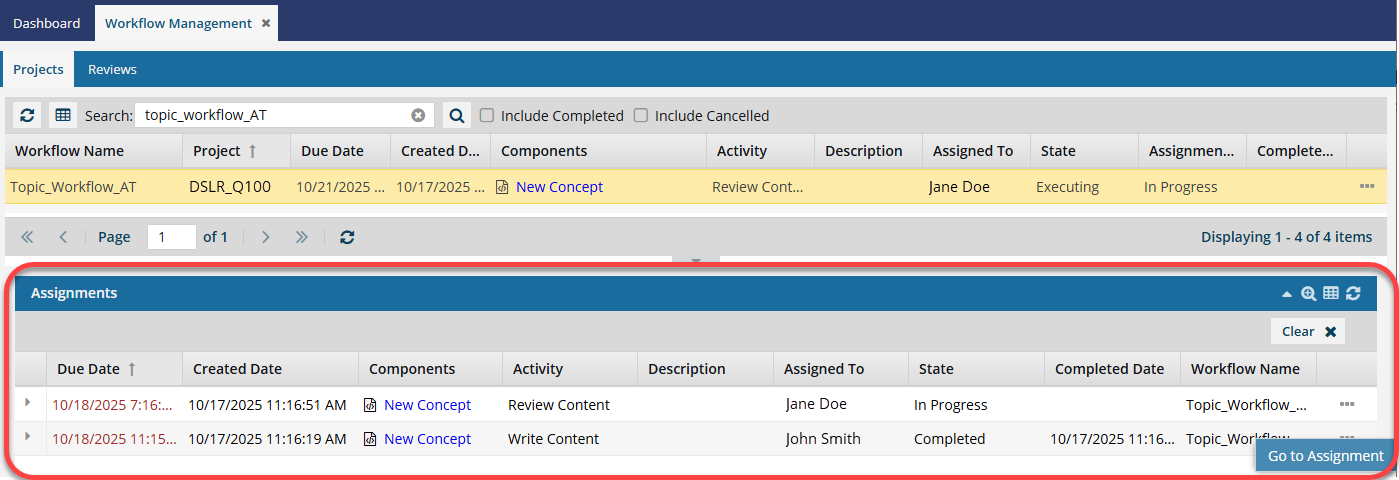
You can use the Workflows module to see all project assignments created in Inspire in one place. The projects tab includes an Assignments pane where you can see all tasks for a selected workflow. After you select a workflow in the top pane, you can see each assignment listed on their own line and sorted by default according to the assignment's Due Date. If the list of assignments is long, you use the Advanced Query Builder to find the assignment you need.
 Tips and tricks
- Review assignments, as a part of project workflow activities, are also displayed on the Projects tab.
- If you want to see only Review type workflows, follow the steps in Find review workflows on the Reviews tab.
- In the top pane, you can see all project workflows listed. This list shows you all workflows created across every project in Inspire.
- If you need to first search for a specific project, workflow, or assignment in the top grid, you can use advanced search tools to create logic that asks a question about the data in your workflows. Follow the steps in Use advanced search on the Projects tab.

To use the Assignments panel in the Workflows module:
-
In the top menu, select
 Workflows.
-
Find the project or workflow that contains the assignments you want to work with.
- Find a project first
 Find a project in the Workflows module
 - Find a workflow first Find a workflow on the Projects tab
- Find a project first
-
If the Assignments panel is not open, go to the title bar and select
 the expand arrow.

-
On the Assignments panel, you can sort the list by any column.
-
To sort the list by a column, next to the column name, click
 the down arrow.
- Select Sort Ascending or Sort Descending.
-
To sort the list by a column, next to the column name, click
-
To search for an assignment, use the Advanced Query builder.
-
In the Assignments title bar, click
 the advanced search magnifying glass.
 Results: The Filter Assignments screen opens.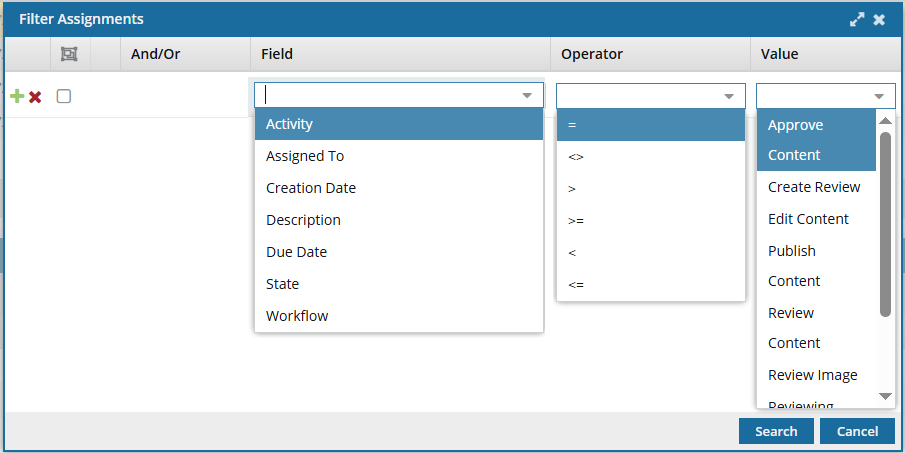
-
Optionally, you can click Add
 to add another search parameter. To group search parameters, select the checkboxes for two or more consecutive parameters and click
  Group selected clauses.
-
Click Search.
Results:
- The Filter Assignments screen closes.
- The assignments that meet your search criteria are listed in the Assignments panel.
-
In the Assignments title bar, click
-
To open a component in the assignment, in the assignment's row click the link in the Components column.

-
To open the project and see more assignment management options, in the assignment's row, click
 the Options menu and select Go to Assignment.

-
To save the list of assignments to a comma-separated file:
-
Click
 Save as CSV.
-
To choose what time zone is used, on the Convert time confirmation screen, select one of the following:
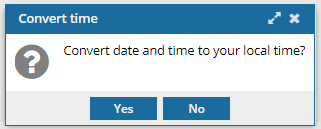
 You see the date displayed in the header of the CSV as: All date/times are shown in {timezone} or UTC.
UTC is a time zone standard used as a basis for all time zones worldwide. It is a constant time scale and does not change for Daylight Saving Time.
- To use your local time, click Yes.
- To use UTC time, click No.
Result: You see a notification telling you the name of the file that was downloaded to your computer.
-
Click