Unapprove one component in the browser
When you're developing content for a component, you can easily let other users know that a component has gone back to a draft form by giving it an unapproved ( Draft) state.
 Required permissions
To unapprove a component, you must either be an administrator or have all the following roles and permissions:
- You must be added to the Content Browser's can_unapprove module property. Follow the steps in: Control who can unapprove components.
- You must have permissions to update the component.
Otherwise, you will see the Unapprove option is greyed out and unavailable.

If necessary, an administrator can limit the number of users or roles who can unapprove a component.
- If a user is an administrator or has been added to the Content Browser's can_unapprove module property, that user can unapprove components in the following places:
 Content Browser: From the right-click menu,
  the Options menu, and the Selected components panel
 Oxygen map editor: Look for any green icons in the left Outline panel. They are shown by an icon after the name of the component
 Projects: From the right-click menu, the Options menu, and the Selected components panel
- Project Workflows: Add the InspireUnapprove action to a transition
- If a user is an administrator or has been added to the can_unapprove module property, that user can unapprove components regardless of whether you require electronic signatures.
- If a user is not an administrator or has not been added to the can_unapprove module property, that user cannot unapprove components.
A content owner or administrator can set permissions to deny access to components or folders. If your permissions to content has been blocked, and you are not an administrator, you cannot use the Approve or Unapprove options.
To unapprove one component
 Tips and tricks
- By default, only the selected component is unapproved, and no referenced components are included. If you also want to unapprove referenced components:
- To unapprove the source and all referenced components at the same time, add the component to the Selected Components panel and use the Unapprove components option. Follow the steps in: Unapprove multiple components in the browser.
- To select specific referenced components to unapprove, after unapproving the source component, select it again and use the Approve or unapprove referenced components... option. Follow the steps in: Unapprove component references.
- You cannot add a Label and Comment to the unapproval history record if you select Unapprove from the right-click or Options menus.
- To do this, use the Selected Components panel. Follow the steps in:Unapprove multiple components in the browser.
To unapprove one component:
-
Click Components.
-
Right-click the component, then select Unapprove.
 Results:
In the components list, you'll see a blue pencil icon
 next to the unapproved component.
 Go to the
  Notifications module and check for any Issues.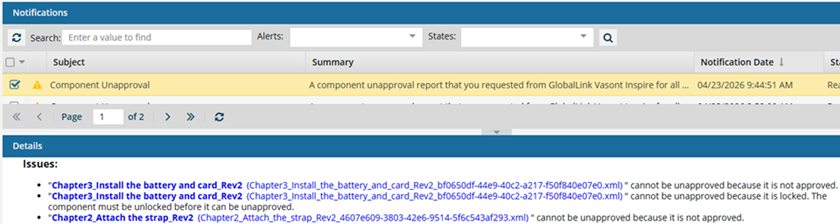
For example, referenced components might be skipped if they are:
- Locked
- In review
- Tagged with ApprovalNotRequired
- Not approved yet
 Any previously attached e-signature for approval remains part of the component's history even after you Unapprove a component. Follow the steps in: See Approval signatures.