Things you can do in the Reviews module
Use the Reviews Management module to see a list of all the reviews in your organization. You can create a review from this tab to schedule revisions to components and add the reviewers you need so that your team can develop content. After the review has been created, you can also coordinate, monitor, and resolve component review cycles from this tab.
 You must have permissions to see
  the Reviews option in the top menu. If you are not an administrator, then you must have Read permissions.

 Tips and tricks
- The Reviews module contains one tab called Reviews Management.
- You open it by going to the top menu and clicking the Reviews icon.
- The Reviews module is listed after
 the Changesets module and before
  the Translations module.
 - If you want to schedule other tasks, such as writing content or publishing it, you can instead Create a project
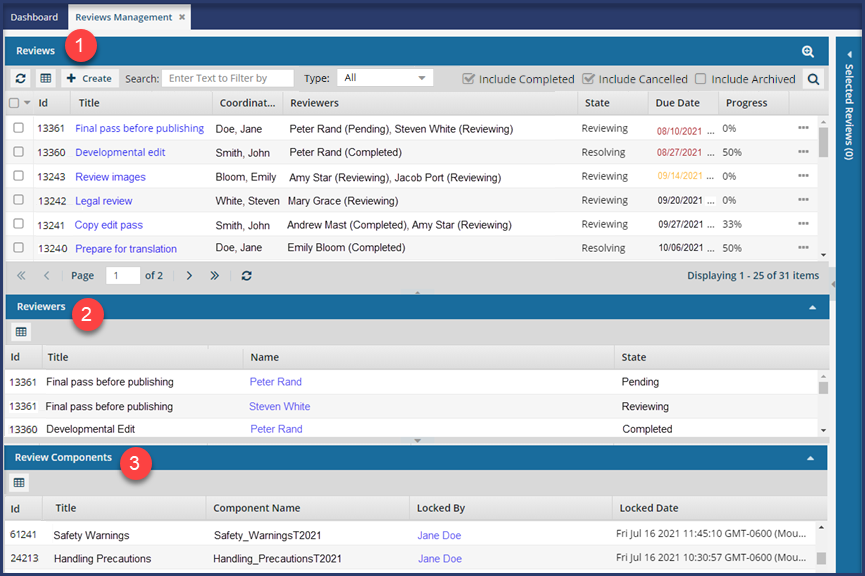
The Reviews module contains a single Reviews Management tab with three panes: Reviews, Reviewers, and Review Components.
- Reviews pane. See a list of all the reviews and their details at a glance. You can sort this list and customize which details are displayed.
- Reviewers pane. For each review, see who is assigned to work on it, and where they are in the review (State).
 This pane is collapsed by default. To expand the pane, in its title bar click the down arrow
  .
. - Review Components pane. Starting with the first review in the grid, the components that are included are listed, along with the name of the coordinator or reviewer who locked them, and when. This pane is collapsed by default. To expand the pane, in its title bar click the down arrow .
By default, the Id column is now shown on all three panes in the Reviews Management tab.
- You can search in this column.
- You can sort by this column.
- You can hide this column
In the Reviews module, you can complete the following tasks:
- Access reviews
- See details on the Reviews pane, such as due dates, names of coordinators and reviewers, the state, and the progress.
- Take actions on the Reviews pane, such as refresh the data, create a new review, save a list of reviews to a CSV file, search for a review, and email the coordinator.
- See details on the Reviewers pane, such as see who is assigned to work on it, how much progress they have made, and send them email.
- See details on the Review Components pane, such as a list of the components that are included in the review, the name of the coordinator or reviewer who locked them, and when.
Access reviews
You can access the Reviews Management tab by clicking the Reviews icon  in the top menu.
You can also open a review from the following places:
- On the Dashboard. Look in the My Reviews pane. If you are assigned work to do in a review, there is a link you can click to open it.
- From an Inspire notification about a review. Keep in mind that you might not receive a notification if you are completing your own assignment in a review.

- Look in the Notifications list. Click the Notifications icon
 and then click the review icon
  .
. - Open the notification. Click the Notifications icon , and then select See all notifications. Click the notification, then scroll to the section called Review, which includes a link you can click to open it.
- Go to your email Inbox. Open the notification email sent by Inspire, which includes a link you can click to open the review.
- Look in the Notifications list. Click the Notifications icon
See details on the Reviews pane
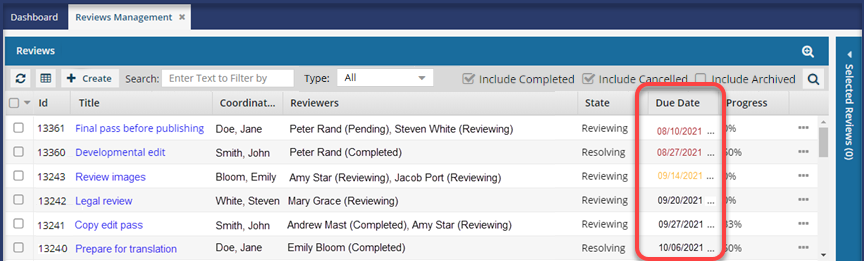
By default, the review grid sorts the list of reviews by Created Date in descending order.
The Due Date is displayed in the following ways:
- Red Due Date — when the Due Date is older than the current date and time, and the review has a state of Reviewing. If you hover your cursor over a red Due Date, a pop-up message tells you how many days it is overdue.
- Orange Due Date — when the Due Date is today, and the review has a state of Reviewing.
- Black Due Date — when the review isn't due today or overdue.
Progress. You can also see how much work has been done on the review. This number is calculated differently than the progress number on the Dashboard.
On the Reviews Management screen:
- Inspire does NOT consider context-only components in the calculation.
- Progress is calculated by adding up the components that are NOT context-only and multiplying it by the sum of reviewers plus the coordinator and approver.
For example:
- A review has 2 review components and 1 context-only component.
- The review has 2 reviewers and 1 coordinator who is also the approver.
- The total number of review components is multiplied by the sum of reviews and coordinator/approver to get:
2 * 3 = 6 - To calculate the progress:
- If one reviewer has completed their review, then the review has 2 completed components out of the 6, and the percentage is 33% complete.
% = 2/6*100 - When the second reviewer completes their review, then the review has 4 completed components out of the 6, and the percentage is 67% complete.
% = 4/6*100 - When the coordinator/approver resolves the review, it has 6 completed components out of the 6, and the percentage is 100% complete.
- If one reviewer has completed their review, then the review has 2 completed components out of the 6, and the percentage is 33% complete.
On the Dashboard screen in My Reviews, this number is calculated differently:
- Inspire also does NOT consider context-only components in the calculation.
- However, progress is calculated differently, by dividing the number of components one user has reviewed by the total number of components in the review.
- When one completes their review of all components, on their Dashboard, in My Reviews, the progress shows 100%.
- However, if the review has multiple reviewers, then the progress number won't be 100% on the Reviews Management tab after one user completes their review of all components.
Track review details and progress.
- Track high-level details such as: Title, Coordinator, State, Start Date, Due Date, Description, Created Date, and Archived.
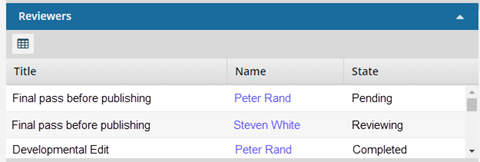
- See who the Reviewers are and what state their task is in.
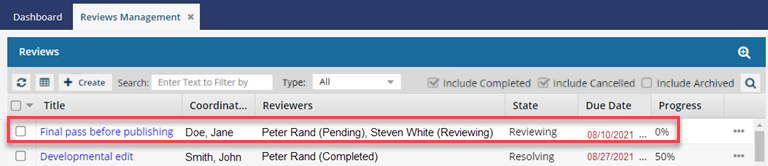
For example, in the following graphic, both Peter and Steven have been assigned to work on a review.
- This review is part of a workflow, where Steven reviews first and then Peter.
- Since Steven hasn't clicked the Complete Review button to finish his review yet, Peter's review is shown as (Pending).
- After Steven completes his review, Steven's state changes to (Completed), and Peter's state changes to (Reviewing)
- See how much work has been done on the entire review in the Progress column.
For example, in the following graphic, when Steven clicks the Complete Review button to finish his review, the Progress number changes to 33%.
- This means that one of the three review tasks has been completed.
- One user has completed their review, but the other reviewer needs to finish, and the one coordinator needs to resolve all comments and changes.
Take actions on the Reviews pane
 Refresh the list of reviews.
 Save the list of all reviews in a comma-separated value (CSV) file that is downloaded to your computer.
 Collect components and reviewers that you can schedule to develop content.
 Use basic search tools. Search for a review using a date, number, word, or phrase that appears in the Title, Coordinator, and Description columns.

- Completed
- Cancelled
- Archived
- You can search for terms in any of the columns.
- You can show or hide more columns to search in.
 You can't search in the Approved or Comments columns.
 - You can limit your search results using the Type filter.

- All (This is the default). Lists all reviews created in Inspire
- Coordinator. Lists all reviews where the logged-in user is the review coordinator
- Participant. Lists all reviews where the logged-in user is the review coordinator, approver, or reviewer
 Use advanced search to create and save queries. To open advanced search, click the magnifying glass with a plus sign.
To create a search, fill out the following fields:

- And/Or
- Field
- Operator
- Value
To save, edit, and delete a query, use the advanced search toolbar.

To access a saved query, choose a query from the dropdown list.

To hide the advanced search, click the magnifying glass with a minus sign  .
.
Sort by column.
Use the arrow next to the column name to sort the list ascending or descending by the column values. On the default view, you can sort by Title, Coordinator, Reviewers, State, Start Date, Due Date, Description, Created Date, Progress, Archived, Approved, and Comment. You can show other columns to sort in other ways.
 Email the review coordinator
To open your email application, in the Coordinator column, click the name.
Change the details shown in the panel.
Use the drop-down arrow next to the column name to add or remove any of the columns except Title.
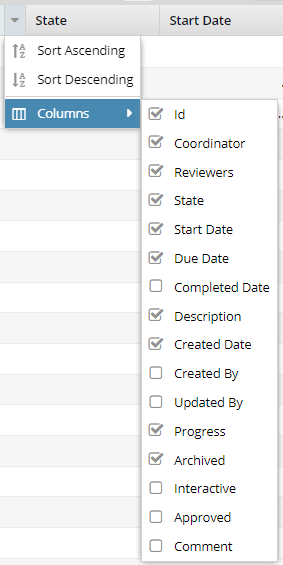 |
By default, you can see:
You can add the following columns to show more details:
|
Select multiple reviews to update at the same time
Select all the reviews you want to open, cancel, archive, or delete, and then use the Selected Reviews panel.
 Open the Options menu
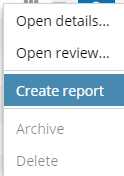
The availability of the following options depends on the review's State:
| Option | Description | Available in States |
|---|---|---|
| Open details... | Opens the Update Review screen to change deadlines, remove components, and add reviewers. |
|
| Open the review... | Opens the review editor so users participating in a review can comment and make changes to components if change tracking permissions are granted. |
|
| Create report | Sends a notification with details about a review to you. |
*All comment and change details are only collected when a review moves to the resolving phase. |
| Archive | Hides completed reviews so that they don't appear in the list of reviews. |
|
| Delete | Like an archived review, deleted reviews don't appear in the list. Unlike archived reviews, deleted reviews can't be accessed again. |
|
See details on the Reviewers pane
Starting with the first review in the grid, you see a list of each user who is assigned to work on a review, and where they are in the review (State).
See details on the Review Components pane
Starting with the first review in the grid, see the components included, along with the name of the coordinator or reviewer who locked them and when.
