Rebuild all relationships in multiple project components
You can use an automated tool to repair multiple invalid relationships that occur when references to other components or elements are broken. You can select multiple components and use this tool on all components at once. Use caution when selecting this option because after you confirm you want to use the tool, the action can't be undone.
 Permission requirements
- A content owner or administrator can set permissions to deny access to components or folders. If your permissions to content have been blocked, and you are not an administrator, you cannot use the Advanced options in a project's Content pane.
The
 AutoRepair and Rebuild All Relationships options may not be available. To use them, you must have one of the following permissions:
- Administrator
- Content browser module permissions with the can_rebuild_relationships property.
Administrators can grant access to non-admin users or roles by following the steps in Allow a non-admin user to rebuild relationships.

 Tips and Tricks
- You can also do this action from the Components browser. Follow the steps in: Rebuild all relationships in multiple components.
- If you want to repair all the relationships in just one project component, follow the steps in Rebuild all relationships in one project component.
- You can only create relationships to elements with ID values. For more information read Repair component relationships.
- The auto-repair tool is helpful when you want to fix a single relationship, but you can use it repeatedly to fix multiple broken relationships one at a time. Follow the steps in Auto-repair an invalid component relationship.
- If the auto-repair tool can't correct the invalid relationship, you can fix it manually. Follow the steps in:
- Inspire now supports content references to ditabase topics. A ditabase topic is a composite topic. Before maps, ditabase was used to collect multiple topics and structure them within a single topic file.
- If you use a conref to a ditabase topic, Inspire no longer identifies it as an invalid relationship.
When you repair a self-referencing link, the following syntax is used:
- If a cross-reference is pointing to content in a separate file, Inspire includes the file name:
<filename>#<rootid>/<elementid> - If a cross-reference is pointing to content that exists in the same file, DITA assumes it's the same, so Inspire drops the file name:
#<rootid>/<elementid>
- If a cross-reference is pointing to content in a separate file, Inspire includes the file name:
To rebuild all relationships in multiple project components:
-
Click
 Projects.
-
On the project tab, in the Content pane, to open the Content folder, click
 the Expand All arrow.
-
In the Content pane, select the checkbox for the components whose relationships you want to rebuild.
 To see the complete name of the components and use advanced search to search through all folders within a project, click
  the Select Project Components option.
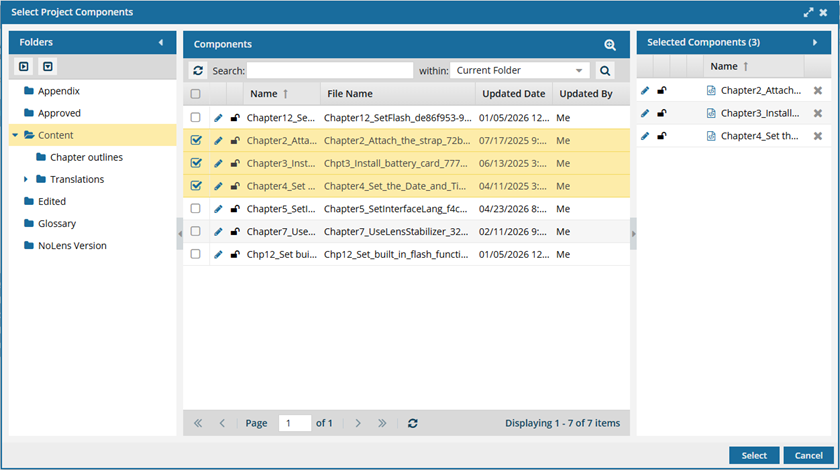
- To see more text in the Components pane, collapse the Folders panel by clicking
 the arrow that's pointing left.
- To quickly expand or collapse the folders, use the expand all and
 collapse all buttons.
- To find a component by keyword, in Search, enter words or phrases used in the component's name. In Within, select where in the project you want to search (Current Folder, Current and Subfolders, All Folders). Click Search
 .
. - To find a component by creating a query, click
 Advanced Search.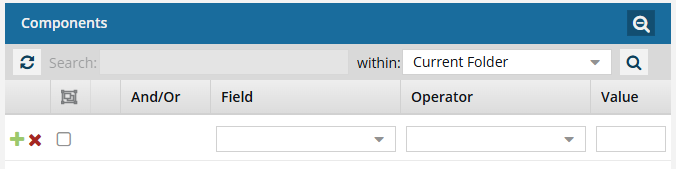
- Fields correspond to the columns in the grid. In the Field list, select the column you want to search in, such as Component State.
- After you select a Field, you must describe the relationship it has with the Value. In the Operator list, to include or exclude some or all of the values that you want to use, select an operator, such as
<>(not equal to). - The options in the Value list change depending on what you selected in Field. In the Value, select or enter the word, phrase, or number you are searching for in relation to the Field. For example, Component State (Field)
<>(Operator) Invalid (Value). - In Within, select where in the project you want to search (Current Folder, Current and Subfolders, All Folders).
- Optionally, to enter another clause to your query, click
 Add. Select whether you want to narrow your search by requiring that all statements must be true (And), or expand your search by requiring that any of the statements can be true (Or).
 - Click Search .
- To select multiple components to manage, select the checkbox for each component.
 Result: The components are listed on the Selected Components panel.
 - To close the Select Project Components screen, click Select.
- To see more text in the Components pane, collapse the Folders panel by clicking
-
In the Selected Components panel, select
 Manage Relationships.
-
On the Rebuild All Relationships confirmation screen, click Yes.
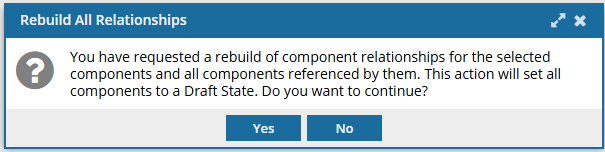 Results: You see the following notifications in Inspire: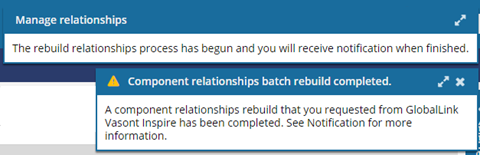
 When you complete a task that triggers a notification, such as repairing relationships, the Slack and email message bodies contain:
- The title and file name of the component that was repaired.
- Ten or fewer Issues, Errors, and Warnings.
- A link at the bottom of the message [See Full Version].
- You can click the [See Full Version] link to expand a section under the link with the full details.
- For more information, review the Sample Inspire notification.