Allow a non-admin user to rebuild relationships
In a component, when you link or reference content to another component in Inspire, you create a relationship between the components. If a component has the  Invalid State icon, administrators can use the Manage relationships options, Auto Repair, and Rebuild all Relationships, to attempt to fix the component references. If you want to allow a non-administrator user or role to use these options, you can add them to the Content Browser module's can_rebuild_relationships property in Module Access Management.
 Tips and tricks
- If you add a non-admin user or role to the can_rebuild_relationships property:
- They can open the Manage relationships screen. (From the Components browser or a project, use the Options menu, select Advanced, and then select Relationships...)
- The options for
 AutoRepair All and Rebuild All relationships are available.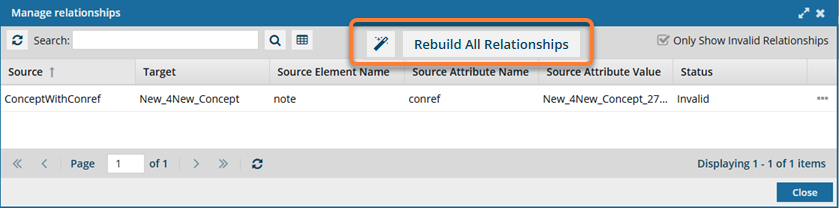
- If you do NOT add a non-admin user or role to the can_rebuild_relationships property:
- They can open the Manage relationships screen. (From the Components browser or a project, use the Options menu, select Advanced, and then select Relationships...)
- The options for AutoRepair All and Rebuild All relationships are NOT available.
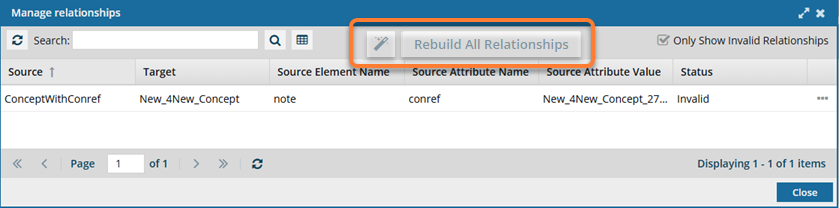

To allow a non-admin user or role to auto-repair component relationships:
-
From the
 Security menu, select Module access management.
-
On the Module access management tab, select Content Browser, and then at the end of that row click Update
 .
.
-
In Module Properties, select can_rebuild_relationships.
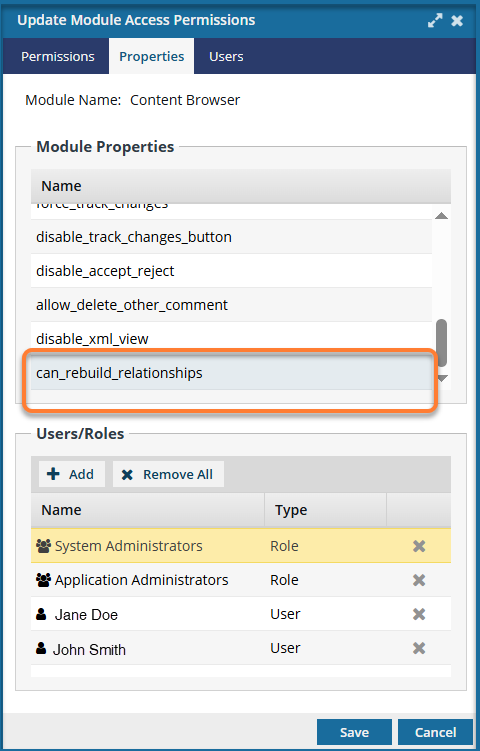
-
In Users/Roles, click
 Add.
Add.
 On the Select Users screen, if the list is large, or you only want to see a certain type of user, you can narrow the list in the following ways:
- To see only names that contain a word or specific letters, in Filter, enter text. For example, you can find names that contain "admin", or "review". You can't search for text in any other column except Name.
- To see all users sorted by Name, Security Type, or User Type, click the column heading and then click the gray arrow. To sort by Name or User Type you can also use the Sort By drop-down box.
- By default, names with a User Type of Support are not included in the list. To see these users, select the Include support users option.
-
After you finish selecting users or roles, click Select.
 Results:
- You see your selection(s) added to the Users/Roles list.
- You return to the Permissions tab of the Update Module Access Permissions screen.
-
On the Update Module Access Permissions screen, click Save.
Results:
- You are returned to Module Access Management screen.
- Any users whose access you changed must log out and back in to see the changes.