Create a folder component asset report
You can create a report with details about selected source types of components stored in the selected folder. You can then choose to include subfolders and ignore translations before the report is sent to your Notifications tab.
 Tips and tricks
- You can select any type of component that your organization has included on the Component Type Configuration screen. Administrators can follow the steps in: Configure component types.

To create a component asset report for a folder:
-
Click
 Components.
-
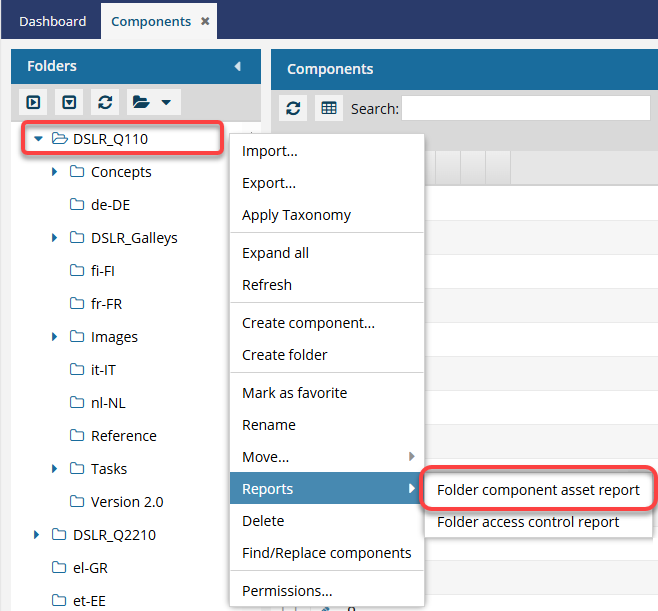
Right-click the folder, select Reports, and then select Folder Component Asset report.
-
On the Add Source Component Types screen,
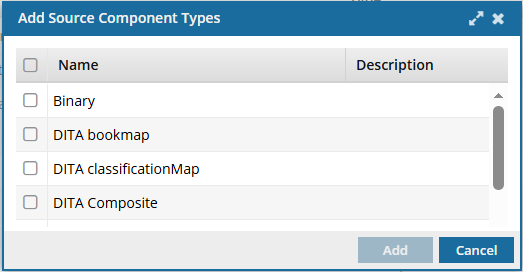
- Select the checkbox for the component types you want to include in your report.
- Click Add.
-
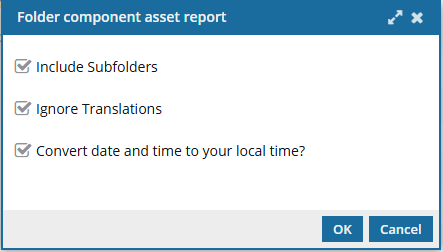
On the Folder component asset report screen:
-
By default, the Convert date and time to your local time? option is not selected and the report displays all dates and times based on the Time Zone that your Inspire server instance is located in.
 If you want to see all dates and times based on the Time Zone specified in your Profile, select the Convert date and time to your local time? option. (To view or change your Time Zone, follow the steps in: Select your time zone.)
 Results: You see a notifications that the report process has started.
-
By default, the Convert date and time to your local time? option is not selected and the report displays all dates and times based on the Time Zone that your Inspire server instance is located in.
-
After you are notified that the report is complete, in the top menu, click
 Notifications.
 You do not receive a copy of the report in email or Slack and it cannot be configured.
 -
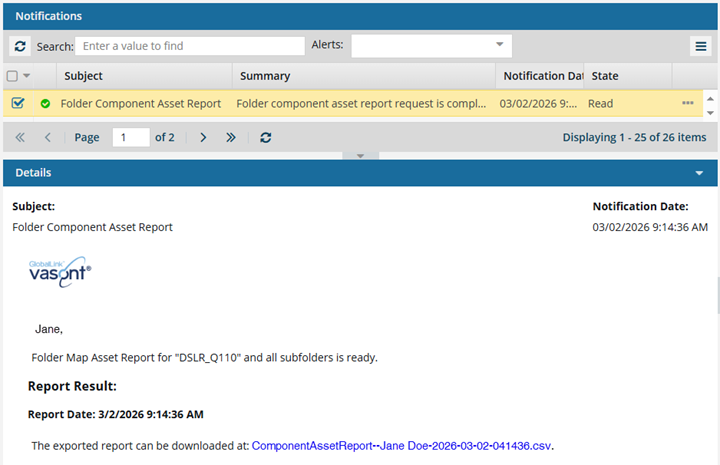
From the list of notifications, select the one that says Folder Component Asset Report.
Results: In the Details pane, you see the a link to download the report.
The report includes the following details:
- Id. Click the link to go to the component. The link opens the Components tab, navigates to the folder containing the component, and highlights the component in the Components pane.
- ComponentMapName. The name of the map component that organizes a set of resources, such as topics, into a hierarchy.
- Name. The name as it is displayed in the Components browser.
- FileName. The file name without spaces and with the GUID attached.
- Type. The category DITA uses to describe the information in the topic.
- State. the State column lets you quickly identify appropriate actions you should take on a file based on the icon.
- Path. The list of folders you must open before you find the component.
- Language. The source language that the component uses. This code is a language code followed by a region code.
- CreatedDate. The date a request was submitted to create the bookmap component. The date is shown as MM/DD/YYYY HH:MM:SS AM/PM.
- CreatedBy. The name of the user account who originally created the bookmap component. The name is displayed as the first name, then last.
- UpdatedDate. The date a request was submitted to save and submit changes to the bookmap component. The date is shown as MM/DD/YYYY HH:MM:SS AM/PM.
- UpdatedBy. The name of the user account who submitted a request to save and submit changes to the bookmap component. The name is displayed as the first name, then last.
- Label. The optional text you entered when you used one of the following Save options: Save as copy, Save as branch.
- Comment. The text you entered when you optionally added a comment to the bookmap component.
- LastReviewedDate. The date a request was completed to save and submit review changes to the bookmap component. The date is shown as MM/DD/YYYY HH:MM:SS AM/PM.
- LastApprovedDate. The date a request was completed to approve the bookmap component. The date is shown as MM/DD/YYYY HH:MM:SS AM/PM.
- LastTranslatedDate. The date a request was completed to translate the bookmap component. The date is shown as MM/DD/YYYY HH:MM:SS AM/PM.
- LastPublishedDate. The date a request was completed to publish the bookmap component. The date is shown as MM/DD/YYYY HH:MM:SS AM/PM.