Approve multiple components in the browser
You can let other Inspire users know that a component is finished and ready to publish or translate by setting its state to approved
 Approval requirements
- You must have at least one of the following roles or permissions:
- Be an administrator.
- Non-admins must be added to the Content Browser's can_approve module property. Follow the steps in: Control who can approve components.
- You must have permissions to update the component.
Otherwise, you see the Approve option is greyed out and unavailable.
- The component must be unlocked
 .
. You may be prevented from selecting a component if the ApprovalNotRequired tag has been attached to the component. For more details, read Exclude a file from approval using a tag.
- Before you approve a component, do all the following to prevent seeing errors:
- Remove all tracked changes or comments. Work in the Oxygen editor
- Correct any errors. Validate XML in the editor

 Tips and tricks
- You can use options in the Selected Components panel with only a single component listed. You do not have to select multiple components.
- If you want to add a Label and Comment when you approve a single component, add it to the Selected Components panel first. This is helpful because you do not get these options when approving a single component from the right-click or
 Options menus.
To approve multiple components:
-
Click
 Components.
-
In the Components pane, select the checkboxes for the components you want to approve.
 You can use options in the Selected Components panel even when only a single component is listed. You do not have to select multiple components.
 -
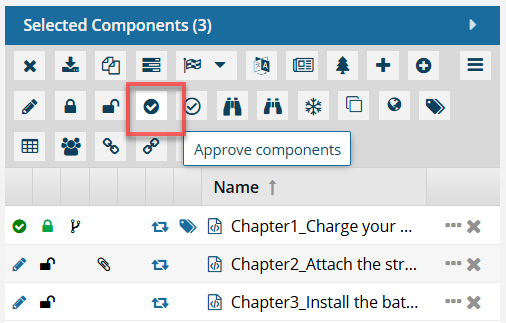
On the Selected Components panel, click
 Approve components .
-
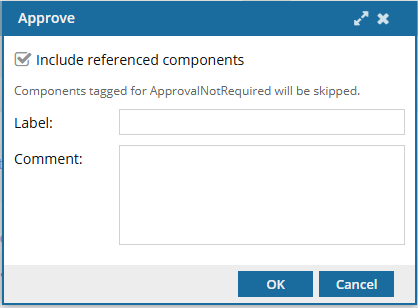
On the Approve screen:
-
Optionally, to improve context tracking during the approval process, enter 50 or fewer characters in Label, such as a version number or name.
All selected components receive the same label.
-
Optionally, to explain why you approved the components or provide guidance on next steps, in Comment, enter up to 2000 characters.
All selected components receive the same comment.
-
Optionally, to improve context tracking during the approval process, enter 50 or fewer characters in Label, such as a version number or name.
-
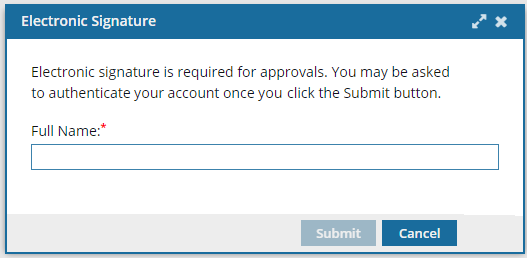
You may be required to provide your electronic signature:
-
On the Electronic Signature screen, enter your Full Name and then click Submit.
- Do not include underscores or email addresses.
- You must use the name as it appears in your user profile.
- To see what this is, click the
 Profile icon.
 - For example: Jane Doe.
-
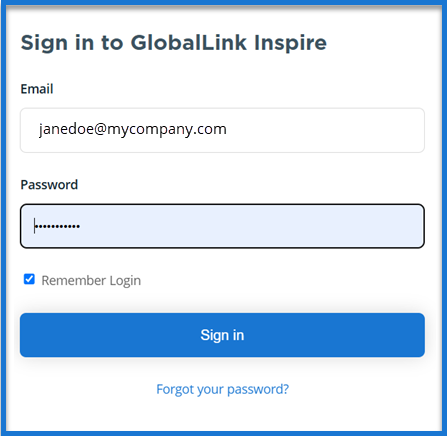
If you are required to authenticate your account, on the log in screen, next to
 the lock, enter your password.
 Notes:
You don't have to re-enter your username. Inspire displays your account's email address for you.
You must use the same password that you log in to Inspire with.
-
On the Electronic Signature screen, enter your Full Name and then click Submit.
-
You are returned to the Components browser.
 Results:
 - You receive one notification for all approvals.
- The components are cleared from the Selected Components panel.
- One of the following approved icons next to the approved component:
- If no signature is required: a green checkmark
 .
. - If a signature is required: an e-signature icon
 .
.
- If no signature is required: a green checkmark
- The state of the component is changed to one of the following:
- If no signature is required: Approved displays if you hover over the green checkmark.
- If a signature is required: Signed displays if you hover over the e-signature icon.
 Important notes:
- The approved component may be locked with
 a green system lock. An administrator can control if a system lock is placed on the component after a user approves it. By default, this optional feature is set to false, so no lock is placed on a component after approval.
 - Go to the
 Notifications module and check for any Issues.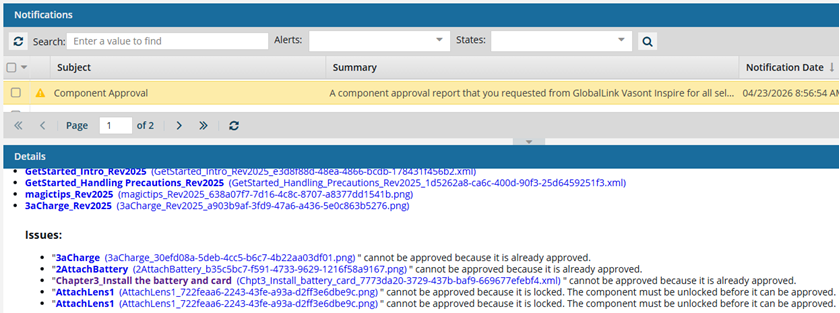
For example, referenced components might be skipped and not approved if they are:
- Locked
- In review
- Tagged with ApprovalNotRequired
- Already approved
The components' metadata now includes the name of the user who signed the approval and the date. To see this data, follow the steps in: See Approval signatures. After you approve components in Inspire, to help avoid accidental editing of approved content:- The approved component may be locked with a green system lock.
An administrator can control if a system lock is placed on the component after a user approves it. By default, this optional feature is set to false, so no lock is placed on a component after approval.
- This action happens regardless of whether the approval requires a signature or not.
- To edit an approved component, you must Unapprove it.