Find topics using the Oxygen AI Assistant
When you're developing content in the Oxygen editor, you can ask the assistant to find components that contain any information about the word or phrase you specify. You get results in the form of a component name. You can choose to Open the component or View more details to see a list of references to insert.
 To access the premium AI feature, you must purchase it separately. Contact your Vasont customer representative to invest in efficiency and discover how AI can elevate your search experience today!

 Before you begin
- If you don't see the AI-powered search option in Oxygen, contact an administrator to enable the feature.
- You cannot search through text in images or binary files.
- You can only search for content that has been added to the AI Submit index.
- After the index is created, content is added automatically when a component is saved using the Save and Submit option in Oxygen.
- To manually add a component to the index, use the Selected Components pane. Follow the steps in: Add content to an AI index from selected components.
To find topics using the Oxygen AI Assistant:
-
In the editor, if the right side panel isn't open, click the show arrow
 .
.
-
Select
 the AI Assistant option.
-
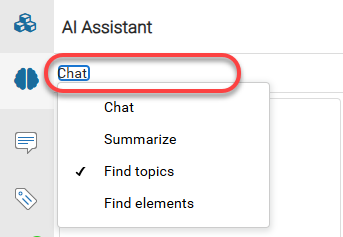
In the AI Assistant pane, click the Chat option, and select Find topics.
-
In the AI Assistant pane, in the textbox that says Send a message..., use the textbox to type in a word or phrase that you think is used in another component.
 Press the Enter key to add another line to the prompt without sending it.
 -
To send the prompt, press the Ctrl + Enter keys or click Send.
 Results: You see your criteria underneath the heading Me, and the components found by the AI-powered search under the heading AI Assistant.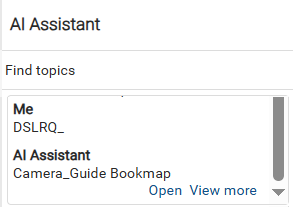
 Tips and tricks
- If enabled, Inspire adds content to the AI Submit index automatically every time you edit a component in Oxygen and Save and Submit your changes.
- If you don't get any results, you can manually update content in the AI index to ensure it's included in AI searches. You can update AI search contents from the Selected Component panel. Follow the steps in: Add content.
- When you Save and Submit component changes, the changed content overwrites content previously stored. If you don't see results that you think are current, you can remove older content from the AI search index. Follow the steps in: Delete content.
You can take the following actions on your results:- To edit the component in the Oxygen editor, select Open.
- To see a list of Content and Cross-reference IDs and insert one, select View more.
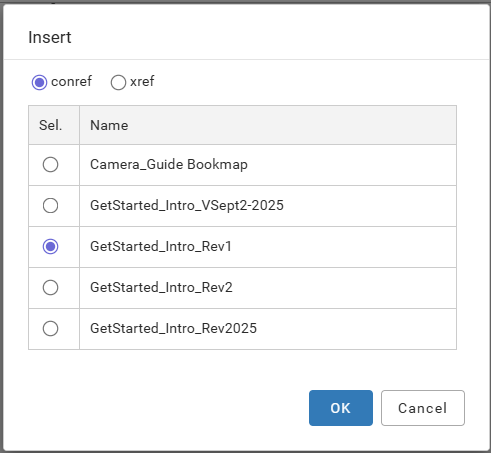
- conref. Insert a content reference to reuse the selected component and make it appear exactly as it is in the document you're editing in the Oxygen editor.
- xref. Create a cross-reference from the document you're editing to the document that you select.