Find elements using the Oxygen AI Assistant
When you're developing content in the Oxygen editor, you can use an AI-powered search to see if content already exists in Inspire. Use this option to find elements that contain a word or phrase. This option is useful when you know you have a reusable element with similar content, but you don't know which component has it or the exact phrase
 To access the premium AI feature, you must purchase it separately. Contact your Vasont customer representative to invest in efficiency and discover how AI can elevate your search experience today!

 Tips and tricks
- You can use the AI assistant to find content in all the Inspire components that have been added to the Submit Index for an AI-powered search. You don't have to leave the editor to search for similar components, or create an advanced query in the Components browser.
- You cannot search through text in images or binary files.
- If you want to find all the occurrences of a word or string of characters in the document you're currently editing, you can also use
 the Find/Replace option in the right pane. This is useful if you want to replace words you've found with another text string.
Before you begin
- If you don't see the AI-powered search option in Oxygen, contact an administrator to enable the feature.
- You can only search for content that has been added to the AI Submit index.
- After the index is created, content is added automatically when a component is saved using the Save and Submit option in Oxygen.
- To manually add a component to the index, use the Selected Components pane. Follow the steps in: Add content to an AI index from selected components.
To find content in the Oxygen AI Assistant pane:
-
In the editor, if the right side panel isn't open, click
 the show arrow.
-
Select
 the AI Assistant option.
-
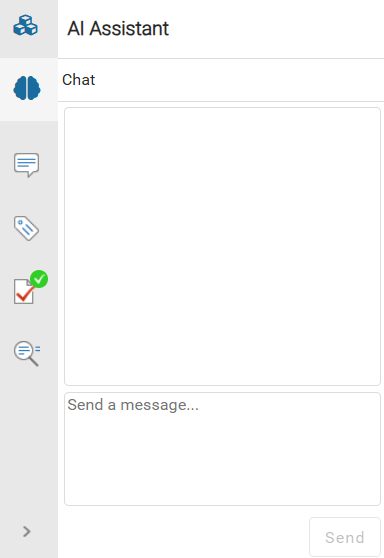
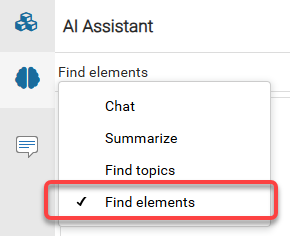
In the AI Assistant pane, click the Chat option, and select Find elements.
-
In the AI Assistant pane, in the textbox that says Send a message..., use the textbox to type in a word or phrase that you think is used in another element in a different component.
 Press the Enter key to add another line to the prompt without sending it.
 -
To send the prompt, press the Ctrl + Enter keys or click Send.
 Results: You see your question underneath the heading Me, and the text found by the AI-powered search under the heading AI Assistant.
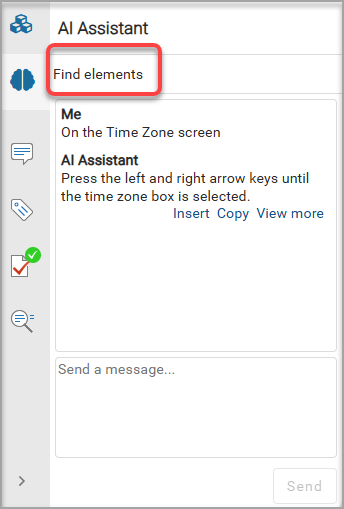 You can take the following actions on your results:
-
Insert. Use this option to copy the element found by the AI Assistant into the document you are editing.
 If your cursor in the document you're editing is currently in a different type of element than the one selected, Inspire pastes in all the found element's content as plain text.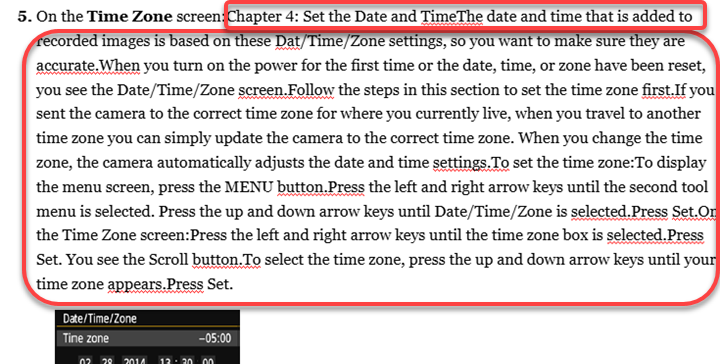
-
Copy. Use this option to copy the text as it is displayed by the AI Assistant to your computer's memory. The content is added to the clipboard. You can paste the content wherever you want inside or outside of Inspire.

-
View more. Use this option to see a list of all matches and insert one.
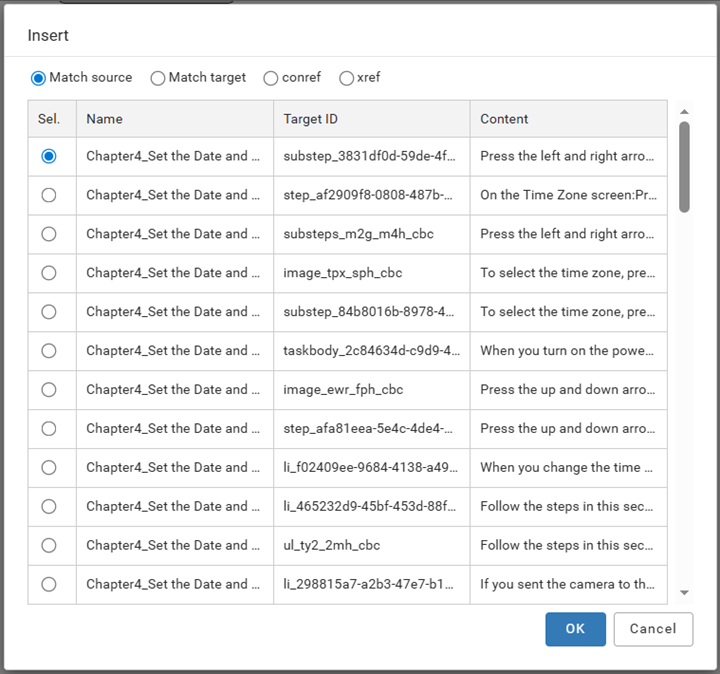 Use the Target ID to make sure you're inserting an element that matches the element you're editing in the Oxygen editor. For example, if you want to insert the content from a substep, make sure that in the Oxygen editor your cursor is in an ordered list's substep element.
 - Match source. Paste the selected element's text in to the content you are editing and keep the format of the element you’re pasting the text from.
- Match target. Paste the selected element's text in to the content you are editing and keep the format of the element in the document you're editing in the Oxygen editor.
- conref. Insert a content reference to reuse the selected element and make it appear exactly as it is in the document you're editing in the Oxygen editor.
- xref. Create a cross-reference from the document you're editing to the document that contains the selected element.
-
Insert. Use this option to copy the element found by the AI Assistant into the document you are editing.