Chat with the Oxygen AI Assistant
When you're developing content in the Oxygen editor, you can use an AI-powered search to find content already written. When you leave the default option of Chat and ask a question, you get results in the form of text that you can Insert or Copy.
 To access the premium AI feature, you must purchase it separately. Contact your Vasont customer representative to invest in efficiency and discover how AI can elevate your search experience today!

 Before you begin
- If you don't see the AI-powered search option in Oxygen, contact an administrator to enable the feature.
- You cannot search through text in images or binary files.
- You can only search for content that has been added to the AI Submit index.
- After the index is created, content is added automatically when a component is saved using the Save and Submit option in Oxygen.
- To manually add a component to the index, use the Selected Components pane. Follow the steps in: Add content to an AI index from selected components.
To chat with the Oxygen AI Assistant:
-
In the editor, if the right side panel isn't open, click the show arrow
 .
.
-
Select
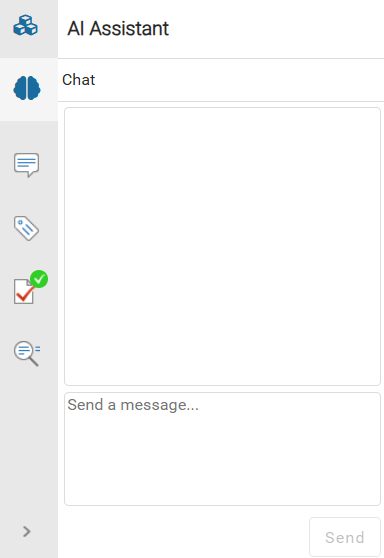
 the AI Assistant option.
-
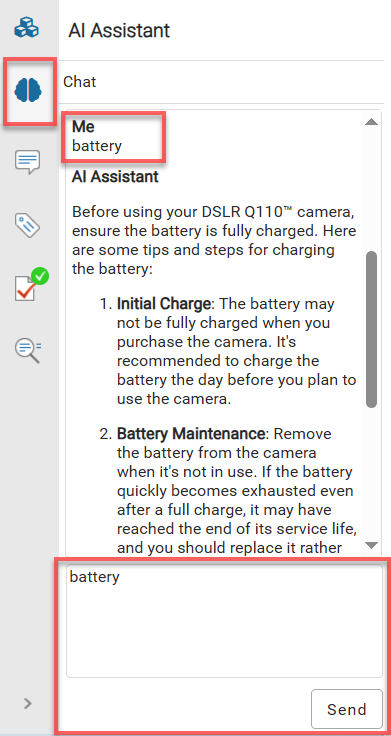
In the AI Assistant pane, in the textbox that says Send a message..., use the textbox to type in a question, word, or phrase that you think may already exist in an Inspire component.
 Press the Enter key to add another line to the prompt without sending it.
 Getting the most out of the AI assistant is all about how you phrase your questions. Here are some tips to help you find the information you need:
- Be Specific – Instead of “Cancelled jobs,” try “What happens if my translation job is cancelled?” Specifics help the assistant zero in on what you really want to know.
- Give Context – If you're writing about a specific project or job task, say so! “I need to update a translation request."
- Experiment with follow-ups – Are you getting this response: "Sorry, I'm not able to find any relevant information." Ask follow-up questions using alternate phrases or perspectives. Instead of "cancel review" try "how do I update a review".
- Use Natural Language – No need to sound like a robot talking to a robot. Just chat the way you’d talk to a clever friend.
- Ask challenging questions – Ask the assistant to can explain a tough topic in simple terms, or summarize a huge idea in one sentence.
-
To send the prompt, press the Ctrl + Enter keys or click Send.
 Results: You see your question underneath the heading Me, and the text found by the AI-powered search under the heading AI Assistant.
 You can take the following actions on your results: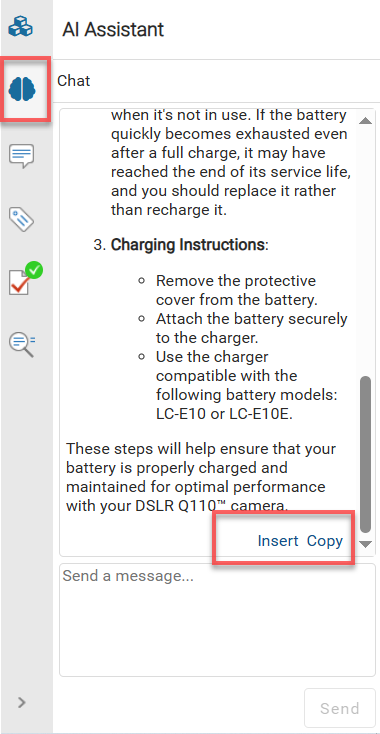
 Tips and tricks
- If enabled, Inspire adds content to the AI Submit index automatically every time you edit a component in Oxygen and Save and Submit your changes.
- If you don't get any results, you can manually update content in the AI index to ensure it's included in AI searches. You can update AI search contents from the Selected Component panel. Follow the steps in: Add content.
- When you Save and Submit component changes, the changed content overwrites content previously stored. If you don't see results that you think are current, you can remove older content from the AI search index. Follow the steps in: Delete content.
- Always read your results before re-using the content.
- AI can struggle in the following ways:
- Finding the appropriate source content if there are many similar components
- Mistaking a minor detail for the headline
- Distinguishing essential information from interesting details
You can take the following actions on your results:- To paste the text generated by the AI Assistant as unformatted text into the document you are editing, in the middle pane, place your cursor where you want the text to be pasted. In the AI Assistant pane, click Insert.
- To copy the text created by the AI Assistant to your computer's memory, click Copy. The text is added to the clipboard without any formatting attached. You can paste the content wherever you want inside or outside of Inspire.