Get started with projects
You can use a project to collect components, participants, and assignments that you need to meet a specific goal.
When you create a project, Inspire assigns you as the project owner. You can use a project to create a project team and to assign components to team members for various tasks.

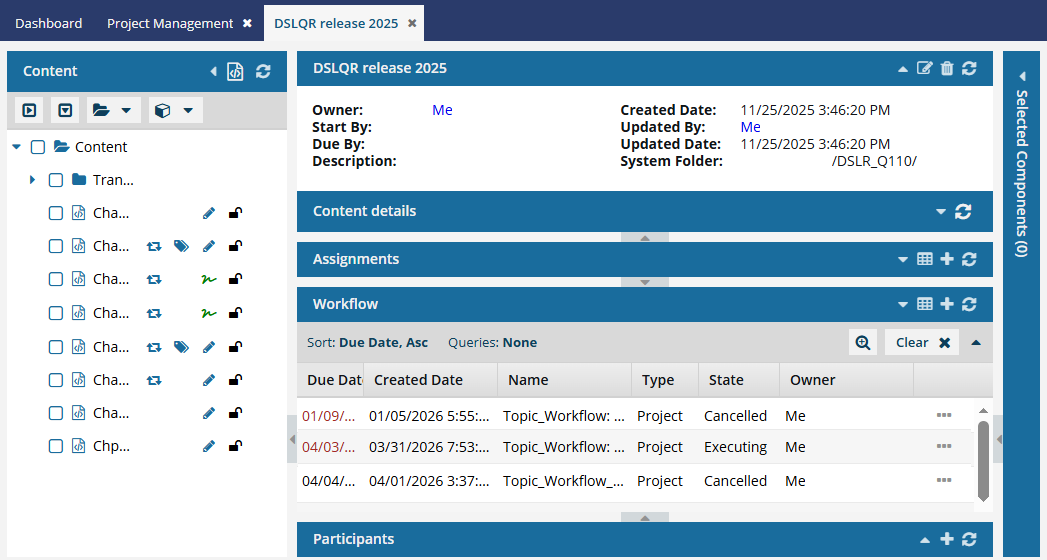
Articles in this topic:
Required permissions
 You must have permission to the Projects Module to work with projects.
- By default, only users with the following permissions can create project workflows and assignments:
- Administrator permissions
- Access to the Project Module with the Create permission
- Even if you don't have these permissions, you can be granted a special permission to create workflows and project assignments after a project is created.
- If you are an administrator, refer to Allow users to create project assignments and workflows.
- If a user is a member of an administrator role called Restricted Content Access, that user is an Admin with respect to all items under Admin and Security modules, but a normal user for the rest of the system.
- Therefore, to see or participate in a project, a Restricted Content Access user must be a participant or project owner.
- For more details, read: Manage Restricted Content Access admins.
- By default, files in a project that are being reviewed or translated are locked with
 a system lock. However, administrators can customize Inspire to allow for the following behavior:
- If a user is an administrator or has been added to the can_unlock_system module property, they can unlock a component with a red system lock after it's been included in a review.
- The component being reviewed or translated is unlocked and remains in the review or translation job.
- Any changes made before the component is unlocked are lost.
- Users can then edit the content while it's in a review or being translated, and this may cause issues when the review or translation is completed.
- Administrators can update the Content Browser module property can_unlock_system to change this behavior. Follow the steps in Control who can unlock system locks.
 To remove or update a project it must be active. If you cannot access an option in the steps, make sure the project is active. Follow the steps in: Make a completed project active.
Examples of projects
The following examples are ideas for projects:
- Documentation set. This project includes all the content associated with the complete documentation set for a specific product. The participants include the entire writing and editing team. Assignment activities include writing, editing, reviewing, and publishing.
- Annual legal review. This project includes content that requires annual legal review, such as trademark references and safety notices. The participants include one or two writers and the legal team. Assignment activities include reviewing and editing.
- Revision changes. This project includes content that has changed since the last revision of a document. The participants include one or two writers, editors, and subject-matter experts. Assignment activities include writing, editing, and reviewing.
- New feature. This project includes content associated with a new feature. The participants include a writer, an editor, and several subject-matter experts. Assignment activities include writing, editing, and reviewing.
- Quick access. This project includes content that is frequently or infrequently accessed. The project owner is the only participant. There are no assignment activities associated with this project.
Anatomy of a project
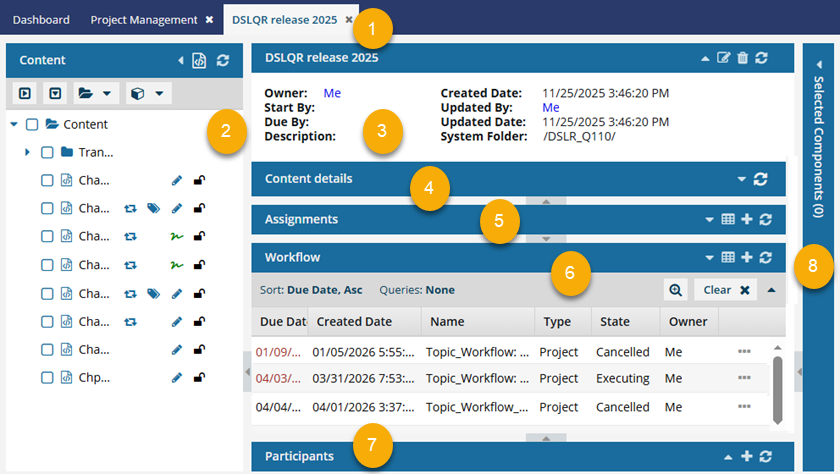
 Project Name. The name of the individual project you have opened is shown in the tab name and in the first panel on the left side.
 Content panel. This panel lists the folders and components you can use in your project work, such as for project Assignments or Workflows.
 Project details. All the data describing your project is shown here.
 Content details panel. After you select a component in the Content panel, you see two panes on the right side. In the Content details pane, the first pane on the right shows file details, and the second pane shows a content preview.
 Assignments. You can create the tasks you need to complete for your project in this panel. If you create a workflow, the tasks also appear here as assignments.
 Workflow. The process you design and implement to automate the hand-off between tasks is shown in this panel.
 Participants. The team members who will do the work on the project are shown in this panel.
 Selected Components. After you select a component, it is listed in this panel so that you can take an action on multiple components at once.
For full details, read: Work with a project.