Work in XML mode
If you want to edit the structure and content in your document as only XML code, you can switch to a mode where you only see text surrounded by tags.
Direct source editing provides complete control over every element, attribute, and character within the XML structure. This level of precision is often necessary for complex configurations, schema adherence, or fine-tuning.

 Before you begin
By default: Any user can select the  More... menu, and then
  Edit XML Source.
 An administrator can hide the Edit XML Source option for specific users and roles.
If you can select the Edit XML Source option, your screen looks similar to the following:
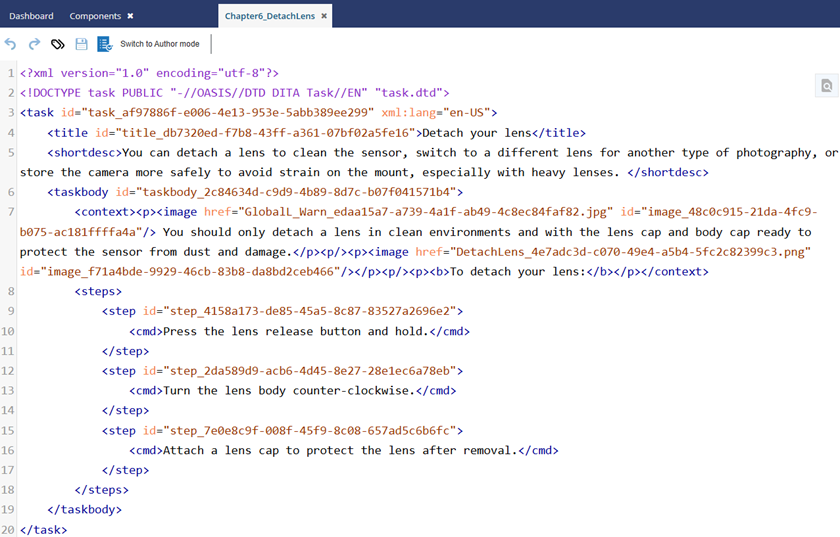
 Tips and tricks
- Switch to XML mode: By default Oxygen opens a component for editing in Author mode.
To switch from Author to XML mode, do one of the following:
- In the editor, click and then select Edit XML Source
- Use the keyboard shortcut keys Alt+fn+F5
- In the editor, click
- To provide a consistent display of special symbols, especially those inserted via MathML, Inspire's Oxygen XML view displays text in Arial Unicode rather than a monospaced font. With this update, inserted symbols now retain their correct representation before and after Save/Submit.
- You can hover your cursor over any option in the toolbar to see a Tool Tip.
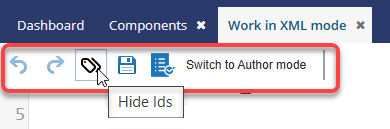
- Read about how to Edit the XML source.
- Show or hide attribute IDs: An administrator can configure an element to never be assigned an ID.
For example, if a Ditabase component is created or imported into Inspire, normally an ID is automatically added to the root level
<Dita>. For Ditabase, this ID makes the component invalid when opened in the XML editor because ID is not allowed on a Dita component.If an element is configured to not use IDs:
- When content is imported, no ID is generated
- In the Oxygen editor, no ID is generated when the Generate IDs or Save and Submit options are used
- This behavior is enforced even if the AutomaticIds option is turned on.
- Know how to use check-in comments.