Delete transitions in a template
You use transitions to identify what should happen when a workflow Activity is completed. If you delete the only transition that links two activities, Inspire can't automate the workflow. You can update the transition instead of deleting it. If you need to delete the only transition that links two activities, make sure to create a new transition or remove the previously connected activities if you want Inspire to run the workflow.
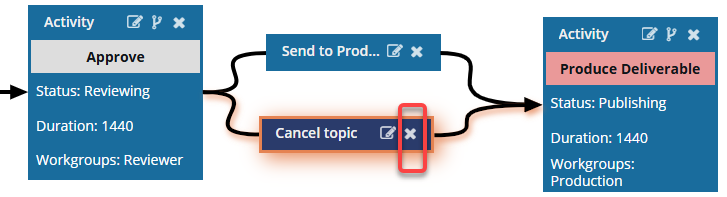
 Keep in mind that you can have multiple transitions that occur after an Activity.
- A transition can be created for an action that progresses the workflow, such as Approve.
- A transition can also be created for an action that returns the workflow to a previous step, such as Decline approval.

 You must have permission to work with workflow templates.
- By default, only users with the following permissions can create project workflows and assignments:
- Administrator permissions
- Access to the Project Module with the Create permission
- Even if you don't have these permissions, you can be granted a special permission to create workflows and project assignments after a project is created.
- If you are an administrator, refer to Allow users to create project assignments and workflows
 Tips and tricks
- You also can manage transitions in the following ways:
Before you begin
- The changes to transitions in a workflow will be applied to all new workflows that are started using this template.
- For workflows that use this template and are in progress:
- If the Transition you are updating has not occurred yet, the changes will be applied when the workflows moves to the updated Transition.
- If the Transition you are updating has already been completed, the changes will not be applied.
To update a transition:
-
Click
 Components.
-
In the Folders pane, select Workflows.
 If you have moved the template to another folder, go that location instead.
 -
In the Components pane, select a workflow.
To open the template, do one of the following:
- Double-click the file
- Right-click the file, and then select Edit...
- Click
 the Options menu, and then select Edit...
 Results: You see the workflow activities and transitions in the editor.
 -
In the workflow editor, find the Transition you want to remove.
 Transitions are shown as long rectangular boxes. When selected, the Transition is highlighted in orange.
-
In the transition's toolbar, select
 Delete transition.
-
On the confirmation screen, click Yes.
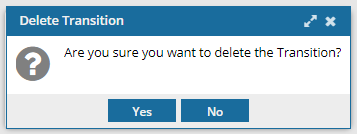 Results:
- The selected transition box is removed,
- All connecting lines are removed: the line connecting it from the start activity; the line connecting it to the end activity.
-
If there is no Transition to connect Activities, you only see an empty space. You will not see an error after deleting a transition or when saving the template.
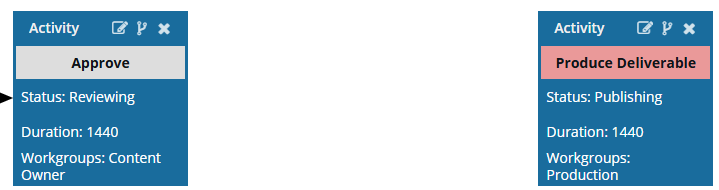 However, if a workflow uses this template, when the last connected Activity is completed (Approve), the workflow will not progress to the next Activity (Produce Deliverable) without a transition.
To correct for this issue, do any of the following:
- Create a new transition
- Copy and paste a transition
- Delete an Activity (that is no longer connected)
-
To save your changes to the template, do one of the following:
- If you are done updating the workflow, to close the workflow editor, click
 Save and Submit.
 - If you want to keep working but save your changes locally, click
 Save Progress.
- If you are done updating the workflow, to close the workflow editor, click