Customize the topic workflow template
Inspire provides a template for developing content. If you want a workflow with multiple steps, or you want to add actions or transitions between activities and manage workgroups, you can update the workflow template to tell Inspire how to automate the workflow you need.
 For a complete list of permissions, read: Workflow permissions.

 You can create an entirely new workflow template component with no default Activities or Transitions.
- Use the Topic workflow template explained in this topic as an example of what you can create.
- To create a new template, follow the steps in: Create a workflow template component.
There are three main parts to a template:
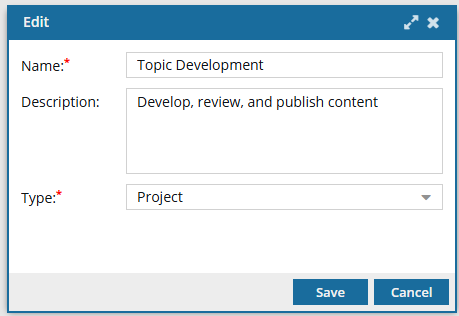
 The details. This includes the Name of the template, an optional Description, and its Type.
 The building blocks. This includes the options you must select when creating workflow tasks (Activities and Transitions). Inspire provides a few default options, but you can edit them or create your own.
- If you aren't sure what specific options you might need before creating a workflow, you can add new ones at any time.
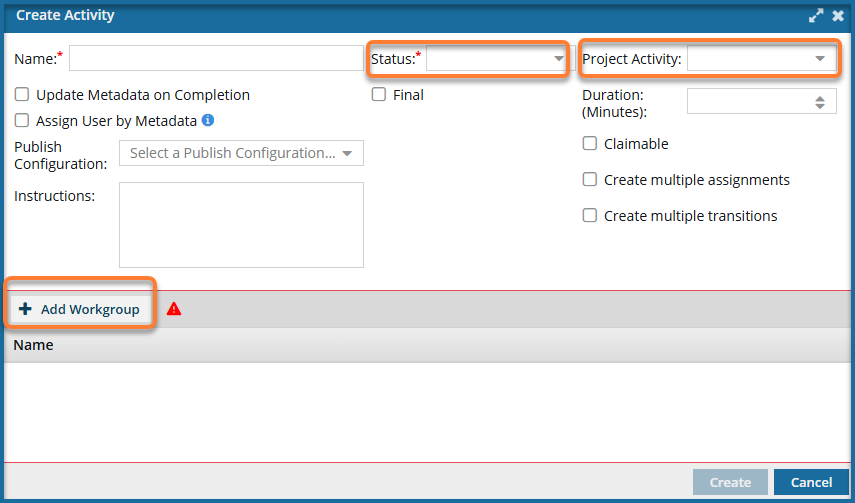
For Activity configurations, you should build the options you need for Status, Project Activity, and Workgroup.
For Transition configurations, you should build the options you need for an Action.
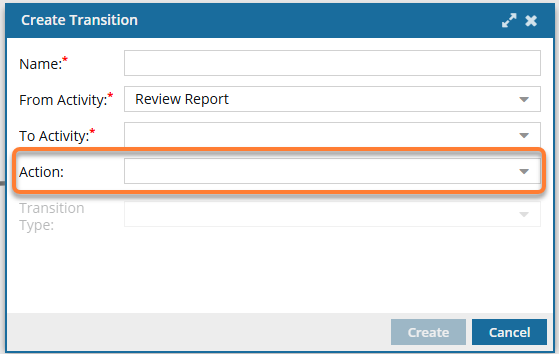
- You use Transitions to identify what should happen when a workflow Activity is completed. For example, after a technical review, you can create a transition that specifies the files should go to an editor for review.
- You can create a Transition from an Activity or by copying and pasting an existing one and then editing it.
- If the activity chosen in From Activity is configured for multiple transitions, you must select a Transition Type. Otherwise, this option is grayed out and unavailable.
- If there is also an Action that needs to be done, such as Take a snapshot, you can create the Action and then add it to the appropriate Transition.
- Actions are normally completed by the user who is advancing the workflow by marking a task as Completed.
- After you open a template and create a new Action or update an existing one, that Action is unique to the template you're working in.
- If you want to use the new or updated Action in another template, you have to re-create it in that specific template.
- There are various system actions you can add that Inspire recognizes; however they must be created in a Topic workflow or in a completely new workflow component. They cannot be used in a sequential reviewer template.
- These actions change what the user sees when they complete an Activity.
- The action can be completed only by Inspire, such as automatically approving components associated with the workflow Activity.
- The action can also be started by Inspire and completed by the user. For example, Inspire can open the Create Review screen for the user and prepopulate it with any known information. The user must add any missing information and click Create.
- You can automate the process of assigning work to a user in an active workflow. Follow the steps in: Automate the assignment of a workflow activity
You can customize a topic workflow with Actions that Inspire completes. Currently, there is a limited list of automated Actions that can be performed by Inspire:
InspireCreateReview (Add a Create Review Action to a topic workflow template)
InspireCreateApproval (Add a Create Approval Action to a topic workflow template)
- InspireApprove (Add an Inspire Approve Action to a topic workflow template)
- InspireUnapprove (Automate unapprovals in a workflow)
- InspireCreateTranslation (Automate translation in a workflow template)
- InspirePublish (Automate publication in a workflow template)
- InspireCompletenessReport (Automate completeness reporting in a workflow template)
- InspireTranslationCompletenessReport (Automate translation completeness reporting in a workflow template)
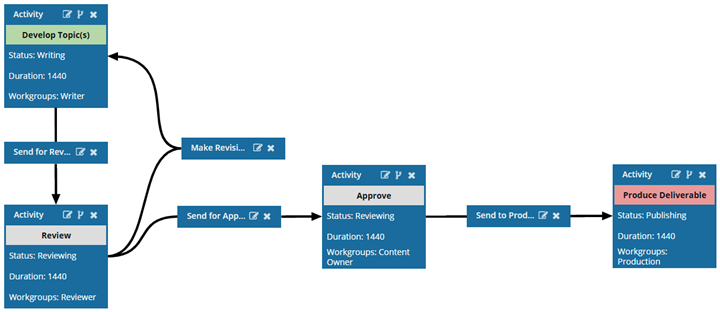
 The workflow. This includes the order of Activities and how the process moves from one Activity to the next using Transitions.
 Before you begin
- The changes to a template will be applied to all new workflows that are started using this template.
- For workflows that use this template and are in progress:
- If the Activity or Transition you are updating has not occurred yet, the changes will be applied when the workflow moves to the updated Activity or Transition.
- If the Activity or Transition you are updating has already been completed, the changes will not be applied.
To customize a topic workflow template:
- Update the details for a topic workflow template.
- Update the building blocks for a topic workflow template.
- Update Activities and Transitions for a topic workflow template.