Exclude one project component from approval
You can let other Inspire users know if a component is in a state of completion by giving it an approved state. When approving a component or choosing which references in the source component to approve, you can prevent a component from being included in the approval process by attaching a specific tag.
 Restrictions
- You must have Update permissions to the component to make tag changes. Tags are read-only for users without update permissions.
- A content owner or administrator can set permissions to deny access to components or folders. If your permissions to content has been blocked and you are not an administrator, you cannot use the Details option in a project's Content pane.

 Tips and tricks
- The tag that tells Inspire not to include a component in the approval process is called ApprovalNotRequired.
- You can use this tag on binary components such as an image or PDF file.
- Using this tag prevents Inspire from including the component during automatic approval process in a project workflow.
- Other ways you can apply the tag:
- To a single component in the Components browser
 Exclude one component from approval in the Components browser
 - To a multiple components in the Components browser
- In a project, to a multiple components
- To a single component in the Components browser
To exclude a project component from the approval process:
-
Click
 Projects.
-
On the Project Management tab, all projects in your organization are listed. To find a specific project, you can:
- Filter the list of available projects by words in the project name. In the Search text box, enter a keyword, and then click the magnifying glass
 .
. - Filter the list of available projects to include only those you own or are participating in. In Type, select an option to filter the list by that criteria.
- To include completed projects in the list, select Include Completed and then click the magnifying glass .
- Filter the list of available projects by words in the project name. In the Search text box, enter a keyword, and then click the magnifying glass
-
To open one project, select the project and double-click it.
 You can also open a project by:
- Right-clicking the project and then selecting Open.
- Clicking
 the Options menu and then selecting Open.
-
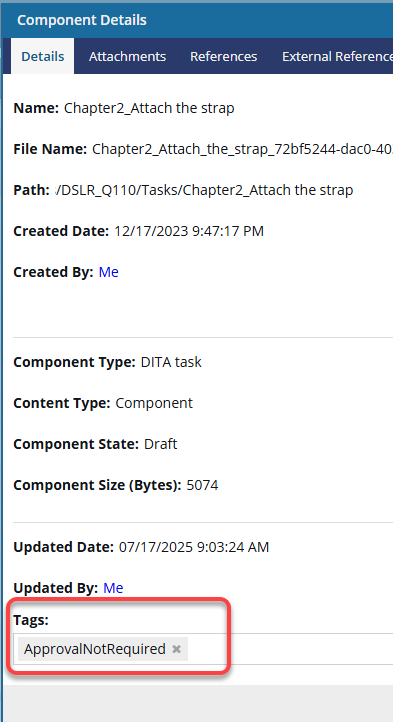
In Tags, select ApprovalNotRequired.
-
On the Component Details dialog, click Save.
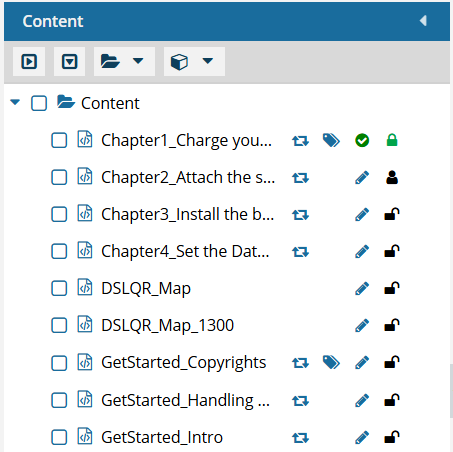
 Results:You see the component marked with
 the tag icon in the Content pane.
 Tips and tricks
- Look in the 2nd column after component name.
- If it exists, the tag icon appears after
 (the Shared icon) and before
  ,
, 
 ,
,  ,
,  , (the State icon).
 - To see the name of all tags that are applied, hover your cursor over the tag icon.