Delete a schema standard
If you added a custom schema version, you can remove it from the list of standard options as long as you did NOT select the System option.
 Required permissions
- You must have administrator permissions in Inspire to complete this task.

 Tips and tricks
- Inspire provides a definition of the following schema standards:
- DITA 1.2
- DITA 1.3
- DocBook 5.0
- These schema standards are considered system standards and cannot be updated or removed.
 If you added a schema standard and selected the System option, you cannot delete or update it. You must contact your Vasont representative to have it removed.
 - To understand more about how Inspire uses a schema standard, read: Manage schema standards.
 Before you begin
- Make sure no active schema uses the version you are about to delete. If you make a schema active and the standard no longer exists, you will see errors. To check, follow the steps in: Update a custom schema.
To delete a schema standard:
-
From the
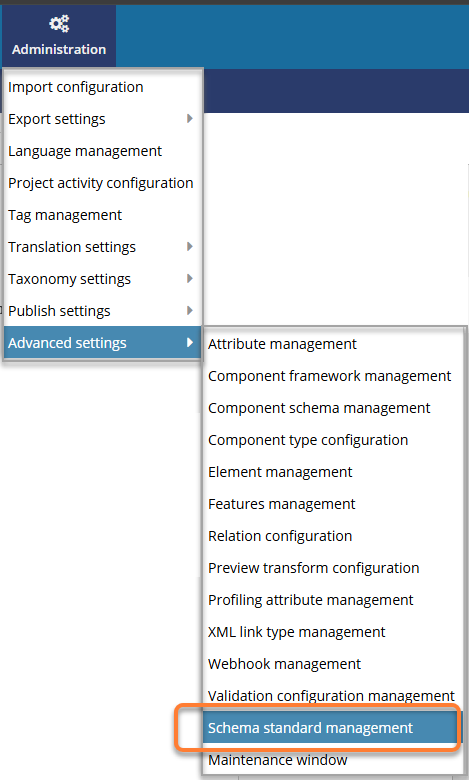
 Administration menu, select Advanced settings, and then select Schema standard management.
-
On the Schema standard management screen, select a non-system version and click
 Delete.
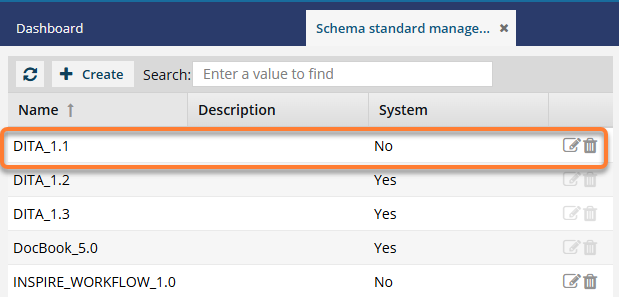 If you selected the System option, you cannot delete this schema standard. You must contact your Vasont representative to have it removed.
 -
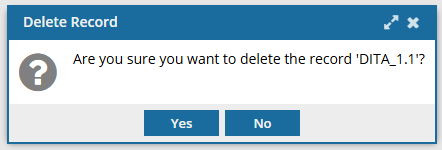
On the Delete Record confirmation screen, click Yes.
 Results:
- The schema standard is no longer listed on the Schema standard management tab.
- When you create or update a custom schema, you can no longer select this value.