Add existing components to a project
You can use a project to collect components, participants, and assignments that you need to meet a specific goal. You can create a project with just a Title, and then go back later and add the participants, due dates, and components.
 FAQ's
FAQ's
- Can I add the same component to multiple projects?
- What if I have a lot of components? Is there a quick way to find and add them?
- Do I have to have a project open to add components?
- How do I make sure I'm seeing the latest information about my project?
- How do I know what components are already included in my project?

Can I add the same component to multiple projects?
Yes, but a component can only appear in the same project one time.
What if I have a lot of components? Is there a quick way to find and add them?
You can find components in various ways, from simply browsing through folders to using more complex queries.
For step-by-step instructions:
- Find components
- Use basic search tools
- Use advanced search tools
- Add components to a project from the Components browser
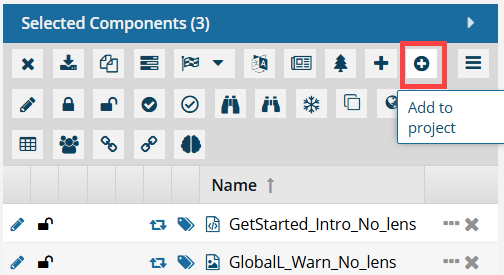
 You can also add numerous components at the same time from the Components browser. Just select the ones you want, open the Selected Components pane, and use the Add to project option.
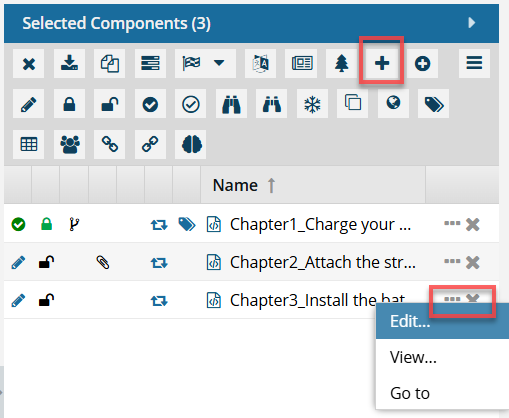
Do I have to have a project open to add components?
No, you can find the component you want to add in the Components browser, and then from the Selected Components panel, you can add multiple components at once to an existing project.
How do I make sure I'm seeing the latest information about my project?
After you create or open a project, you can manage it using the panels on the project's screen.
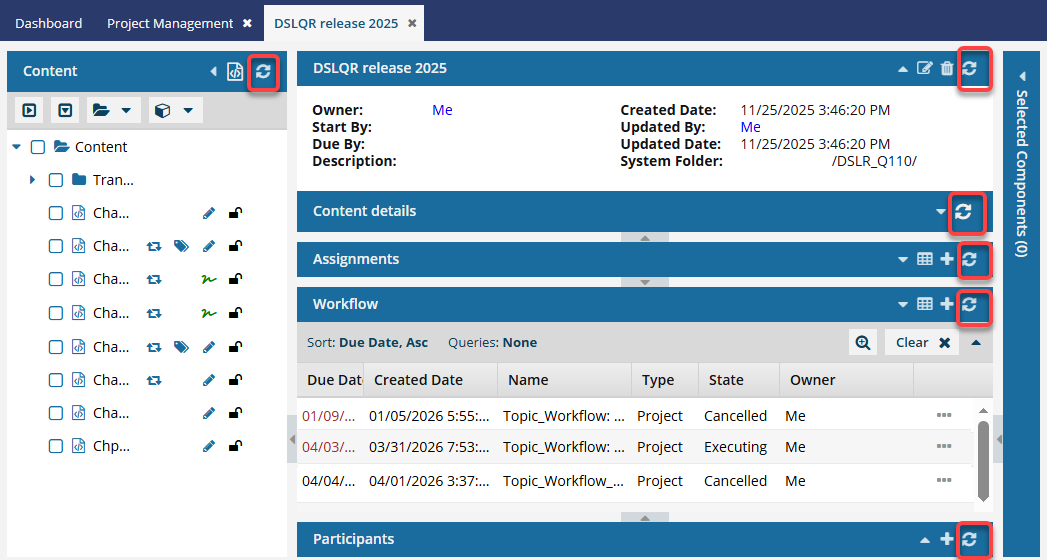
You can use  the Refresh button in each panel to make sure you aren't seeing stale data.
- Content panel. This panel lists the folders and components that you can use in your project work, such as when working on project Assignments or Workflows.
- If you refresh the project Content panel, Inspire remembers which Folders were expanded
- If you refresh the project Content panel, Inspire also refreshes the Selected Components panel
- When you create a project assignment, before you see the Create Assignment screen, Inspire refreshes the Content panel.
- When you create a project workflow, before you see the Start workflow screen, Inspire refreshes the Content panel.
- When a user moves the project workflow to the next task, before you see the Next workflow task screen, Inspire refreshes the Content panel.
- Project details. All the data describing your project is shown here.
- If you cancel a project workflow, Inspire refreshes the project details.
- Content details panel. After you select a component in the Content panel, you see two panes on the right side. In the Content details panel, the first pane on the right shows details about the file and the second pane shows a preview of the content.
- Assignments. You can create the tasks you need to complete for your project in this panel. If you create a workflow, the tasks also show up here as an assignment.
- When you create a project assignment, before you see the Create Assignment screen, Inspire refreshes the Content panel.
- Workflow. The process you design and implement to automate the hand-off between tasks are shown in this panel.
- When you create a project workflow, before you see the Start workflow screen, Inspire refreshes the Content panel.
- When a user moves the project workflow to the next task, before you see the Next workflow task screen, Inspire refreshes the Content panel.
- Participants. The team members who will do the work on the project are shown in this panel.
How do I know what components are already included in my project?
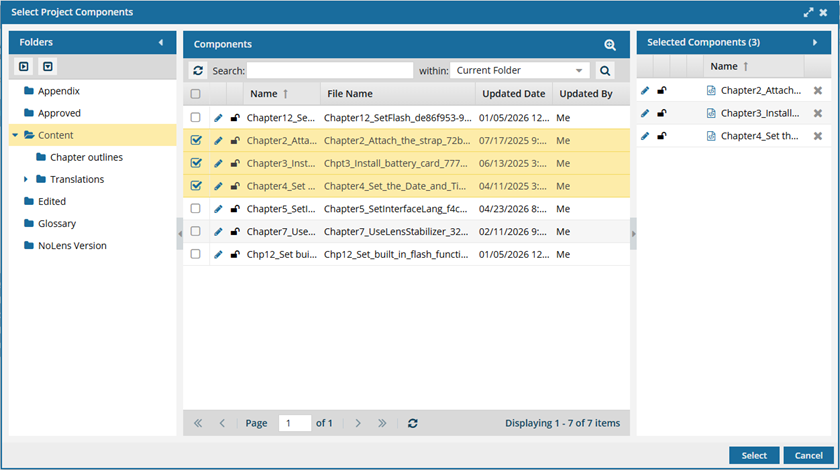
To see the list of components in a project, go to the Content pane's title bar, and click the  Select Project Components icon.
You can also use advanced search to search through all folders within a project.
On the Select Project Components screen:
- To see more text in the Components pane, collapse the Folders panel by clicking
 the arrow that's pointing left.
- To quickly expand or collapse the folders, use the
 expand all and
  collapse all buttons.
- To find a component by keyword, in Search, enter words or phrases used in the component's name. In Within, select where in the project you want to search (Current Folder, Current and Subfolders, All Folders). Click Search
 .
. - To find a component by creating a query, click
 Advanced Search.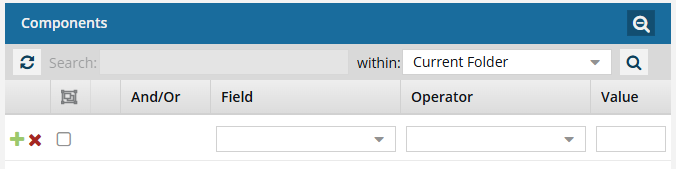
- Fields correspond to the columns in the grid. In the Field list, select the column you want to search in, such as Component State.
- After you select a Field, you must describe the relationship it has with the Value. In the Operator list, to include or exclude some or all of the values that you want to use, select an operator, such as
<>(not equal to). - The options in the Value list change depending on what you selected in Field. In the Value, select or enter the word, phrase, or number you are searching for in relation to the Field. For example, Component State (Field)
<>(Operator) Invalid (Value). - In Within, select where in the project you want to search (Current Folder, Current and Subfolders, All Folders).
- Optionally, to enter another clause to your query, click
 Add. Select whether you want to narrow your search by requiring that all statements must be true (And), or expand your search by requiring that any of the statements can be true (Or).
 - Click Search .
- To select multiple components to manage, select the checkbox for each component.
 Result: The components are listed on the Selected Components panel.