Add components to a project from the Components browser
To add one or more components to a project, you can select the components in the Components browser and then specify which existing project you want to add them to.
 Tips and tricks
- You can add one or more components to a project; just make sure the Selected Components pane is open. If it isn't, use the slider control
 to show it.
 - If there isn't enough room on your screen to display all the actions, you see an abbreviated list of actions. If an action isn't shown, select
 the More menu to see additional actions.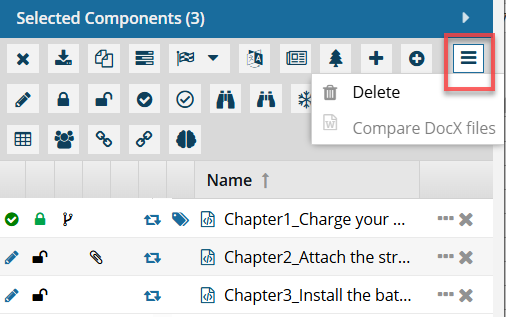
- If you haven't created a project yet, follow the steps in Create a project from components.

To add components to a project from the Components browser:
-
Click
 Components.
-
On the Selected Components pane:
a. If you need to work with the component before adding it, you can use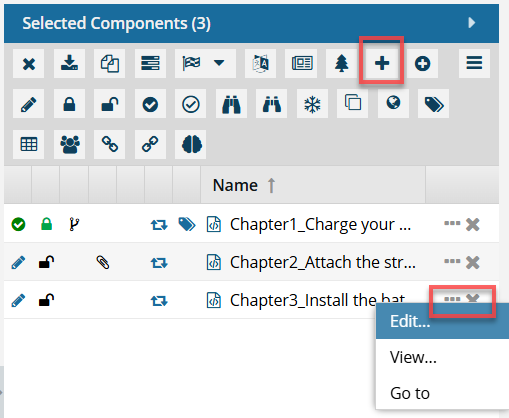
 the Options menu to:
- Edit - Opens the component in the Oxygen XML Editor. If the component is a workflow, it opens in the workflow editor. This option doesn't work for binary components.
- View - Opens the component in the Oxygen XML Editor as Read Only. If the component is a workflow, it opens in the workflow editor as read-only. If the component is a binary, it opens in a viewer.
- Go to - Displays the component on the Components tab in the grid and selects the component. If the component isn't listed on the first page, Inspire displays the page where it is listed.
b. Click Add to project.
 -
On the Add to project screen:
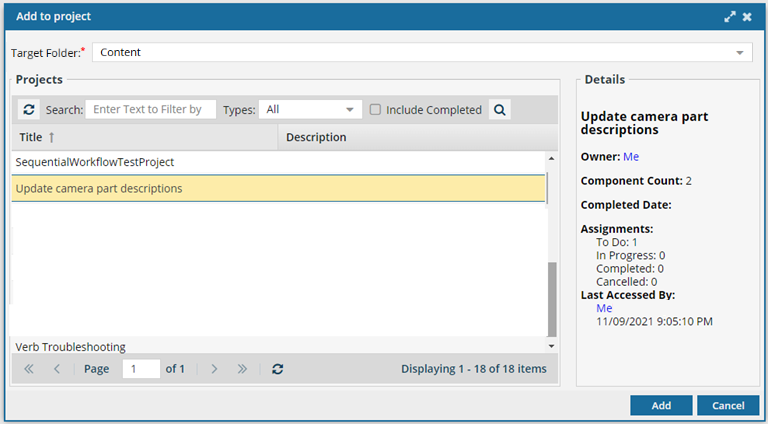
 Notes:
- To find a project, you can use Search and sort the columns.
- You can see more information about the project in the Details pane.
- In the Projects section, select the existing project you want to add these components to.
- In Target folder, choose a folder from the selected project where you want to group the components for organizational purposes. The component will continue to exist in the Components browser location.
-
On the Add to project screen, click Add.
 The project opens, and you can see the components you added listed in the Content pane.