Update content in an AI index
For the Submit and Approve actions, Inspire automatically adds data to the appropriate index when a user performs these actions. If you have updated content but aren't seeing it in your AI Assistant search results, you can manually re-index the component. If you are seeing outdated content or content you want to hide from your AI Assistant search results, you can manually remove the component from the index.
 To access the premium AI feature, you must purchase it separately. Contact your Vasont customer representative to invest in efficiency and discover how AI can elevate your search experience today!

 Tips and tricks
- Currently, images are not supported in an AI index.
- Your changes to a component overwrite content previously stored in the AI Submit index and update the content automatically.
- If you remove a component from the index, you are NOT removing the component from Inspire.
- If you remove a component from the index, another user with permissions to that component can add it back to the index.
- If you're using an index for approvals, when you unapprove a component, the content remains in the Approve index. However, after you make your changes and approve it again, the old content is replaced with the newly approved content.
To update content to an AI index from components:
-
Click
 Components.
-
To select the components you need to re-index or remove, click the checkbox before the Component Name.
 Select components that are appropriate for the index you want to build:
- To build up content that can be available in a chat bot you provide to your customers, select components that have a State of Approved or Signed.
 If you select components that are not signed or approved and try to add them to the Approve index, they will not be added to the index and you see an error in the Issues section of the Notification.
 - To build up content that an author can find and re-use in the Oxygen editor, select components that have content that is commonly re-used. Currently, images are not supported in an AI index.
- To build up content that can be available in a chat bot you provide to your customers, select components that have a State of Approved or Signed.
-
On the Selected Components panel, click
 the AI Assistant option.
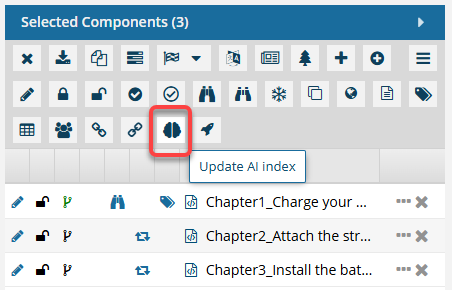
-
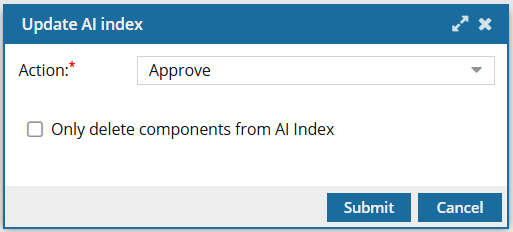
On the Update AI index screen:
-
In Action, select one of the available options. This may include:
- To build up content that an author can find and re-use in the Oxygen editor, select Submit.
- To build up the content that is final and can optionally be made available in a chat bot you provide to your customers, select Approve. If you select components that are not signed or approved, they will not be added to the index and you see an error in the Issues section of the Notification.
 Results: You see a notification when the process starts and completes.
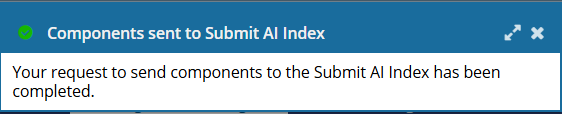 This process is recorded in the Event Log but not in Changesets.You can also go to the Notifications module and see a report on the update process.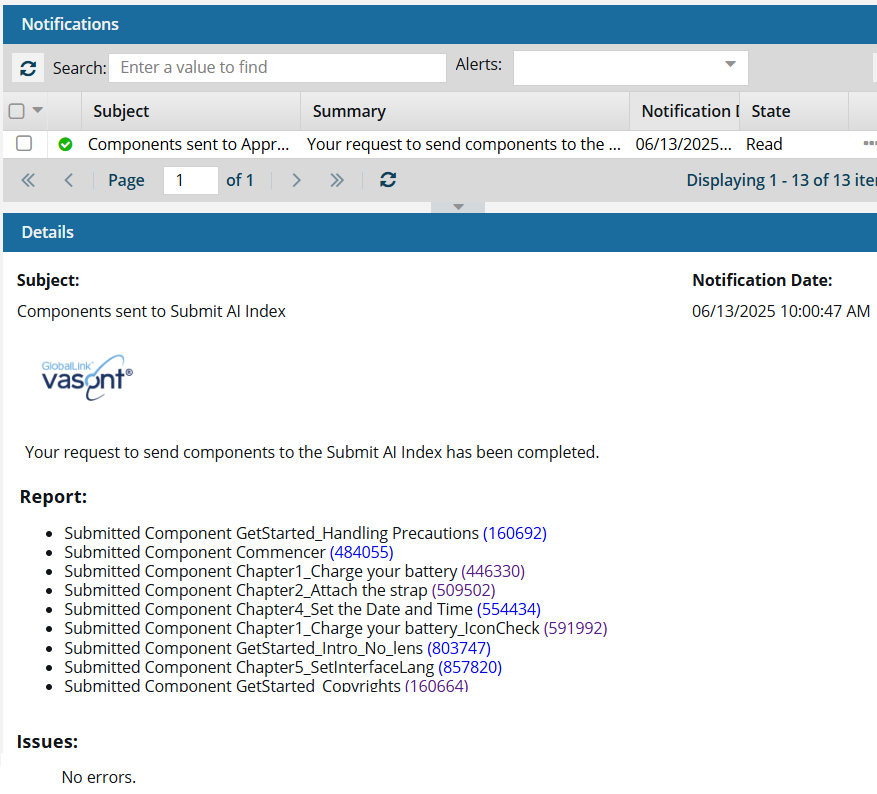
-
In Action, select one of the available options. This may include: