Lock a component
When you open a component for editing, Inspire locks the file so that other users can't open it and edit it at the same time. If you make changes and close the component without clicking Save and Submit, the component remains locked. You can also choose to lock a component without opening it first.
 Tips and tricks
- As a best practice, you should Save and Submit your work before you log out of Inspire.
- The following locks are used in Inspire:
 The open lock is used when a component isn't being edited by another user, in use by Inspire, or approved.
 The closed lock is used when a component is being edited by another user.
 The user profile icon is used when you're editing a component or you have closed the component but have unsaved changes.
 The red system lock is used when a component is in review or sent to translation and an administrator has configured components to be locked.
 The green system lock is used when a component has been approved and an administrator has configured components to be locked upon approval.
- The following users and roles can now unlock any lock, including system locks:
- Administrator
- Users added to the can_unlock_system module property
- If there are pending changes, a component can be unlocked and the changes saved in the following cases:
- The lock is a user lock (, ).
- The unlock option is used in the Components browser on a single component. This can be done either from the right-click menu or
 the Options menu.
- The lock is a user lock (
- If there are pending changes, a component can be unlocked but the changes are lost in the following cases:
- The lock is a system lock (, ).
- The unlock option is used in the Components browser in the Selected Components panel.
- The unlock option is used in a project in the Content pane.
- The lock is a system lock (
Lock a component from the Components browser
-
To lock one component:
-
Look in the More component information panel at the Preview to verify you've selected the correct component.
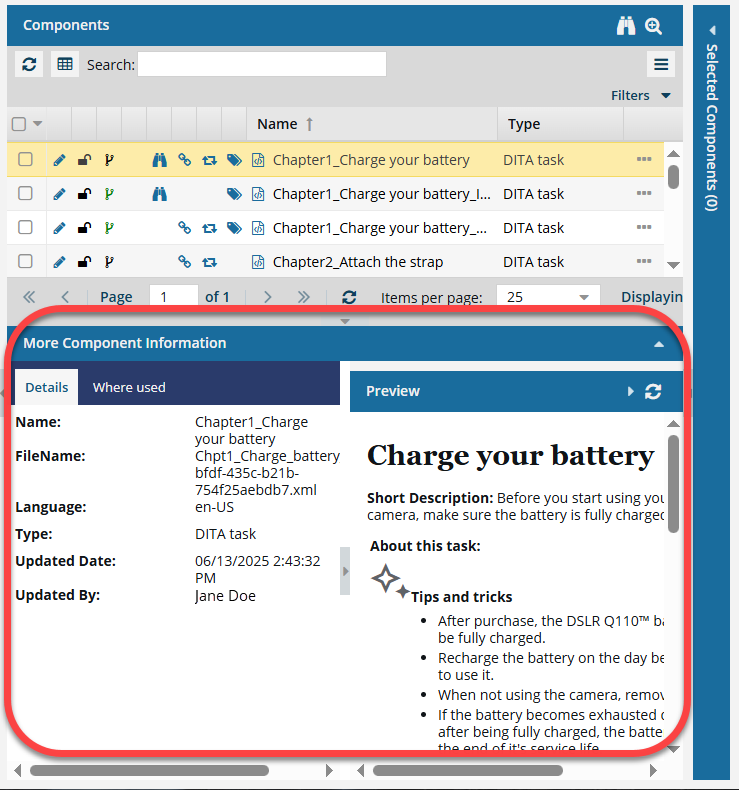
If the panel isn't open, to expand it, click
 the down arrow in the panel's title bar.
-
Look in the More component information panel at the Preview to verify you've selected the correct component.
-
To lock multiple components at once:
-
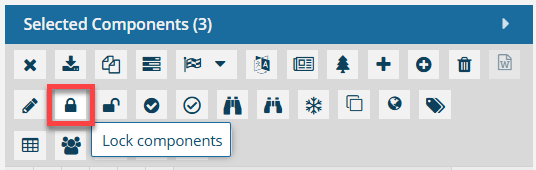
In the Selected Components pane, click the Lock icon
 .
.
-
In the Selected Components pane, click the Lock icon
-
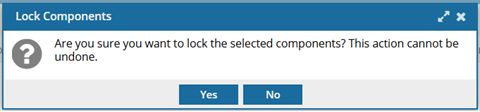
On the confirmation screen, click Yes.
 Results:
 - The components are cleared from the Selected Components panel.
- The component(s) you selected are now locked by you.
- You'll see the user icon next to the name of the locked component in the browser.
Lock a component from a project
-
Click
 Projects.
-
To lock one component:
-
Look in the Content details pane to see a preview and verify you've selected the correct component.
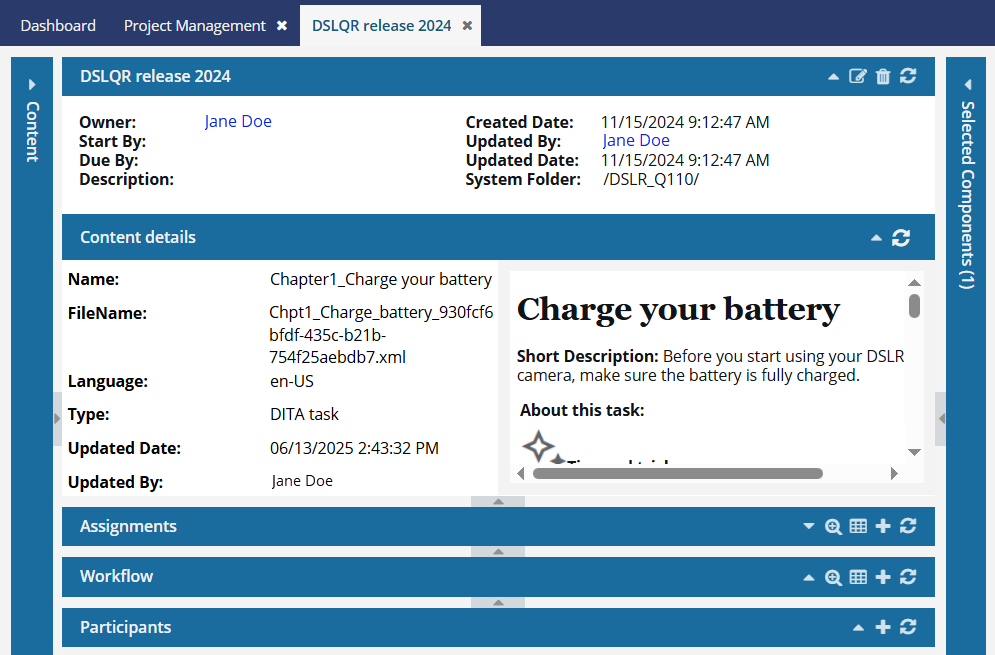
If the pane isn't open, click the down arrow in the pane's title bar.

-
Look in the Content details pane to see a preview and verify you've selected the correct component.
-
To lock multiple components at once:
-
In the Selected Components pane, click Lock .
-
In the Selected Components pane, click Lock
-
On the confirmation screen, click Yes.
Results:
- The components are cleared from the Selected Components panel.
- The component(s) you selected are now locked by you.
- You'll see the user icon next to the name of the locked component in the Content pane.