View topic workflow notes
After you create a Topic workflow, you see more tracking details by looking at the Notes left by users when completing a task.
 Required permissions
To create, view, update, and delete workflows you must either be an Administrator, the project Owner, or have the following permissions:
- Create, read, update, and delete permissions to the
 Projects module.
 - For the Projects module, your user account must be listed under the following Property: can_initiate_assignment.
- If you are an administrator, refer to Allow users to create project assignments and workflows.

 Tips and tricks
- The option to view notes is not available for a Sequential Reviewer workflow. You can use the reporting options to get more details for a review workflow.
 Generate project reports
To view notes for a topic workflow:
-
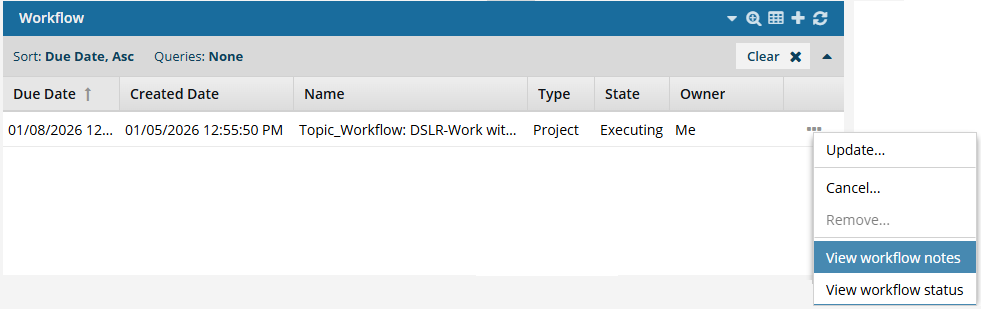
Select
 the Options menu, and then select View workflow notes.
-
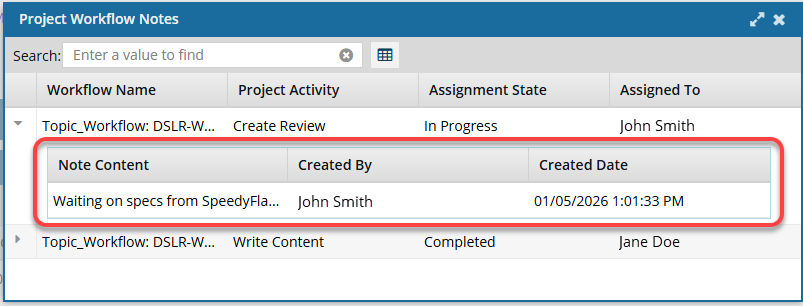
On the Project Workflow Notes screen:
-
In the Workflow Name column, select the Project Activity that you want to see notes for.
 You use the Search box to enter a word or phrase found in a note to narrow the list.
 -
In the row before the Workflow Name, select
 the expand arrow.
-
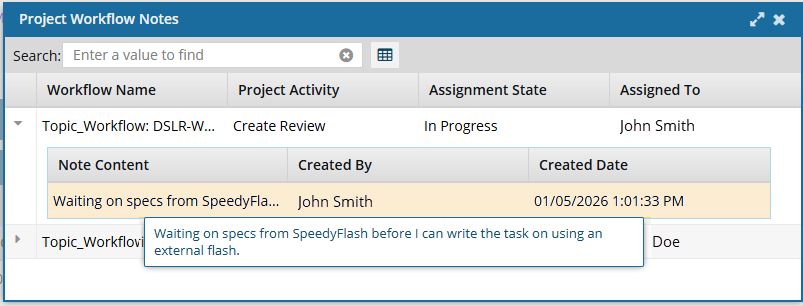
If the text is truncated with an ellipses (…), hover your cursor over the text in the Note Content column to see all of the text.
-
In the Workflow Name column, select the Project Activity that you want to see notes for.
-
Optionally, you can save all the notes to a CSV (Comma separated values) file:
-
Above the list of notes, after the Search bar, select
 Save as CSV.
-
To choose what time zone is used, on the Convert time confirmation screen, select one of the following:
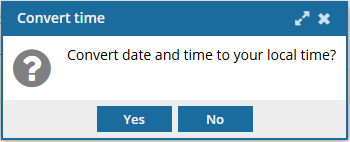
You see the date displayed in the header of the CSV as: All date/times are shown in {timezone} or UTC.
- To use your local time, click Yes.
- To use UTC time, click No. UTC is a time zone standard used as a basis for all time zones worldwide. It is a constant time scale and does not change for Daylight Saving Time.
 Results: You see a notification telling you the name of the file that was downloaded to your computer.
-
Above the list of notes, after the Search bar, select
-
To close the Project Workflow Notes screen, in the title bar, select
 Close.