Automate approvals in a workflow template
Inspire provides you with a template for the process of developing content. The Topic Workflow template Inspire provides includes an Activity for approving content. By default, the Transition from the Review Activity to the Approve Activity is completed manually by the user in the Reviewer Workgroup. To automate some or all of the approval process, you can add an Action to have Inspire send notifications to confirm components to be included in the approval, or have Inspire approve the associated components automatically without user intervention.
 Before you begin
- Permissions are required to configure workflow templates.
- This automated Action is only available in a Topic workflow template (not a sequential reviewer template), or a completely new workflow template component.
- You can create an entirely new workflow template component that has no default Activities and Transitions.
- Use the Topic workflow template explained in this topic as an example of what you can create.
- To create a new template, follow the steps in: Create a workflow template component.
- An Action is unique to the template it's included in. If you want to use the new or updated Action in a different template, you have to re-create it in that specific template.
- A component cannot be included in the approval process if the ApprovalNotRequired tag has been attached to the component. For more details, read Exclude a file from approval using a tag.

The Topic workflow template that Inspire provides includes the following approval Activities and Transitions by default:
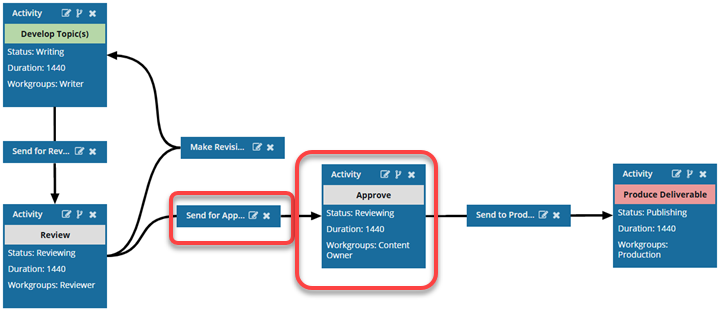
Using the Send for Approve Transition. If the users in the Reviewer Workgroup or the coordinator complete the Review Activity and select the next step to be Send for approval, Inspire moves the workflow to the next Activity: Approve.
- Inspire checks to see if there is an Action for the Transition.
- By default, there is no Action defined.
- The user who is assigned as the Approver must use a link to open the Review Approval screen and complete the fields. At this point, the approver can decide to include referenced components in the approval.
To automate approvals in a workflow template, you can add one of the following Actions to the Send for Approve Transition:
- Use the approval notification action (InspireCreateApproval). Inspire sends an email notification to each user in the Review workgroup (or the workgroup assigned to the previous user activity). The Review workgroup users can confirm if they want to include component references in the approval process.
 Add a Create Approval Action to a topic workflow template
- If a user in the workgroup confirms that they want to include component references in the approval process, then Inspire opens the Approval screen.
- Referenced components are not displayed on the screen and can't be selected individually during the approval process in a workflow.
- The approver is prompted: "Do you want to include referenced components of the workflow components for approval? Components tagged with ApprovalNotRequired will be skipped."
- If a user in the Review workgroup confirms that they do NOT want to include component references in the approval process, then Inspire opens the Review Approval screen for the approver with only the source components included.
- If a user in the workgroup confirms that they want to include component references in the approval process, then Inspire opens the Approval screen.
- Use the automatic approval action (InspireApprove). When the workflow advances to the Send for Approve Transition, Inspire automatically approves the components in the workflow. No referenced components are included in the approval and no user confirmation is required.