Update a role
As a GlobalLink Vasont Inspire administrator, you can update roles that manage user access to content and features from the Security menu. You can update the role name and optionally description, add role members, or remove role members.
 Tips and tricks
- The required role name must be unique.
- The role doesn't have to contain any members.
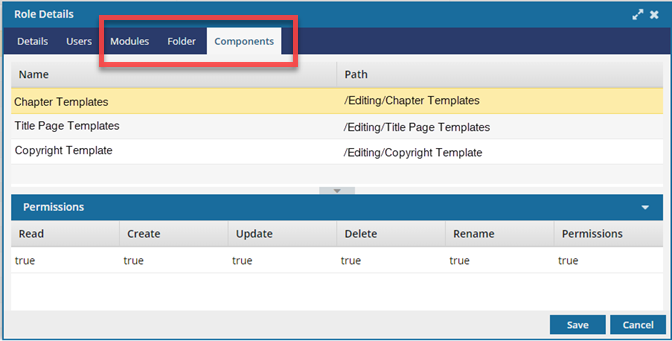
- The Role Details screen includes three read-only tabs: Modules, Folders, and Components.
- The Modules tab lists the modules that the role has permissions to access.
- If the Modules list is empty, any users belonging to this role keep their individual permissions.
- To add modules to this list, follow the steps in Update module access permissions.
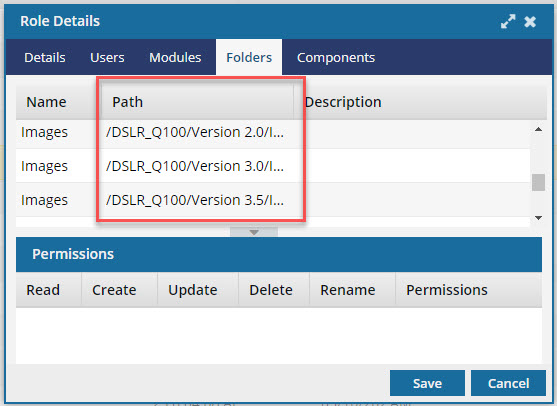
- The Folders tabs lists the folders that only users with this role have permission to access.
- If the Folders list is empty, all folders in the Components browser keep their individual permissions.
- To add folders to this list, follow the steps in Set folder permissions.
- The Components tabs lists the files from all folders that users with this role have permission to access.
- If the Components list is empty, users with this role have no special access to specific files.
- To add or remove files from this list, update the folder's contents.
- The Modules tab lists the modules that the role has permissions to access.

 You can't delete or change the name for the following roles:
 - Application Administrators
- System Administrators
To update a role:
-
From the
 Security menu, select Role management.
-
On the Role management tab, select the role that you want to update and then click Update
 .
.
-
On the Role Details screen, on the Details tab:
-
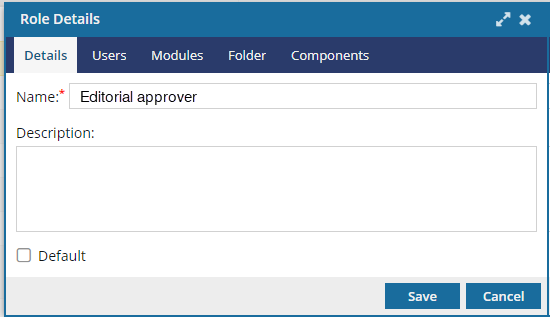
In the Name box, edit the unique title for the role in 50 characters or less.
 If you're updating the following roles, the Name box is not available for updates:
- Application Administrators
- System Administrators
-
In the Name box, edit the unique title for the role in 50 characters or less.
-
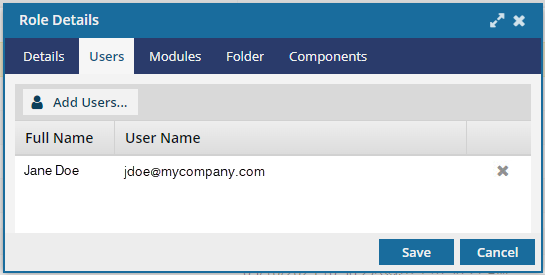
Optionally, to manage members for this role, select the Users tab.
-
To remove a user, click
 Remove.
-
Optionally, if the list is large or you only want to see a particular type of user, you can narrow the list in the following ways:

- To see only names that contain a word or specific letters, in Filter, enter text. For example, you can find names that contain "admin" or "review." This filter will search the Name column only.
- To see all users sorted by Name, Security Type, or User Type, click the column heading and then click the grey arrow. To sort by Name or User Type, you can also use the Sort By drop-down box.
- By default, the list does not include names with a User Type of Support. To see these users, select the Include support users option.
-
On the Select Users screen, click Select.
 Results: On the Users tab, you see the users you selected for this role.ss
-
To remove a user, click
-
Inspire uses three read-only tabs, Modules, Folders, and Components to list any role-specific permissions.
 You can't make any updates on these tabs.
- To add Modules to this list, follow the steps in Update module access permissions and add this role to modules.
- To add Folders to this list, follow the steps in Set folder permissions, and add this role to the folder's permissions list.
- To add or remove Components from this list, update the folder's contents.
 You can now see the full path to the folder.