Reply to a comment
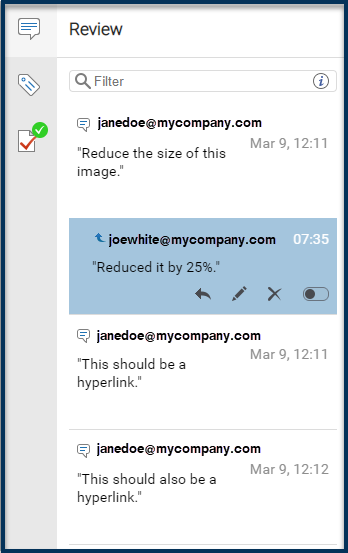
When you're working with other users to develop content in the Oxygen-based editor, you can't edit another user's comment, but you can reply to them. Your reply is shown directly below the comment.
 Tips and tricks:
- Your reply is marked with a blue curving up arrow
 .
. - All comments and replies are shown in review reports, along with the name of the user who added them.

 If you are working with comments in the Collaboration panel instead of the Review panel, follow the steps in the following topics:
To reply to a comment in the Review panel:
-
In Inspire, go to
 Components.
-
If not already open, click the right side panel control
 .
.
-
To see the Review pane, click the review icon
 .
.
 In the Review pane you'll see all comments for this document.
 -
In the comment's box, at the bottom, click Reply
 .
.
-
On the Add Reply screen, enter your text, and then click OK.
 You see your reply directly under the comment.
 -
To save your changes, do one of the following:
- To save your changes locally and keep working in the editor, click Save
 .
. - To save your changes to the Inspire database and close the editor, click Save and Submit
 .
.
- To save your changes locally and keep working in the editor, click Save