Manage relationships for a project component
After you've opened a project, you can go to the Content pane and use the Options or right-click menu to open the Manage Relationships screen. This lets you view invalid component relationships. You can also select an option to show all relationships and perform actions to browse for new relationships, auto-repair one relationship or all relationships, or save a CSV report of component relationships.
 Permission requirements
- A content owner or administrator can set permissions to deny access to components or folders. If your permissions to content have been blocked, and you are not an administrator, you cannot use the Advanced options in a project's Content pane.
The
 AutoRepair and Rebuild All Relationships options may not be available. To use them, you must have one of the following permissions:
- Administrator
- Content browser module permissions with the can_rebuild_relationships property.
Administrators can grant access to non-admin users or roles by following the steps in Allow a non-admin user to rebuild relationships.

 Tips and tricks
- These instructions tell you how to manage component relationships from inside a project, but you can also do this in the Components browser. Follow the steps in: View component relationships.
- Inspire now supports content references to ditabase topics. A ditabase topic is a composite topic. Before maps, ditabase was used to collect multiple topics and structure them within a single topic file.
- If you use a conref to a ditabase topic, Inspire no longer identifies it as an invalid relationship.
To view relationships for a project component:
-
Click
 Projects.
-
On the project tab, in the Content pane, to open the Content folder, click
 the Expand All arrow.
-
In the Content pane, select the checkbox for the component you want to manage relationships for.
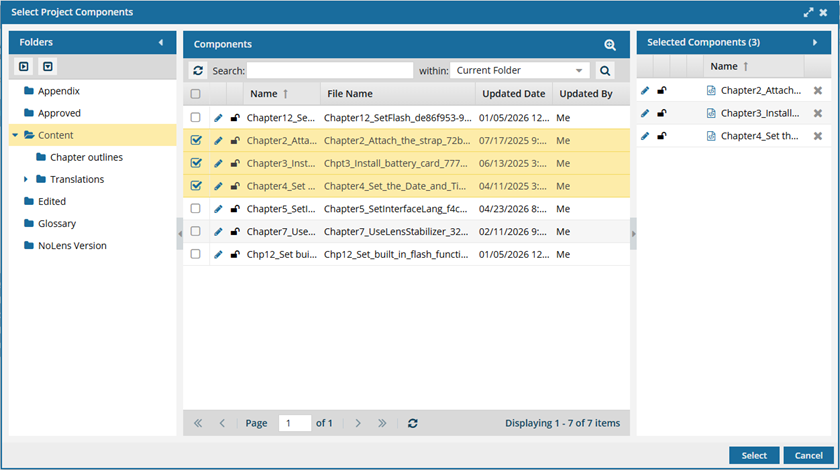
 To see the complete name of the components and use advanced search to search through all folders within a project, click
  the Select Project Components option.
- To see more text in the Components pane, collapse the Folders panel by clicking
 the arrow that's pointing left.
- To quickly expand or collapse the folders, use the expand all and
 collapse all buttons.
- To find a component by keyword, in Search, enter words or phrases used in the component's name. In Within, select where in the project you want to search (Current Folder, Current and Subfolders, All Folders). Click Search
 .
. - To find a component by creating a query, click
 Advanced Search.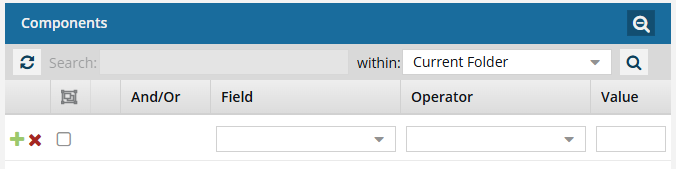
- Fields correspond to the columns in the grid. In the Field list, select the column you want to search in, such as Component State.
- After you select a Field, you must describe the relationship it has with the Value. In the Operator list, to include or exclude some or all of the values that you want to use, select an operator, such as
<>(not equal to). - The options in the Value list change depending on what you selected in Field. In the Value, select or enter the word, phrase, or number you are searching for in relation to the Field. For example, Component State (Field)
<>(Operator) Invalid (Value). - In Within, select where in the project you want to search (Current Folder, Current and Subfolders, All Folders).
- Optionally, to enter another clause to your query, click
 Add. Select whether you want to narrow your search by requiring that all statements must be true (And), or expand your search by requiring that any of the statements can be true (Or).
 - Click Search .
- To close the Select Project Components screen, click Select.
- To see more text in the Components pane, collapse the Folders panel by clicking
-
In the Content pane, right-click the component, select Advanced, and then select Relationships...
You can also open the Manage relationships screen in the Content pane by clicking
 the Options menu, selecting Advanced, and then selecting Relationships...
 -
On the Manage relationships screen, you'll see a list of any invalid references.
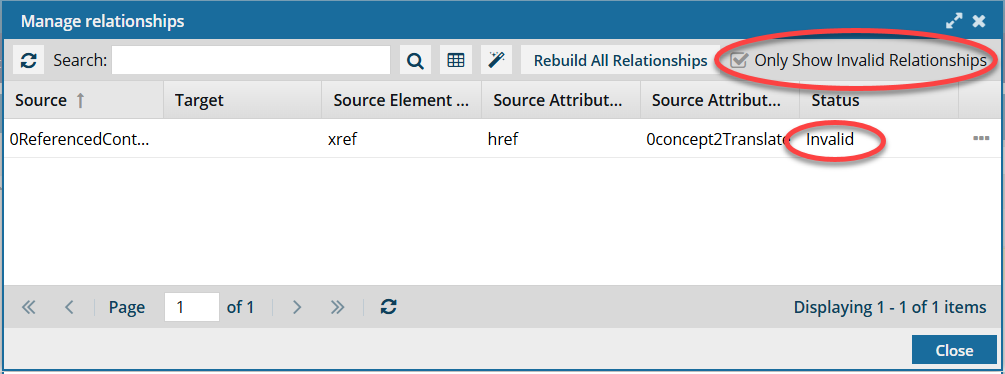
 By default, when you open the Manage Relationships screen, only Invalid references are shown.
 -
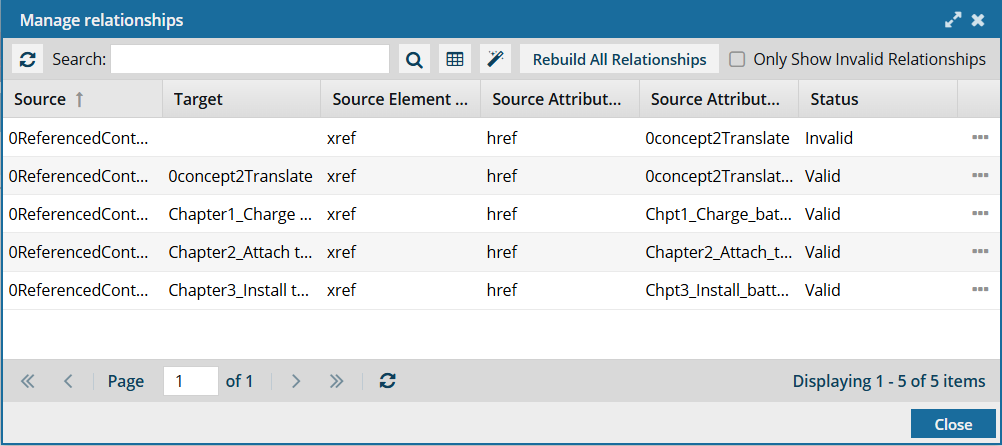
To see all relationships, you must clear the default selection of Only Show Invalid Relationships and click
 Refresh.
-
To filter the list of relationships by words in the component name, enter text in the Search text box and click Search .
-
Optionally, to save the list of component relationships as a CSV file:
-
Click Save as CSV
 .
.
-
To choose what time zone is used, on the Convert time confirmation screen, select one of the following:
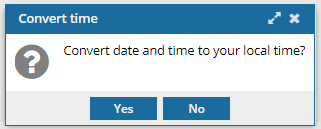 You see the date displayed in the header of the CSV as: All date/times are shown in {timezone} or UTC.
UTC is a time zone standard used as a basis for all time zones worldwide. It is a constant timescale and does not change for Daylight Saving Time.
- To use your local time, click Yes.
- To use UTC time, click No.
-
Click Save as CSV