Import components using drag and drop
If you want to add content to a component that isn't stored in Inspire, you can import it. You can import files from the Components browser or a project folder using drag and drop.

 Tips and tricks
Other ways to import:
- Use a menu option. Follow the steps in: Import components by browsing.
- Open a project. Follow the steps in Import a folder structure from a project.
 After importing content, you may or may not have generated element IDs. An administrator can configure an element to never be assigned an ID. You can verify if elements in the imported content have an ID by opening them in the Oxygen editor.
For example, if a Ditabase component is created or imported into Inspire, normally an ID is automatically added to the root level <Dita>. For Ditabase, this ID makes the component invalid when opened in the XML editor because ID is not allowed on a Dita component.
If an element is configured to not use IDs:
- When content is imported, no ID is generated
- In the Oxygen editor, no ID is generated when the Generate IDs or Save and Submit options are used
- This behavior is enforced even if the AutomaticIds option is turned on
 Before you begin
- You cannot import a folder structure using drag and drop. If you want to import a folder, follow the steps in: Import a folder structure from the Components browser.
- Make sure you understand the rules, restrictions, and supported file types before you import content.
Import files from the Components browser using drag and drop
-
Click
 Components.
Import files from a project folder using drag and drop
-
Click
 Projects.
-
To open project details, select the project and double-click it.
Note: You can also open a project by:
- Right-clicking the project and then selecting Open.
- Clicking
 the Options menu and then selecting Open.
-
On the Import Components message, click Yes.
 Results:
- You see a message indicating that the import process has begun.
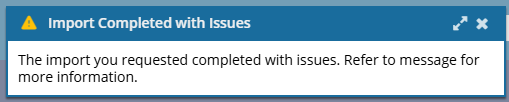
- You receive an email when the import completes. If you see the following message, read Understanding import error messages.
- The components import to the folder that you selected during import or to the folder where they already exist.
- When you complete a task that triggers a notification, such as importing content, the Slack and email message bodies contain:
- The notification with ten or fewer Issues, Errors, and Warnings.
- A link at the bottom of the message [See Full Version].
- You can click the [See Full Version] link to expand a section under the link with the full details.