Exclude one project component from branching
When choosing which references in the source component to branch, you can hide a referenced project component so that it can't be included in the new branch. By attaching the ExcludeFromBranch tag, you only prevent a reference from being branched and not the source. The tag does not prevent a user from going to the Content pane and saving a component itself as a branch.
 Restrictions
- You must have Update permissions to the component to make tag changes. Tags are read-only for users without update permissions.
- A content owner or administrator can set permissions to deny access to components or folders. If your permissions to content have been blocked, and you are not an administrator, you cannot use the Details option in a project's Content pane.

 Tips and tricks
- Inspire provides the pre-defined system tag ExcludeFromBranching. Administrators can only customize non-system tag names and availability.
- After you save the tag, Inspire makes sure that the component can't be selected on the Save as a branch screen.
- You can use this tag on binary components such as an image or PDF file.
- You can also prevent project files from being branched.
- In the Components browser, you can use the following icons to quickly check if a component has already been branched:
 Has a branch. This is the source component for a branch. Components it references may also be branched with it.
 When you hover your cursor over the black branch icon, you see a tooltip telling you it has a branch and also how many branches have been created from it. For example, Has 2 branches.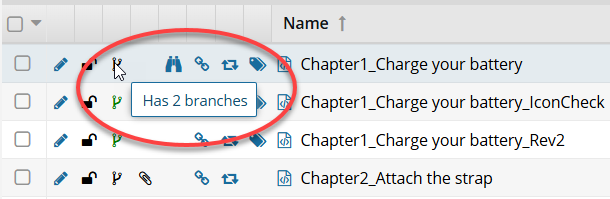
 Is a branch. This component was branched because a source component referenced it. When you hover your cursor over the green branch icon, you see a tooltip telling you it is part of a branch. For example, Is a branch.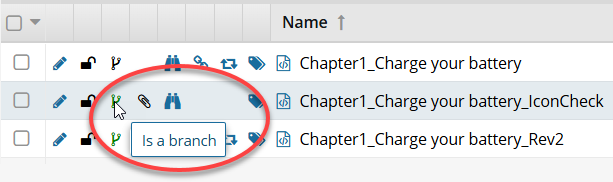
 Has and is a branch. This component is both the source of one branch and included in another branch because a difference source component referenced it. When you hover your cursor over the orange branch icon, you see a tooltip telling you it is part of a branch and also how many branches have been created from it. For example, Is a branch and has 1 branch.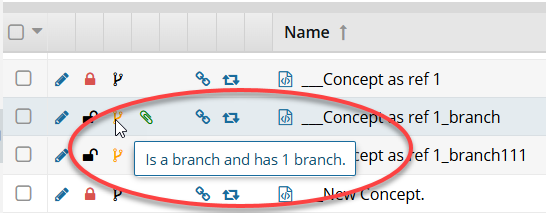
You can also exclude a component from appearing on the Save as branch screen in the following ways:
- Exclude one component from branching
- Exclude multiple components from branching
- Exclude multiple project components from branching
To exclude a project component from branching:
-
Click
 Projects.
-
On the Project Management tab, all projects in your organization are listed. To find a specific project, you can:
- Filter the list of available projects by words in the project name. In the Search text box, enter a keyword, and then click the magnifying glass
 .
. - Filter the list of available projects to include only those you own or are participating in. In Type, select an option to filter the list by that criterion.
- To include completed projects in the list, select Include Completed and then click the magnifying glass .
- Filter the list of available projects by words in the project name. In the Search text box, enter a keyword, and then click the magnifying glass
-
To open one project, select the project and double-click it.
You can also open a project by:
- Right-clicking the project and then selecting Open.
- Clicking
 the Options menu and then selecting Open.
-
In the Content pane, select the component you want to manage tags for.
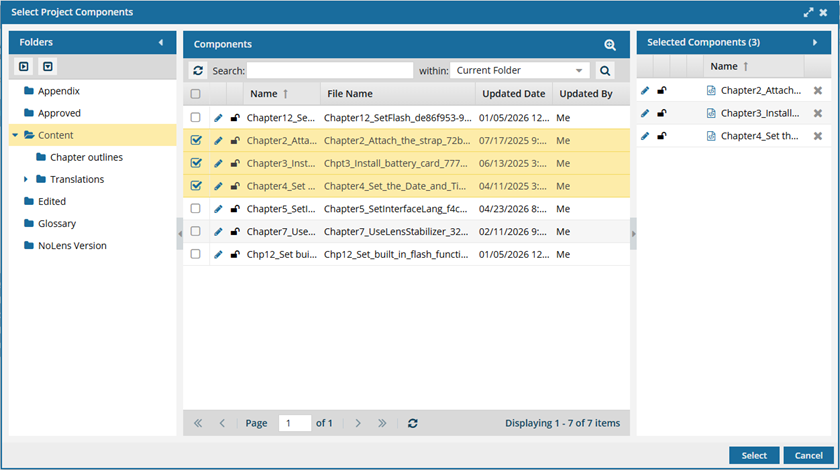
To see the complete name of the components and use advanced search to search through all folders within a project, click
 the Select Project Components option.
- To see more text in the Components pane, collapse the Folders panel by clicking
 the arrow that's pointing left.
- To quickly expand or collapse the folders, use the
 expand all and
  collapse all buttons.
- To find a component by keyword, in Search, enter words or phrases used in the component's name. In Within, select where in the project you want to search (Current Folder, Current and Subfolders, All Folders). Click Search .
- To find a component by creating a query, click
 Advanced Search.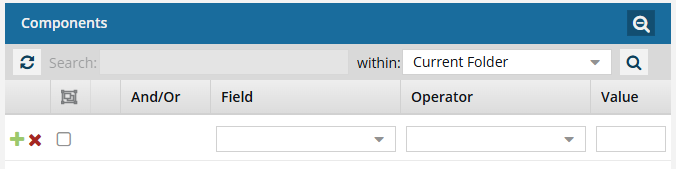
- Fields correspond to the columns in the grid. In the Field list, select the column you want to search in, such as Component State.
- After you select a Field, you must describe the relationship it has with the Value. In the Operator list, to include or exclude some or all of the values that you want to use, select an operator, such as
<>(not equal to). - The options in the Value list change depending on what you selected in Field. In the Value, select or enter the word, phrase, or number you are searching for in relation to the Field. For example, Component State (Field)
<>(Operator) Invalid (Value). - In Within, select where in the project you want to search (Current Folder, Current and Subfolders, All Folders).
- Optionally, to enter another clause to your query, click
 Add. Select whether you want to narrow your search by requiring that all statements must be true (And), or expand your search by requiring that any of the statements can be true (Or).
 - Click Search .
- To select multiple components to manage, select the checkbox for each component.
 Result: The components are listed on the Selected Components panel.
 - To close the Select Project Components screen, click Select.
- To see more text in the Components pane, collapse the Folders panel by clicking
-
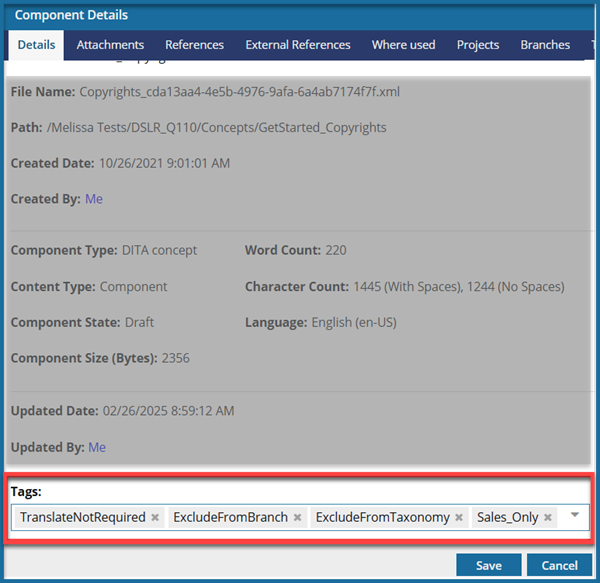
In Tags, select ExcludeFromBranch.
If you don't see the option you need, contact your Administrator. You can only select a tag from the list if an Administrator allows the use it.
-
On the Component Details dialog, click Save.
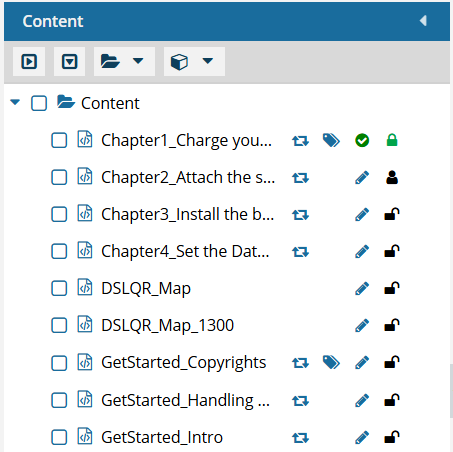
Results:You see the component marked with
 the tag icon in the Content pane.
 Tips and tricks
- Look in the 2nd column after component name.
- If it exists, the tag icon appears after
 (the Shared icon) and before
  ,
, 
 ,
,  ,
,  , (the State icon).
 - To see the name of all tags that are applied, hover your cursor over the tag icon.
 When another component is branched, if it references this component, the tag prevents this component from being listed as a reference and so can't be branched.For more details, refer to Prevent branched references.