Delete a translation job
After a vendor completes the translation work or you've cancelled a job, you may want to remove it from the list on the Translations Management tab to keep the list short. If you want to keep the job details but just hide the job from the list, you can use the Archive option. After you archive a job, if you want to remove job details from the list permanently, you can delete it.
 You must have permission to be a translation coordinator or an administrator before you can work with translation jobs.
 Tips and tricks
- You can only delete a job from the list on the Translations Management tab after it's been archived.
- Deleting a job from the list doesn't delete the content of the translated job, it only deletes the job details.
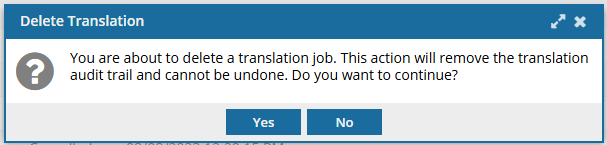
- You won't be able to search and find the details again like you can with an archived job. Keep in mind that this action removes the translation audit trail and can't be undone.
- For reporting purposes, you can also export a list of translations to a comma-separated value (CSV) file after the translation jobs have been completed or cancelled.

To delete a translation job:
-
From the top menu, select
 Translations.
-
On the Translations Management tab, in the list, find the translation you want to delete. Make sure the job has been archived.
 If you can't find the job you're looking for, do any of the following:
- If there are multiple pages, scroll to the next page using the controls at the bottom of the list.
- Sort the list by clicking a column heading.
- Search for items in the list that contain a key word or phrase.
- Limit the list to show only jobs in a specific state. Go to States and select an option.
- Show hidden jobs by selecting the checkbox for Include Archived, Include Completed, or Include Cancelled
-
Right-click the job name or use
 the Options menu to select Delete.
-
On the Delete Translation confirmation screen, click Yes.