Create a folder using the right-click menu
One way to add a subfolder in the Components browser is to use the right-click menu. Component folders are inserted as a subfolder under the currently selected folder. They always have a parent and can have their own subfolders. Subfolders are not shown when you collapse the folder list.

 Tips and tricks
- You can also create subfolders in the following ways:
- Refreshing folders. There are two ways to refresh the folder list:
- Refresh all folders—To update the entire folder hierarchy, go to the Folders toolbar and select
 the Refresh (all) option.
 - Refresh one folder—To refresh the data for one folder only, select the folder, click
 the Options menu, and select Refresh. Inspire only refreshes the selected folder and shows only the first level of sub-folders and components it contains.
- Refresh all folders—To update the entire folder hierarchy, go to the Folders toolbar and select
To create a folder using the right-click menu:
-
Click
 Components.
-
In the empty label box next to the new folder icon, enter a name for the new sub-folder, and press Enter.
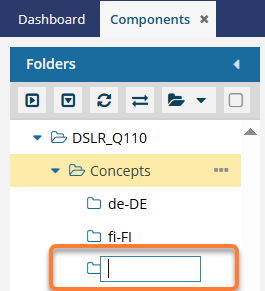
 Results: Inspire refreshes the folder hierarchy.
 - The parent folder now has an expand and collapse arrow.
- The new folder is highlighted.
- The new folder displays in the correct place in the alphabetized directory according to its name.
 Working with folder permissions
- After you create a folder that is not at the root level, by default the permissions are set to be the same as the parent folder.
- To change folder permissions, follow the steps in: Set folder permissions.
- For more information on how folder permissions work, read: Work with folder permissions.