Create a schema standard
For system usage and built-in frameworks, Inspire provides specific schema standards. If you want to specify a custom schema and Inspire does not provide the schema version, you must add it.
 Required permissions
- You must have administrator permissions in Inspire to complete this task.

 Tips and tricks
- Inspire provides a definition of the following schema standards:
- DITA 1.2
- DITA 1.3
- DocBook 5.0
- These schema standards are considered system standards and cannot be updated or removed.
- To understand more about how Inspire uses a schema standard, read: Manage schema standards.
To create a new schema standard:
-
From the
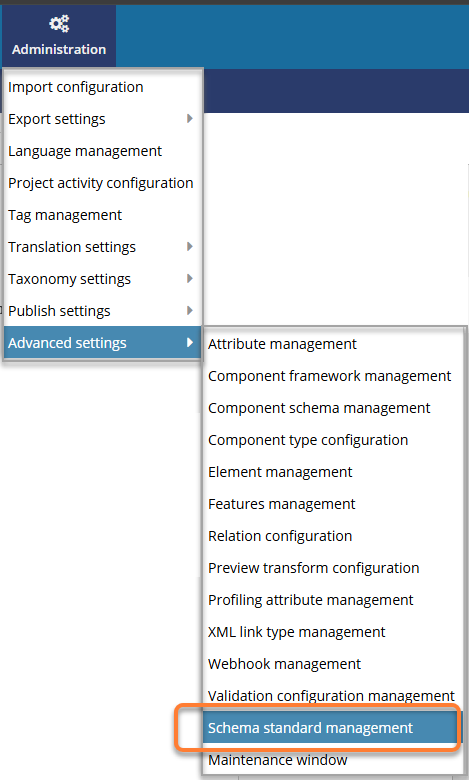
 Administration menu, select Advanced settings, and then select Schema standard management.
-
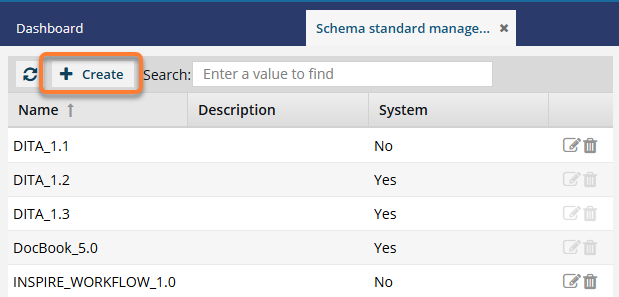
On the Schema standard management screen, click Create.
-
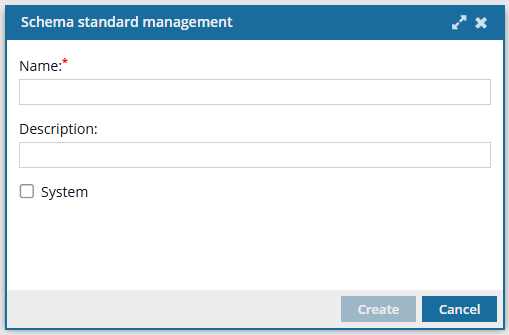
On the Schema standard management screen, in Name, enter the version of the schema standard in 50 or fewer characters. This field is
 required.
-
By default, the System option is not selected. This option identifies a schema version used by system processes for XML validation and protects it from being changed. If you don't want to allow this standard to be updated or deleted, select this option.
If you select the System option, you cannot delete or update this schema standard. You must contact your Vasont representative to have it removed.
-
On the Schema standard management screen, click Create.
 Results:
- You see the schema standard listed on the Schema standard management tab.
- When you create or update a custom schema, you can select this value.