Add a conref to a map in Oxygen
If you want to reuse a specific part of a component's content and make it appear (exactly as it is) inline where you reference it, you can insert a content reference (conref) into a map.
 Tips and tricks
- You can insert one or more references at a time.
Although there are a few ways to insert a topic in a map, these instructions tell you how to do it using the insert button on the toolbar. By default, this inserts the references you choose as child references. If you don't want to insert child references, you can:
- Move the references after inserting them.
- Use the right-click menu on the Outline pane on the left side, inline with the content, or the breadcrumb on the bottom of the screen. The right-click menu allows you to first choose where the references should be inserted (Append child, Insert Before, Insert After).
- You can add entire existing topics to a map in Oxygen.
You can create a link that references an entire topic (or other resource) to be included in the output publication through the href attribute. Follow the instructions in:
- You can also add a new topic or a placeholder (empty) topic.
When you use the left side panel in the Oxygen map editor, Inspire remembers your Folders and Outline options. This helps you get to the structure quicker so you don't have to set it every time you open a map.
- If you want to add a reference to a topic you haven't created yet, follow the instructions in Create a new topic in a map using Oxygen.
- To add a placeholder in the map without creating a new topic, follow the instructions in Add an empty topic in a map using Oxygen.

 There are two ways to add a conref to a map:
Add a conref using the toolbar
To add a conref to a map in Oxygen:
-
Click
 Components.
-
On the Components pane, right-click the map component and then select Edit ...
You can also open the map by:
- Double-clicking
- Clicking
 the Options menu, and then selecting Edit ...
-
In the map content pane, place your cursor where you want to insert a reference.
By default, you see a Display mode of Topic titles.
- You can go to the toolbar and select
 the Display mode option to change the view.
 - If you select View Topic References and leave it on that mode when you save or close the map, the next time you open it, all the references in the map are expanded for you.
- If you select View Topic Content and leave it on that mode when you save or close the map, the next time you open it all the references in the map are collapsed due to memory and performance concerns.
- You can go to the toolbar and select
-
On the toolbar, click
 the Insert a conref button.
You can also access this option in the following ways:
the Insert a conref button.
You can also access this option in the following ways:- Keyboard shortcut. Use the keys: Ctrl+Alt+O
- Right-click menu. Place your cursor on a reference in the center pane, right-click it, and from the right-click menu select Insert... and then Reuse Content.
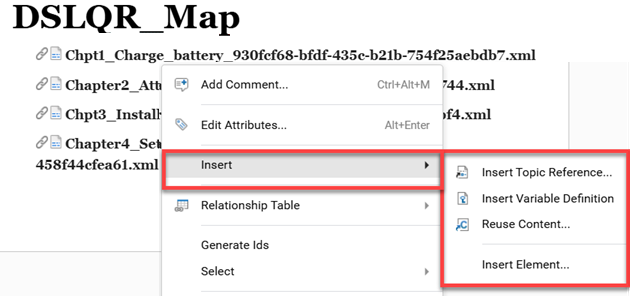
-
On the Select Components dialog, browse the Folders or use Advanced Search
 to find the component you want, and then select the checkbox for each component you want to add.
-
On the Content Reference... screen, in the top grid, use the Target ID, Element, and Content columns to find the block of content you want to reuse.
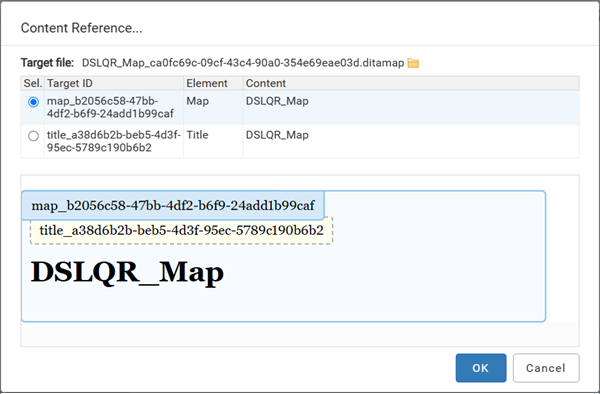
 The element you select must match the element where you are inserting the reference in the source document. For example, in the map you're currently editing, if your cursor is in the Topic reference element, after selecting Resuse content... you must select a Topic reference element in the referenced component to reuse it.
 -
Click OK.
 Results:
 - In the Editor pane, the content appears in a grey box with
 a map topic reference link icon before it. If the element you selected did not match the element where you are inserting the reference in the source document, you see an error similar to the following: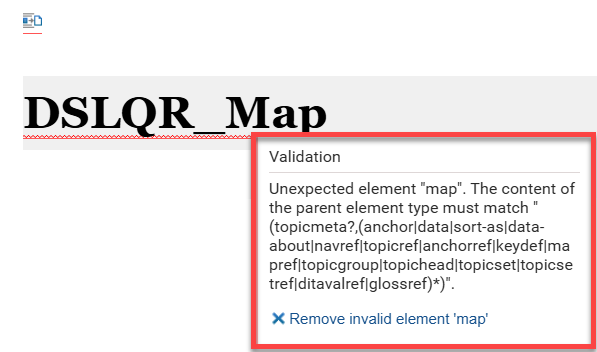
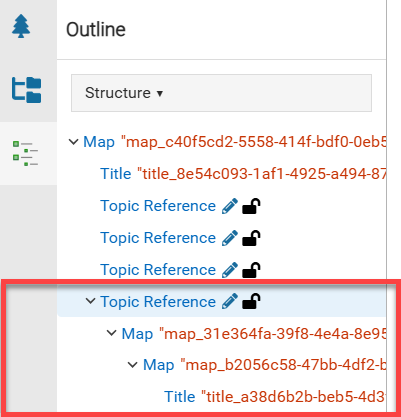
- In the Outline pane, in Structure, the conref link name appears with its content's structure.
- In the Editor pane, the content appears in a grey box with
-
To save your changes and close the map, in the toolbar, click the Save and Submit icon
 .
.
Drag and drop in a conref
To drag and drop a conref into a map:
-
Click Components.
-
On the Components pane, right-click the map component and then select Edit ...
You can also open the map by:
- Double-clicking
- Clicking the Options menu, and then selecting Edit ...
-
In the map content pane, place your cursor where you want to insert a reference.
By default, you see a Display mode of Topic titles.
- You can go to the toolbar and select the Display mode option to change the view.
- If you select View Topic References and leave it on that mode when you save or close the map, the next time you open it, all the references in the map are expanded for you.
- If you select View Topic Content and leave it on that mode when you save or close the map, the next time you open it all the references in the map are collapsed due to memory and performance concerns.
- You can go to the toolbar and select
-
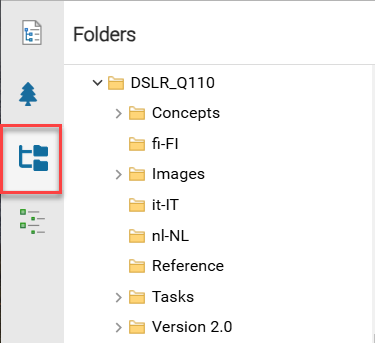
Go to the left side pane, and select
 the Folders pane.
-
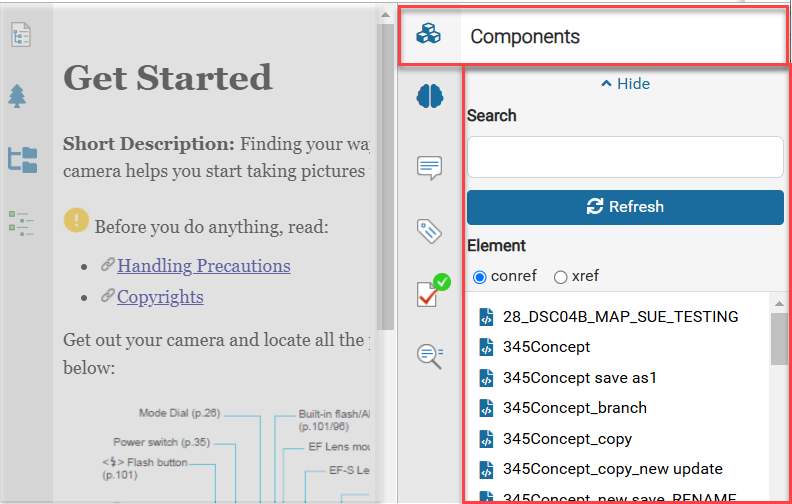
Go to the panel on the right side, and select
 Components.
-
In the list of references, click one, drag it into the editing pane where you want it, and release the mouse button to place it.
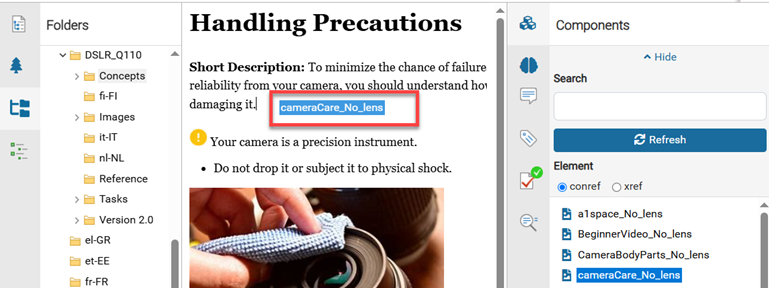 You see the name of the element in a blue box as you drag it in the editing pane.
 -
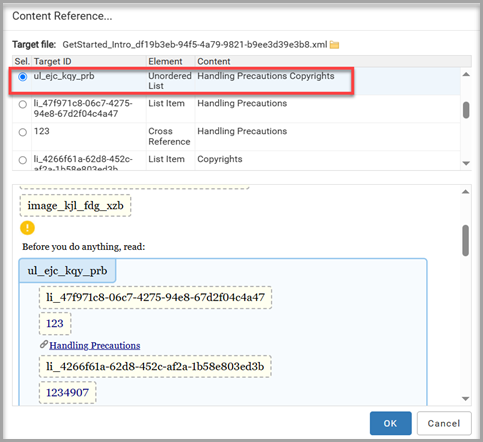
On the Content Reference... screen, select the element that contains the block of text you want to reuse.
-
On the Content Reference... screen, click OK.
Results: You see the text inserted with a grey background and
 a link icon that you can use to re-open the referenced component.
-
To save your changes and close the map, in the toolbar, click the Save and Submit icon .