Save a copy of a workflow template
You can save an existing workflow template to create another copy you can edit. You can create a copy either in the Components browser or the workflow editor.
- Required permissions
- Tips and tricks
- Save a copy from the Components browser
- Save a copy from the workflow editor

Required permissions
 You must have permission to the Projects Module to work with projects and workflows. Other than that, you do not need special permissions to create, edit, or delete workflow templates.
 However, keep in mind that administrators and other users can set permissions on components and folders.
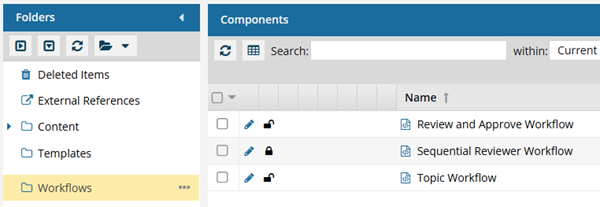
- You must have permission to edit the workflow template component.
- You must have folder permissions where the template is stored.
- For details on how to check and set permissions, refer to: Set permissions.
 For a complete list of permissions, including starting a workflow from a template, read: Workflow permissions.
Tips and tricks
- You can save the new component to the place where all other default workflows are saved, in the system-created folder called Workflows.
- When saving, in Target Folder you can use the drop-down arrow to select a different folder.
- If you save a workflow component in a folder other than the default Workflows folder:
- It retains its file type of Workflow
- When you open the component you can edit it in the workflow editor (not the Oxygen editor)
- You can select it when you're working in a project and click Create workflow
Save a copy from the Components browser
-
Click
 Components.
-
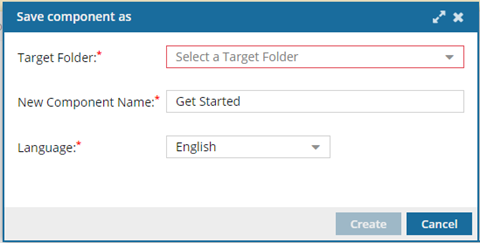
In the Folders pane, navigate to the Workflows folder.
 You can save a workflow template to another folder. If you did this, open that folder instead of the Workflows folder.
 -
Right-click the workflow and select Save, and then select Save as...
 You can also access this option from
  the Options menu.
 -
On the Save component as dialog, complete the following information.
-
In the New Component Name text box, enter a name for the workflow.
The maximum length for the component name is 100 characters.
-
From the Language list, select the default language for the component.
When you open this component to edit it, Inspire loads the spelling dictionary for the language you choose. For example, if you choose a Language of French, when you're editing this component and turn on spell check, English words spelled correctly will be underlined in red as a warning of a misspelling. French words spelled correctly won't be underlined in red
-
In the New Component Name text box, enter a name for the workflow.
-
Click Create.
 Result: You see the copied workflow in the Components browser.
Save a copy from the workflow editor
To save a copy of a workflow from the workflow editor:
-
Click Components.
-
In the Folders pane, select Workflows.
You can save a workflow template to another folder. If you did this, open that folder instead of the Workflows folder.
-
To open the template, in the Components pane, double-click the workflow you want to copy.
Results: The template opens in a workflow editor. Make sure there are no errors in the configuration of the Activity. If there is something wrong, you see the Activity name in red.
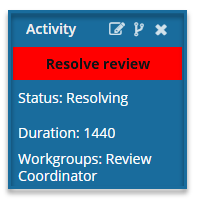
For example, in an Activity, the Project Activity setting is required and cannot be left blank. Although this field is not marked with a red asterisks, and you can create a new Activity without selecting a Project Activity, if you leave it blank, you will see an error when trying to Save, Save as, or Submit the workflow template.
You must correct any errors before you can save a workflow template.
-
In the workflow editor, go to the toolbar and click
 Save as...
-
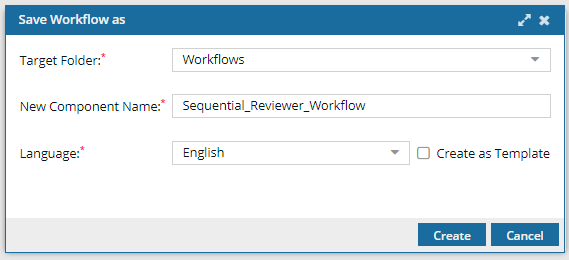
On the Save Workflow as screen, complete the following information:
-
In the New Component Name text box, enter a name for the workflow.
The maximum length for the component name is 100 characters.
-
From the Language list, select the default language for the component.
When you open this component to edit it, Inspire loads the spelling dictionary for the language you choose. For example, if you choose a Language of French, when you're editing this component and turn on spell check, English words spelled correctly will be underlined in red as a warning of a misspelling. French words spelled correctly won't be underlined in red
-
In the New Component Name text box, enter a name for the workflow.
-
Click Create.
Result: In the Workflows folder, you see the copied workflow in the list. To edit your newly copied workflow, read the topics in Create your own workflow template.