Manage template workgroups
Inspire provides you with workgroups so that you can collect participants who have a common skill set that is needed to complete the work described in an Activity.
 You must have permission to work with workflow templates.
- By default, only users with the following permissions can create project workflows and assignments:
- Administrator permissions
- Access to the Project Module with the Create permission
- Even if you don't have these permissions, you can be granted a special permission to create workflows and project assignments after a project is created.
- If you are an administrator, refer to Allow users to create project assignments and workflows.

 In a template, you can use workgroups to collect specific users who share a common skill or job title.
Inspire provides you with empty workgroups for each default template. You can modify or delete these workgroups. If you want to use the default workgroups, you must add users to them.
- Topic workflow. Inspire provides you with the following empty workgroups:
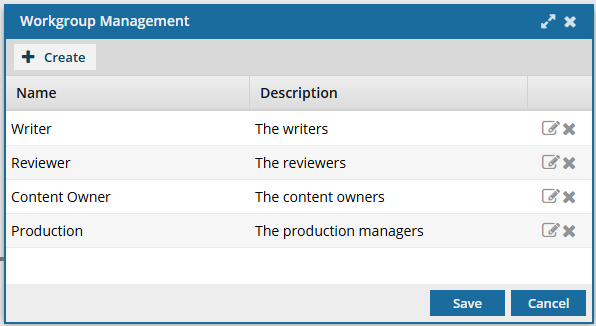
- Writer
- Reviewer
- Content Owner
- Publisher
- Sequential reviewer workflow. Inspire provides you with the following empty workgroups:
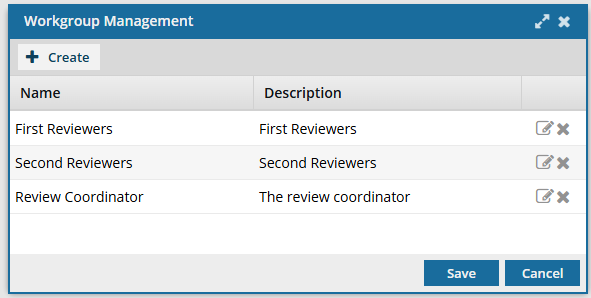
- First Reviewers
- Second Reviewers
- Review Coordinator
 You can also create custom workgroups using the toolbar options to manage them.

 Workgroups are especially important for the Assign User by Metadata feature.
- This option lets you pull in a component's element or attribute that contains an email address. Inspire automatically assigns the Activity to that user, rather than requiring a user in an active workflow to make the assignment.
- Inspire inspects the first component in the assignment and evaluates the XPath statement. If it encounters any errors, the Activity is assigned to the user in the Fallback User field on the Next Activity screen, rather than in the Assign To field.
- For more information, read: Assign a workflow activity using metadata.
After you have the Workgroups you need, you must identify who completes the work for each Activity by assigning a Workgroup to it.
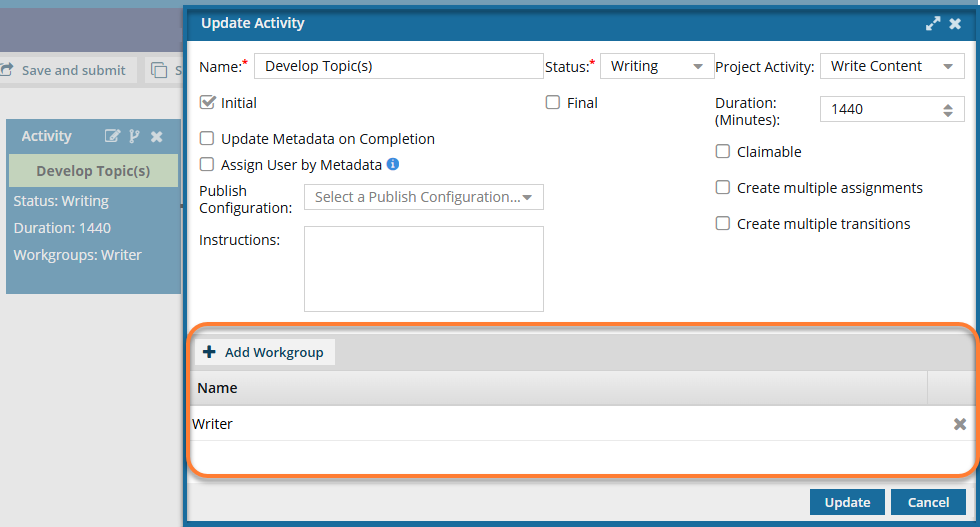
 Before you begin
You can assign a role to a workgroup, just like assigning users.
- This lets you add many users at once to a workgroup.
After you assign roles to workgroups, you can select from any username in the role when you:
Create workflow templates
Update workflow templates
Start a workflow
If a user is in a role but not a participant in the project where a workflow is being created, then Inspire adds that user to the project
You have the option to specify that a Workgroup should only include the Coordinator who creates the workflow using this template.
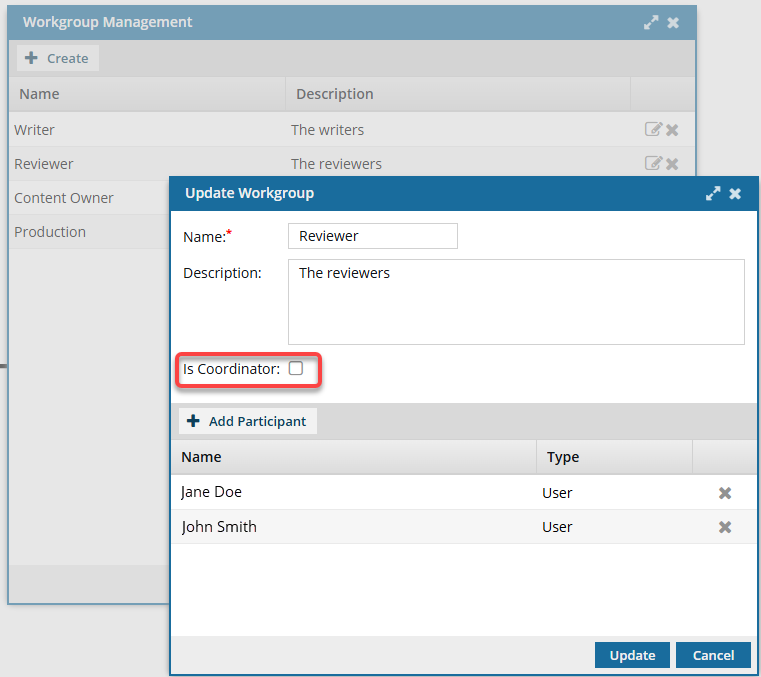
- If you select Is Coordinator, then you cannot add participants to the Workgroup.
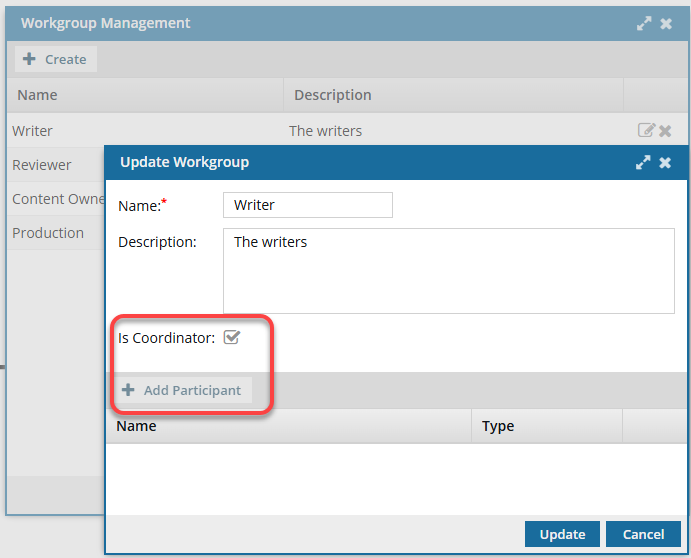
- If you select Is Coordinator, then you cannot add participants to the Workgroup.
- Workgroups are specific to the template where they are created. If you want to use the same Workgroup in multiple templates, you must open each template and create the Workgroup.
- After you assign users to workgroups, their names are pre-populated in workflow templates and when a workflow is started.