Unlock one component from a project
When you open a project component for editing, Inspire locks the file so that other users can't open it and edit it at the same time. If you make changes and only click Save to keep the changes locally, the project component remains locked. The lock only comes off if you click Save and Submit to upload the changes to the Inspire database. To allow another user to edit a project component, you can unlock it.
 Restrictions
- A content owner or administrator can set permissions to deny access to components or folders. If your permissions to content have been blocked, and you are not an administrator, you cannot use the Unlock option.
- You cannot submit the changes before unlocking components from the Content pane in a project.

Rules for unlocking content:
 If you have locked the component, you may unlock it.
 If the user made changes and didn't click Save and Submit, you cannot save the changes here in the project.
  If you want to save the changes before unlocking, you must go to the Components browser and unlock each component with pending changes one at a time. Follow the steps in Unlock one component from the Components browser.
 If a component is locked by someone else, and you are an Administrator, you can unlock it. If the user made changes and didn't click Save and Submit, you cannot save the changes here in the project. If you want to save the changes before unlocking, you must go to the Components browser and unlock each component with pending changes one at a time. Follow the steps in Unlock one component from the Components browser.
 If a component is locked with a system lock, and you are either an Administrator or have been added to the can_unlock_system module property, you can unlock it.
- If the component has pending changes, you cannot save them first. Unlocking the component causes any unsubmitted changes to be lost.
 If a component is locked with an approval lock, and you are either an Administrator or have been added to the can_unlock_system module property, you can unlock it.
- If the component has pending changes, you cannot save them first. Unlocking the component causes any unsubmitted changes to be lost.
To unlock one component from a project:
-
Click
 Projects.
-
Select the locked component.
 To see the complete name of the components and use advanced search to search through all folders within a project, click
  the Select Project Components option.
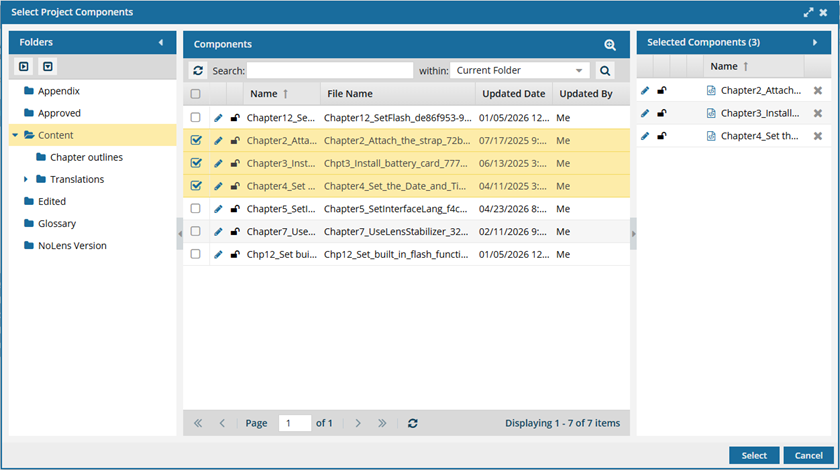
- To see more text in the Components pane, collapse the Folders panel by clicking
 the arrow that's pointing left.
- To quickly expand or collapse the folders, use the
 expand all and
  collapse all buttons.
- To find a component by keyword, in Search, enter words or phrases used in the component's name. In Within, select where in the project you want to search (Current Folder, Current and Subfolders, All Folders). Click Search
 .
. - To find a component by creating a query, click
 Advanced Search.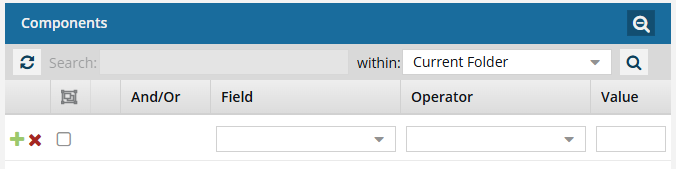
- Fields correspond to the columns in the grid. In the Field list, select the column you want to search in, such as Component State.
- After you select a Field, you must describe the relationship it has with the Value. In the Operator list, to include or exclude some or all of the values that you want to use, select an operator, such as
<>(not equal to). - The options in the Value list change depending on what you selected in Field. In the Value, select or enter the word, phrase, or number you are searching for in relation to the Field. For example, Component State (Field)
<>(Operator) Invalid (Value). - In Within, select where in the project you want to search (Current Folder, Current and Subfolders, All Folders).
- Optionally, to enter another clause to your query, click
 Add. Select whether you want to narrow your search by requiring that all statements must be true (And), or expand your search by requiring that any of the statements can be true (Or).
 - Click Search .
- To select multiple components to manage, select the checkbox for each component.Result: The components are listed on the Selected Components panel.
- To close the Select Project Components screen, click Select.
- To see more text in the Components pane, collapse the Folders panel by clicking
-
Right-click the component, select Actions, and then select Unlock.
 If the user made changes and didn't click Save and Submit, and the lock is a user lock (, ) you cannot save the changes here in the project. If you want to save the changes before unlocking, you must go to the Components browser and unlock each component with pending changes one at a time. On the Unlock Component screen, click No and then follow the steps in Unlock one component from the Components browser. If the user made changes and didn't click Save and Submit, and the lock is a system lock or an approval lock, you see the following Unlock Component screen: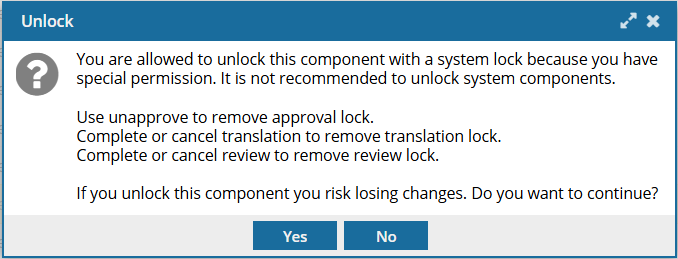
- You are allowed to unlock this component with a system lock because you have special permission.
- It is not recommended that you unlock system components.
- Use the Unapprove option to remove an approval lock.
- Complete or cancel a translation job to remove a translation lock.
- Complete or cancel the review to remove a review lock.
- If you unlock this component you risk losing changes.
To unlock the component and lose all changes made while the component was locked, click Yes to the warning.
Results: - Any changes made while the component was locked are lost.
- The component you selected is now unlocked
 .
.
If there are no pending changes, the component is unlocked, and you see an open lock.