Save a list of projects as a CSV file
For reporting or administration purposes, you can save a list of all projects on the Project Management tab in a comma-separated value (CSV) file. Inspire creates the plain-text CSV file that lists the data in the grid, such as the date when the project was changed, the user who made the changes, and what action was taken.
Before you begin
- You can select the projects to include in the CSV file by searching for a key word or phrase to filter the list.
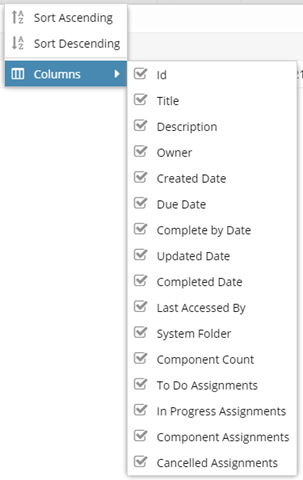
- You can't select which columns to include. All columns that can be displayed are included in the CSV file.
- The CSV file isn't sent in an internal or email notification, but it's automatically downloaded from your browser.
- You can use the CSV file to export data from Inspire and import the data into another application where you can edit or store the data for more complex reporting.

To save a list of projects as a CSV file:
-
Click
 Projects.
-
On the Project Management tab, all projects in your organization are listed. To download a list of specific projects, you can:
- Filter the list of available projects by words in the project name. In the Search text box, enter a keyword, and then click the magnifying glass
 .
. - Filter the list of available projects to include only those you own or are participating in. In Type, select an option to filter the list by that criteria.
- Include completed projects in the list by selecting Include Completed and then clicking the magnifying glass .
- Filter the list of available projects by words in the project name. In the Search text box, enter a keyword, and then click the magnifying glass
-
Click the save as CSV icon
 .
.
-
To choose what time zone is used, on the Convert time confirmation screen, select one of the following:
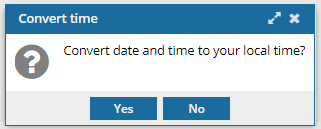
 You see the date displayed in the header of the CSV as: All date/times are shown in {timezone} or UTC.
UTC is a time zone standard used as a basis for all time zones worldwide. It is a constant time scale and does not change for Daylight Saving Time.
- To use your local time, click Yes.
- To use UTC time, click No.
Result: You see a notification telling you the name of the file that was downloaded to your computer.